
How to Edit The Shopping Cart Page on Squarespace | Quick CSS Tips
Last updated 19/03/2026
TL;DR
You can customise the Squarespace shopping cart page using these simple CSS and layout tweaks
Small design changes can improve user experience and increase conversions
You can adjust styling such as buttons, spacing, and layout to match your brand
A clearer, more user friendly cart reduces drop offs at checkout
This approach works without needing advanced development
If you run an online shop on Squarespace, the shopping cart page is one of the most important parts of your website. It is the final step before a customer decides whether to complete their purchase or abandon their basket.
The problem is that the Squarespace shopping cart page does not offer many built in design options. The layout is fairly fixed, and if you want to improve how it looks or functions you often need to use CSS or plugins.
In this guide, I will show you how to edit shopping cart page on Squarespace using simple CSS tips that can make a big difference to usability and design. I will also show you a much easier way to improve the experience using a sliding cart plugin.
Why the Squarespace Shopping Cart Page Matters
Your shopping cart is the moment where customers decide if they trust your store enough to buy.
A poorly designed cart can cause hesitation or confusion, which often leads to abandoned checkouts.
Improving your shopping cart on Squarespace can help you:
Make checkout clearer
Improve customer experience
Reduce abandoned carts
Increase conversions
Even small visual improvements can make the buying process feel smoother and more professional.
Tip 1: Customise the Cart Heading Style
The default cart title in the Squarespace shopping cart page is quite basic. By adjusting the styling with CSS you can make it match your brand colours and typography.
For example, this snippet changes the title colour, centres the text, and converts it to uppercase for a stronger visual presence.
(Go to pages > Scroll Down To Custom Code > Custom CSS > Paste Your Code.)
Tip 2: Update the Cart Container Design
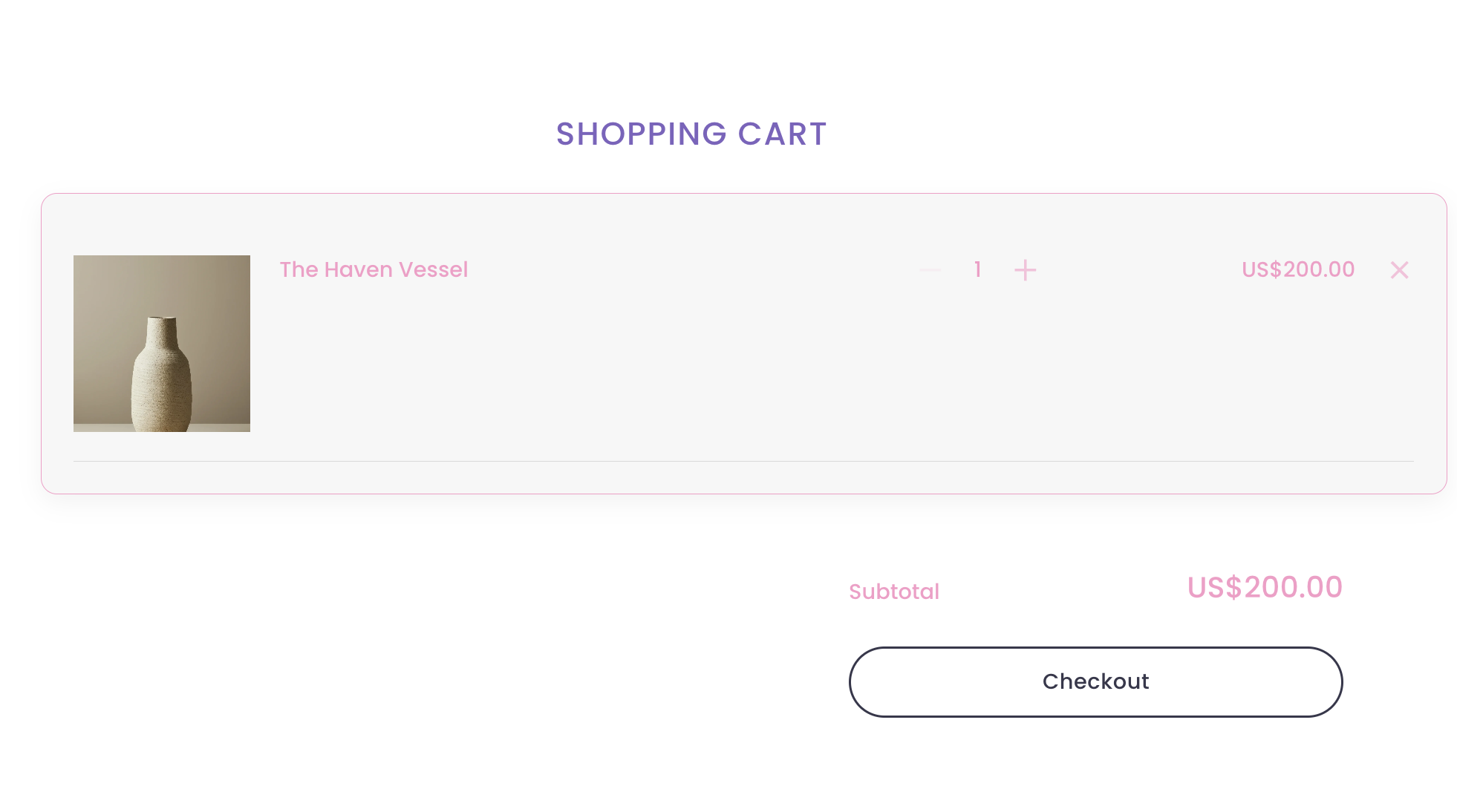
The main cart container can also be styled to make the checkout area feel more like a designed component rather than a plain system layout.
This version introduces a lighter background tone, extra padding and a softer border.
Tip 3: Improve the Product Title Appearance
Product titles are key information inside the cart, so making them clearer and slightly bolder can improve readability.
Tip 4: Simplify the Product Rows
Squarespace adds dividers between cart items by default, which can make the layout feel busy.
Removing these lines creates a more minimal design.
Tip 5: Style the Product Images
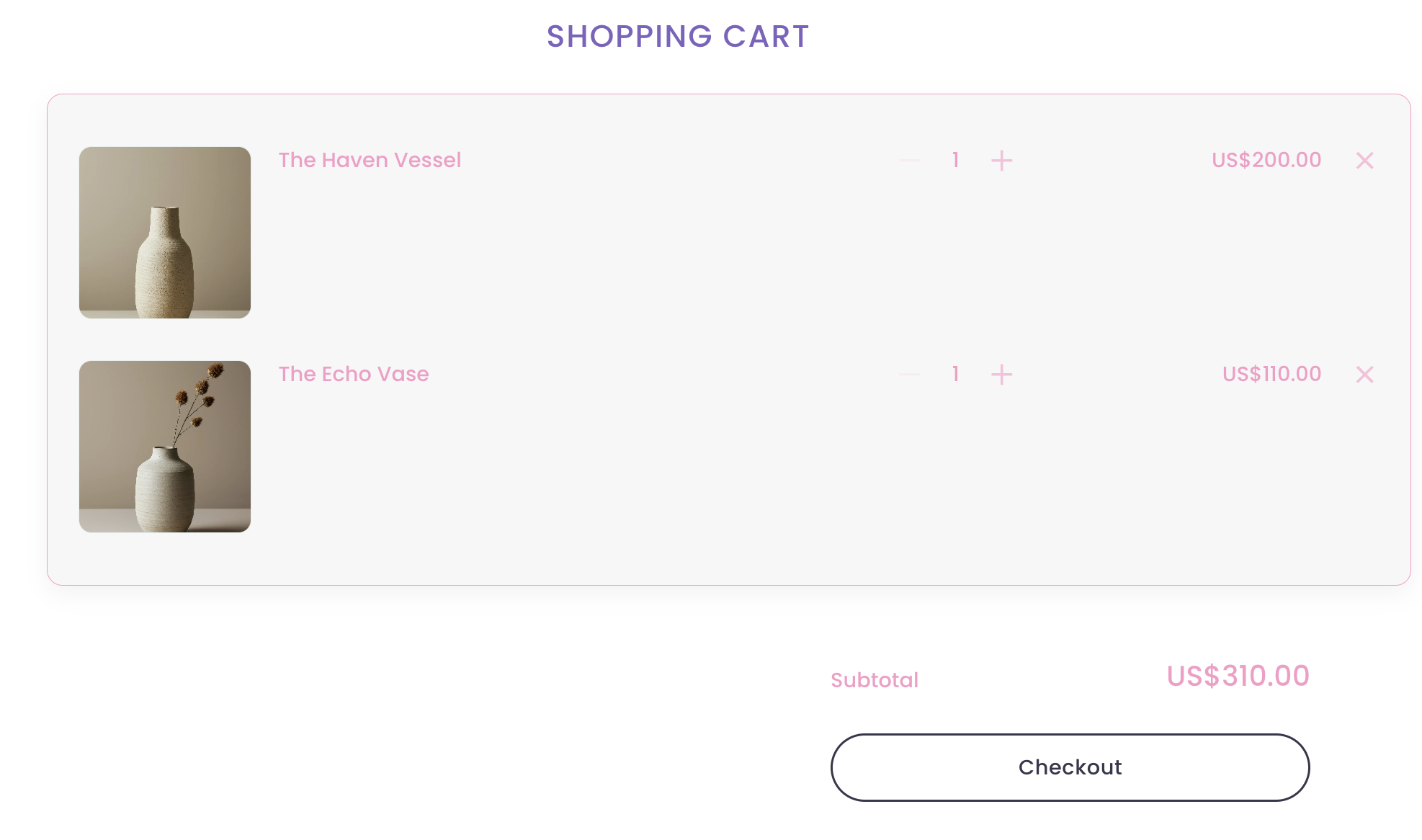
Giving cart images slightly rounded corners and a subtle border helps them feel more polished. Add the below code to your custom CSS to achieve this look.
Tip 6: Improve the Add to Cart Button Experience
Your Add to Cart button plays a key role in getting customers into the checkout journey.
If you want to customise it further, I recommend reading my guide on
Squarespace add to cart button code tricks where I share several creative ways to enhance the button experience.
If you really want to upgrade the Squarespace shopping cart - Turn the Cart Into a Sliding Drawer (Better User Experience)

One of the biggest limitations with the default Squarespace shopping cart page is that it takes users away from the product page.
This breaks the shopping experience.
A much smoother option is using a cart drawer or slider, where the cart slides in from the side of the screen.
This keeps customers on the same page while they review their items.
Benefits include:
Faster shopping experience
Less interruption for users
A more modern ecommerce design
Higher potential conversion rates
The Easiest Way to Add a Sliding Cart in Squarespace
If you want a quick solution without writing lots of code, you can use my plugin: Squarespace Shopping Cart Slider Plugin. This plugin transforms the standard Squarespace cart into a smooth sliding panel that appears from the side of the screen.
Features include:
Sliding cart drawer experience
Unique Announcement Promo Link
Cleaner shopping flow
Easy installation
Designed specifically for Squarespace
Instead of sending customers to a separate shopping cart page, the cart appears instantly and keeps them browsing. It also features a unique promotional link insight the cart - great for upselling your products or add on services!
Alternative Cart Drawer Plugin
Another option is this custom cart drawer plugin by Square Websites.
This plugin also converts the standard shopping cart on Squarespace into a slide out cart drawer and offers additional customisation features.
If you are exploring different Squarespace tools for ecommerce improvements, it can be worth comparing options to see which fits your store best.
Where to Add CSS to Edit the Squarespace Shopping Cart Page
If you want to customise the Squarespace shopping cart page, you will need to add your CSS inside the Squarespace Custom CSS panel.
Here is how to do it.
Log into your Squarespace website
Go to Design
Click Custom CSS
Paste your CSS code into the editor
Click Save
Once saved, the styles will apply across your site and update the appearance of the shopping cart on Squarespace.
If you only want to make visual improvements such as colours, spacing or typography, CSS is usually the easiest solution. However, if you want to change the functionality of the cart itself, such as turning it into a sliding drawer experience, a plugin is usually the better option.
That is exactly why I created the Squarespace Shopping Cart Slider Plugin, which replaces the standard cart page with a smooth slide out cart that keeps customers on the same page while they shop.
-
Yes, you can customise the Squarespace shopping cart page using CSS to adjust layout, colours and typography. For functional changes like slide out carts you can use Squarespace plugins.
-
Yes. A cart drawer can be added using a plugin that converts the standard shopping cart page into a slide out cart experience.
-
Squarespace allows design level customisation using CSS. More advanced changes such as cart sliders or upsell features typically require plugins.
Final Thoughts
Learning how to edit the shopping cart page on Squarespace can help you create a smoother buying experience and improve your online shop's performance.
You can achieve small improvements with CSS, but if you want a faster and more modern solution, a sliding cart plugin can completely transform the experience.
Whether you are tweaking styles, improving buttons, or adding a cart drawer, even small upgrades can help turn more visitors into customers.
You might also be interested in these articles:
Check out my latest Squarespace Plugins:


Did I help you? Consider buying me a coffee as thanks!