

Simple Guide To Add A Scrolling Logos Squarespace Plugin
Last updated 13/03/2026
The scrolling logos Squarespace plugin allows you to create a smooth, continuous logo carousel that showcases partners, clients, or sponsors. It is ideal for building trust, adding social proof, and creating a more dynamic, professional looking website without complex development.
Short on time? Skip the code and section IDs. The Scrolling Logos Carousel Plugin gives you two rows of logos scrolling in opposite directions, and you can update your logos any time without touching code.
FREE Scrolling Logos Squarespace Plugin
Why Add Scrolling Logos to Your Squarespace Website?
If you want your website to stand out, adding scrolling logos is a great feature to showcase multiple brand partners, clients, or images in a single, sleek line. This type of animated feature is visually engaging, eye-catching, and an excellent way to create a unique user experience. With just a few steps, you can easily integrate a scrolling banner of logos on your Squarespace site. Here’s how it’s done…
Step 1: Create a Gallery Section
Start by adding a gallery section to your Squarespace website. You can do this by clicking on the ‘Add Section’ button, then Images and choosing the grid gallery layout option in ‘edit section’. Upload all the logos or images you want to feature within your gallery.


Step 2: Find Your Section ID
To create the scrolling effect on your specific gallery section, you need to locate the section ID of the gallery you just added.
Here's how to find your section ID:
Install the Chrome extension called Squarespace ID Finder.
Navigate to your gallery section on your live site.
Use the ID Finder tool to reveal the unique section ID.

💡 Tip: Finding section IDs and editing code can be fiddly, especially if you want to change your logos later. If you'd rather skip this part, my Scrolling Logos Carousel Plugin is built on Squarespace's native list section, so there are no IDs to hunt down.
Step 3: Add Custom Code to Your Page Header Code Injection
Keep your section ID copied down somewhere. Now add the code to create the scrolling animation effect.
Go to your page settings by clicking the gear icon (⚙) next to your page in the Squarespace editor.
Click on Advanced, then Page Header Code Injection.
Paste the following code into the header like below:

Page Header Code:
Step 4: Replace the Section ID
In the code snippet above, you’ll see your section ID in two places. Replace this placeholder with the section ID you found using the Squarespace ID Finder.
Step 5: Add The CSS Code
To style your scrolling logo gallery you need to add the following CSS to your site’s Custom CSS section:
Go to > pages > website tools > custom CSS and paste the following code.
IMPORTANT: Remember to add your gallery section ID in the CSS area where indicated.
Customizing the CSS to Fit Your Preferences
You can easily customize the appearance and animation of the scrolling logos by updating the CSS. Look out for the greyed out notes on the CSS as a guide to make your own customisations.
Preview and Adjust
Once you've added the code, preview your site to see the scrolling logos in action. If needed, adjust the logo height, padding, or animation speed in the CSS styles.
Free Code vs the Scrolling Logos Plugin: Which Should You Use?
The free code above works well if you're comfortable with a bit of code and only need a single row. Here's how the two compare:
Free code
One row of scrolling logos
Uses a gallery section, and you'll need a Chrome extension to find its section ID
Code goes in two places, with your section ID pasted in each
Updating later means going back into the code
Scrolling Logos Carousel Plugin
One or two rows, scrolling in opposite directions
Built on Squarespace's native list section, so there are no section IDs to find
Add, remove or reorder logos in the normal Squarespace editor
Installs in minutes
Scrolling Logos FAQs
-
Not a scrolling one. Squarespace has a Scrolling block for scrolling text, but no built-in way to continuously scroll a row of logos. You need custom code or a plugin.
-
Add your logos to a gallery section, then add custom code to make them scroll, as shown in the steps above. Or use a scrolling logos plugin, which does it without code or section IDs.
-
Yes, with the Scrolling Logos Carousel Plugin you can have two rows scrolling in opposite directions. The free code in this tutorial creates a single row.
-
With the free code, you update the images in your gallery section. With the plugin, your logos sit in a native Squarespace list section, so you can add, remove or reorder them in the normal editor.
Why This Feature Is Worth It
Adding scrolling logos to your Squarespace site helps create an engaging, interactive experience. It’s a creative way to display multiple images or logos without overwhelming the page. Plus, it’s a subtle yet effective way to highlight partnerships or important visuals.
Summary
By following these steps, you can easily implement a scrolling banner of logos on your Squarespace website. This feature is perfect for improving visual appeal and giving your brand’s credibility a boost. For more customization options and tips, keep experimenting with the code styles.
Let me know how your animated scrolling logos turned out!
Did I help you? Consider buying me a coffee as thanks!
Other articles you may be interested in:

Upgrade Your Site With a Squarespace Scrolling Logos Carousel Plugin
Add a smooth, professional scrolling logos carousel to your Squarespace website with this powerful and easy to install plugin.
If you want to showcase partner logos, sponsors, press features, or client brands, this plugin transforms a standard Squarespace gallery into a beautiful auto scrolling logo carousel that instantly elevates your website.
Designed specifically for Squarespace 7.1, the plugin creates seamless scrolling logos on Squarespace with customisable speed, layout and hover interactions.
Simple installation with full guide.
(This plugin is only compatible with Squarespace 7.1 sites.)

Looking for an easy way to add filters to Squarespace?
The Genius Squarespace Filter Plugin helps you turn busy portfolio pages, blogs, event pages and galleries into a cleaner, easier to browse experience.
Visitors can quickly filter your content by category, topic, service, location, resource type or any labels you choose, instead of scrolling through everything.
Perfect for portfolios, blog archives, event listings, galleries (grid, masonry & strips only) resource hubs and larger content collections, this plugin gives your visitors a smoother way to explore your content without the cost or complexity of custom development.
Button Portfolio Filter Demo ➜
Dropdown Portfolio Filter Demo ➜
Key Features:
Simple to install and customise
Filter options for portfolio pages, galleries, blogs and events
Includes the new advanced dropdown portfolio filter
Ideal for Squarespace sites needing more in depth filtering options with a simple user experience
Beginner friendly setup with copy and paste instructions
Designed for Squarespace 7.1 websites
For more Squarespace tips check out my blog, or sign up to my newsletter.
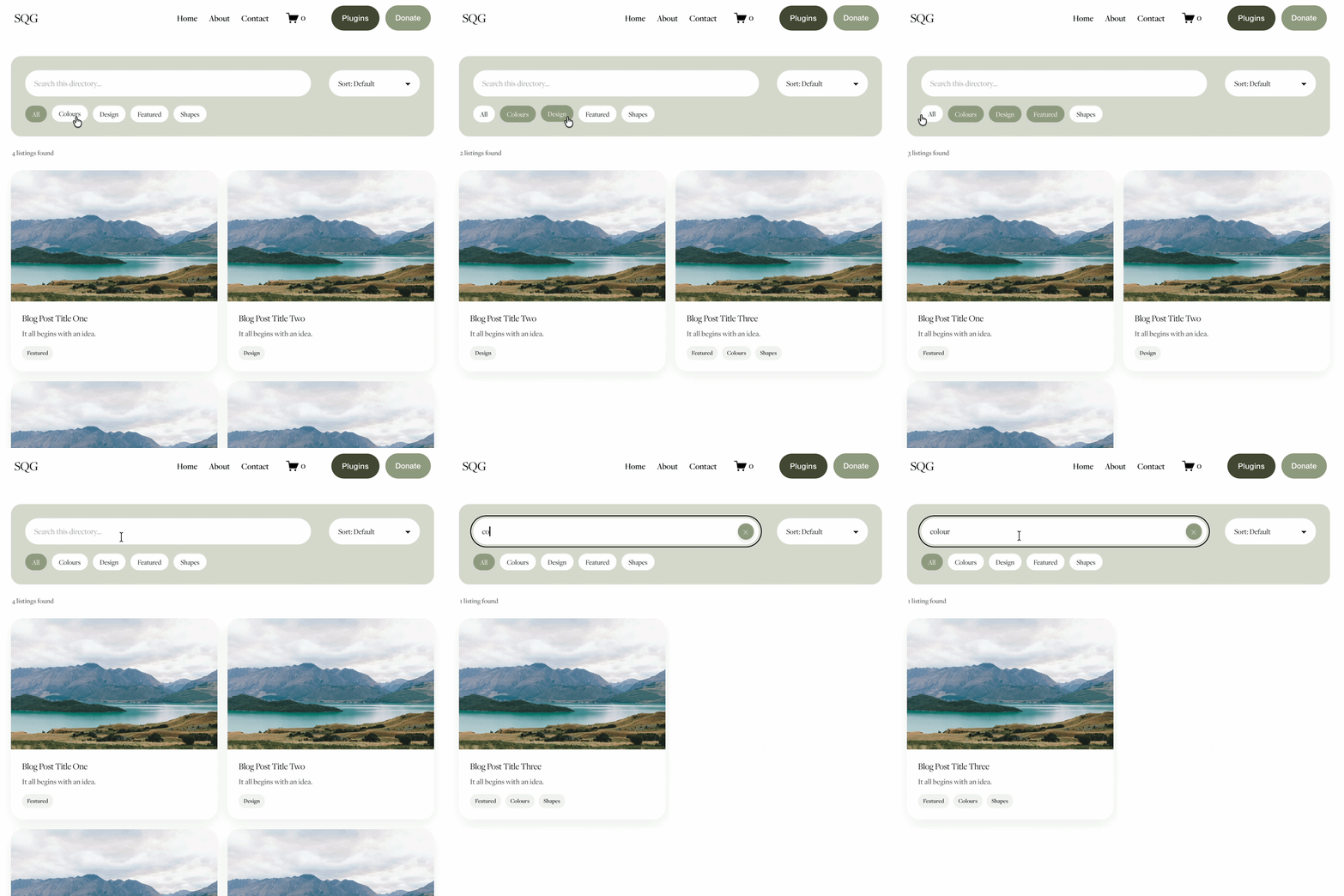





Turn Squarespace List Sections into searchable content libraries
Create a more organised, searchable experience on your Squarespace website with the Content Library Filter Plugin.
Designed specifically for Squarespace 7.1 List Sections, this plugin adds clickable category filters, instant keyword search, alphabetical sorting and Show More functionality to your existing content.
Whether you're creating a resource library, collection of downloadable guides, video hub, team directory or useful links page, visitors can quickly find what they're looking for without endless scrolling.
The best part? You continue managing your content directly in Squarespace. Simply add and edit your List Section cards as normal, assign categories using a small label in the description, and let the plugin handle the filtering.
Searchable. Filterable. Fully customisable. No separate CMS required.
View Demo ➜
Important:
This plugin only works with the built in list section page on Squarespace (It does not work with summary blocks or any other page type)
This plugin is only compatible with Squarespace 7.1 sites.
One-off cost for a full license to use on multiple Squarespace 7.1 websites