

Add Interactive Clickable Hotspots to Images on Squarespace
Last updated 01/03/2026

How to Add Interactive Clickable Hotspots to Images on Squarespace.
If you have ever searched for how to add clickable hotspots to an image in Squarespace, you have probably discovered that there is no powerful built in solution.
And yet interactive images are one of the most effective ways to showcase product features, explain services visually, or guide visitors around complex layouts.
Squarespace image hotspots allow you to turn a static image into an interactive experience. Instead of overwhelming visitors with paragraphs of text, you can layer information directly onto the image itself.
Whether you are running an ecommerce store, promoting an event, explaining a service process or displaying a venue map, an image hotspots plugin for Squarespace can dramatically improve engagement and clarity.
What Are Image Hotspots?

Image hotspots are clickable or hover activated points placed over an image. When a user interacts with them, additional information appears. This could be a tooltip, description, link, pricing detail or feature explanation.
The power of image hotspots lies in their ability to keep your design clean while still delivering rich, contextual information. Rather than pushing everything into a long description below the image, you allow the image to do the talking.
This is especially useful when highlighting product features, explaining components, or breaking down a complex visual layout.
Why Squarespace Needs an Image Hotspots Plugin
Squarespace is beautifully designed, but when it comes to advanced interactive images, functionality is limited.
If you have endlessly searched for Squarespace clickable image points. You are not alone.
Creating image hotspots manually requires custom JavaScript, positioning code and careful mobile adjustments. For most business owners, this is either time consuming or simply not realistic.
A dedicated Squarespace image hotspots plugin solves this problem. It allows you to add fully responsive clickable hotspots without breaking your layout or relying on complex code.
Using Image Hotspots to Showcase Product Features

One of the most powerful uses of image hotspots is product feature highlighting.
Instead of listing specifications underneath an image, you can place subtle clickable points directly on the product. Visitors can explore materials, dimensions, finishes, technical components or unique selling points in a far more intuitive way.
This approach works exceptionally well for ecommerce brands that want to elevate their product presentation beyond standard image galleries.
For example, if you are using Squarespace Commerce and want hotspots directly inside your product images, Will Myers’ Hotspot Plugin is a fantastic option. It integrates beautifully with Squarespace product pages and allows you to add interactive points that work seamlessly within your existing product gallery layout.
If your main goal is enhancing product pages specifically, you can explore his solution here.
For broader use cases such as interactive maps, service diagrams, event layouts or custom designed visuals across multiple page types, a flexible image hotspots plugin gives you more creative control beyond just product templates.
Interactive product images reduce friction. They guide attention. They help customers understand value quickly. And when users understand your product faster, they are far more likely to convert.
Creating Interactive Maps with Clickable Hotspots

Image hotspots are not limited to products. They are incredibly effective for maps and layouts.
Event organisers can upload a venue layout and make different areas clickable. Schools and universities can create interactive campus maps. Charities can highlight activity zones at fundraising events. Tourism sites can build engaging destination guides.
Instead of static diagrams, visitors get an interactive experience. They can click on a section and instantly see relevant information without leaving the page.
For organisations that need to communicate spatial information clearly, this can significantly improve usability.
Explaining Services Through Interactive Visuals
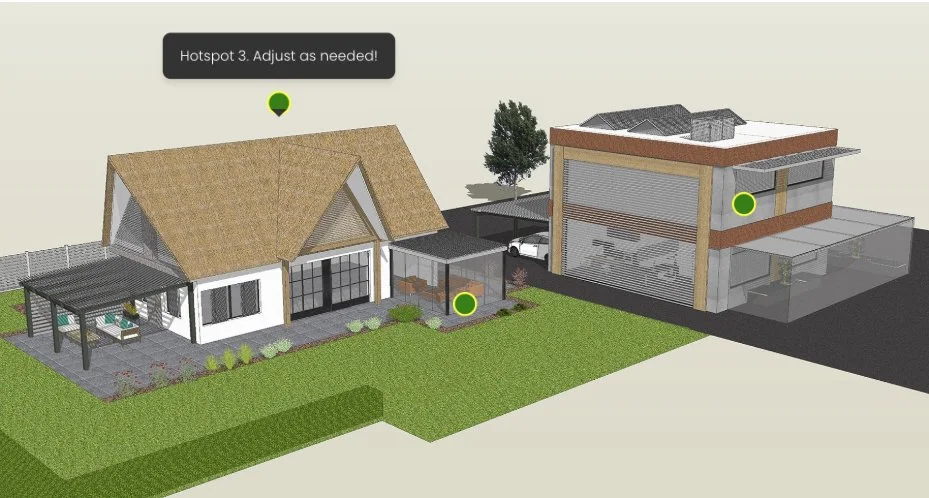
If you sell services rather than physical products, image hotspots are just as valuable.
You can use them to break down your process visually. Instead of listing steps in text form, you create a clean diagram with clickable points that explain each stage in more detail.
This approach keeps your page elegant while still delivering depth. It also increases dwell time, as visitors are encouraged to interact rather than passively scroll.
For agencies, consultants, designers and charities explaining programmes or impact areas, interactive images can elevate the perceived quality of your website instantly.
Do Image Hotspots Help SEO?
Image hotspots themselves do not directly improve rankings. However, they strongly support engagement based SEO signals.
When users interact with your page, stay longer and explore content more deeply, this improves behavioural metrics such as time on page and bounce rate. These signals contribute to how search engines evaluate content quality.
When traffic lands on a well structured page that answers questions clearly, you also improve AEO performance for AI driven search and featured snippets.
The Simplest Way to Add Image Hotspots to Squarespace

There are technically multiple ways to implement hotspots, but most involve custom code and ongoing maintenance.
A purpose built Image Hotspots Plugin for Squarespace is designed specifically for seamless integration. It ensures hotspots are responsive, easy to position, and simple to manage without advanced coding knowledge.
If you want a clean, scalable and professional solution, using a dedicated plugin is the most efficient route.
Frequently Asked Questions About Squarespace Image Hotspots
-
Squarespace does not include advanced image hotspot functionality as a built in feature. To add clickable hotspots to an image, you either need custom code or a dedicated Squarespace image hotspots plugin that allows you to position interactive points without complex development work.
-
Yes. You can add clickable hotspots to Squarespace product images using a specialised plugin designed to integrate with product galleries. This allows you to highlight features, materials or key selling points directly on the product image.
-
When implemented correctly, image hotspots are fully responsive. A well built plugin ensures hotspots reposition accurately across desktop, tablet and mobile screens so they remain easy to tap and read.
-
Yes. Interactive product images help customers understand features more quickly, reduce confusion and improve engagement. By highlighting key details visually, you can shorten the decision making process and potentially increase conversions.
-
Yes. You can upload a venue layout, campus map, event floor plan or custom graphic and add clickable hotspots to display additional information about specific areas.
-
Lightweight, properly coded plugins should not significantly impact load speed. Performance issues usually occur when heavy scripts or poorly optimised custom code are used.
-
The best plugin depends on your use case. Some plugins are designed specifically for product pages, while others offer more flexible placement across different page types such as maps, service diagrams or custom layouts.
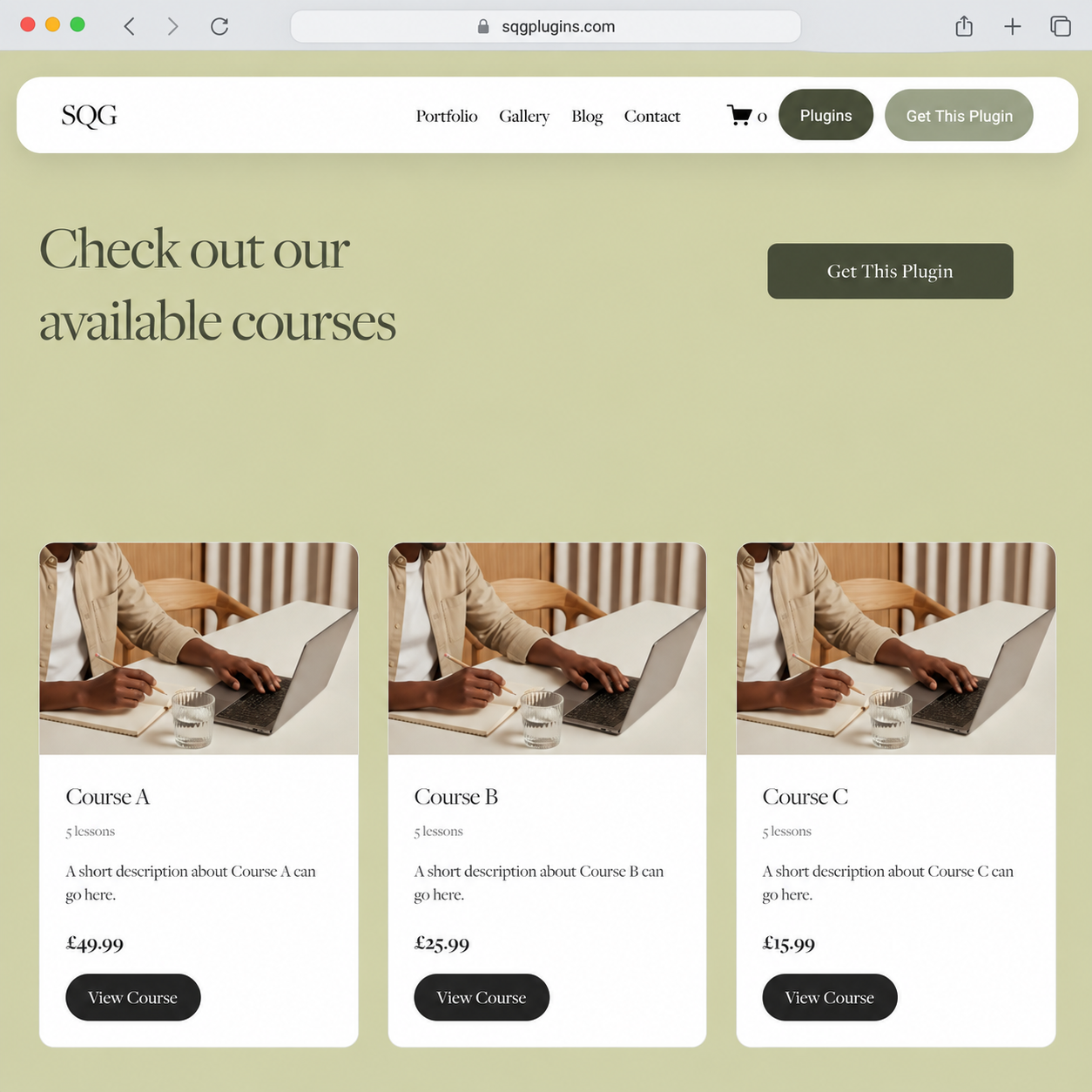
Check out my latest Squarespace Plugins:
Did I help you? Consider buying me a coffee as thanks!
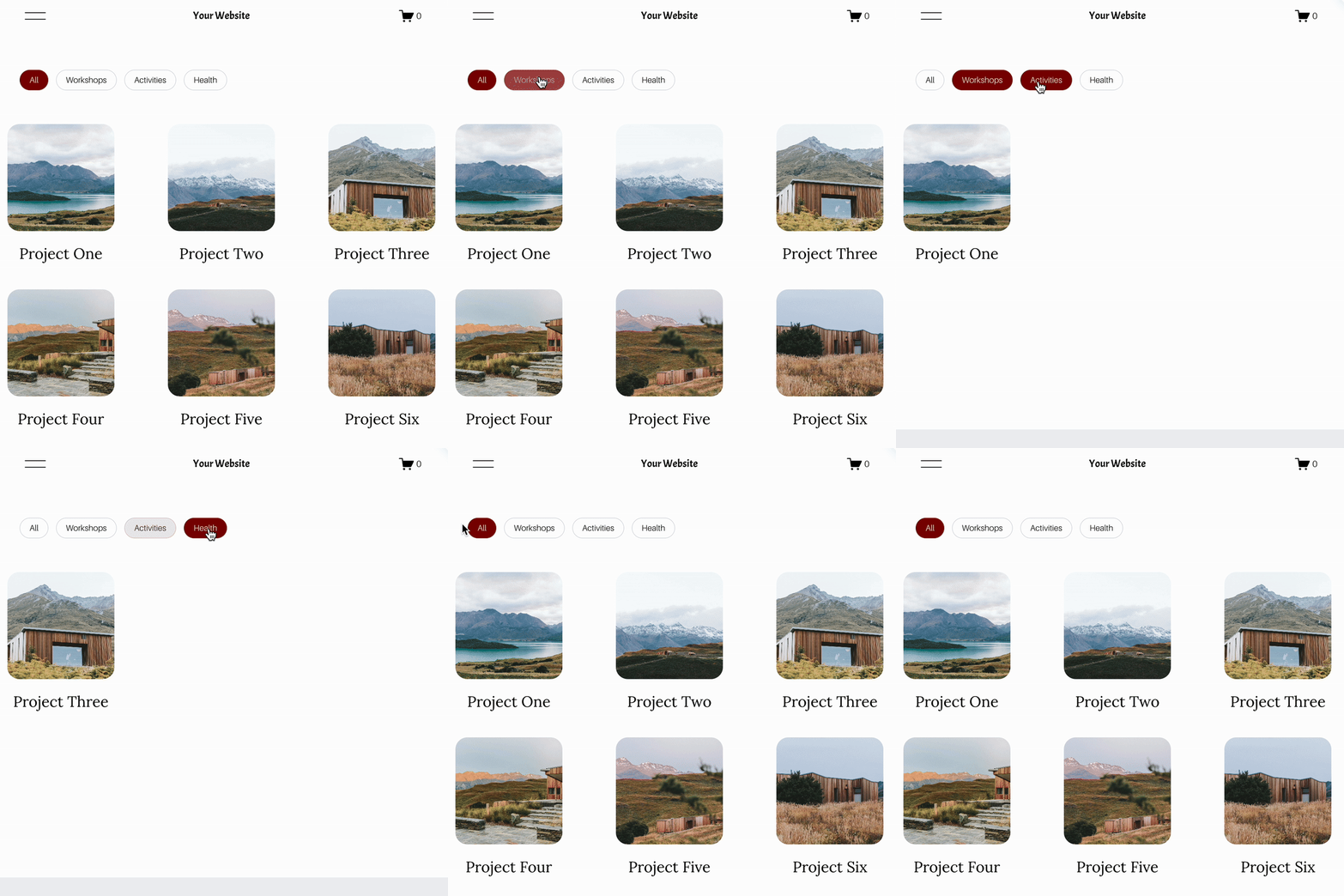

Looking for an easy way to add filters to Squarespace?
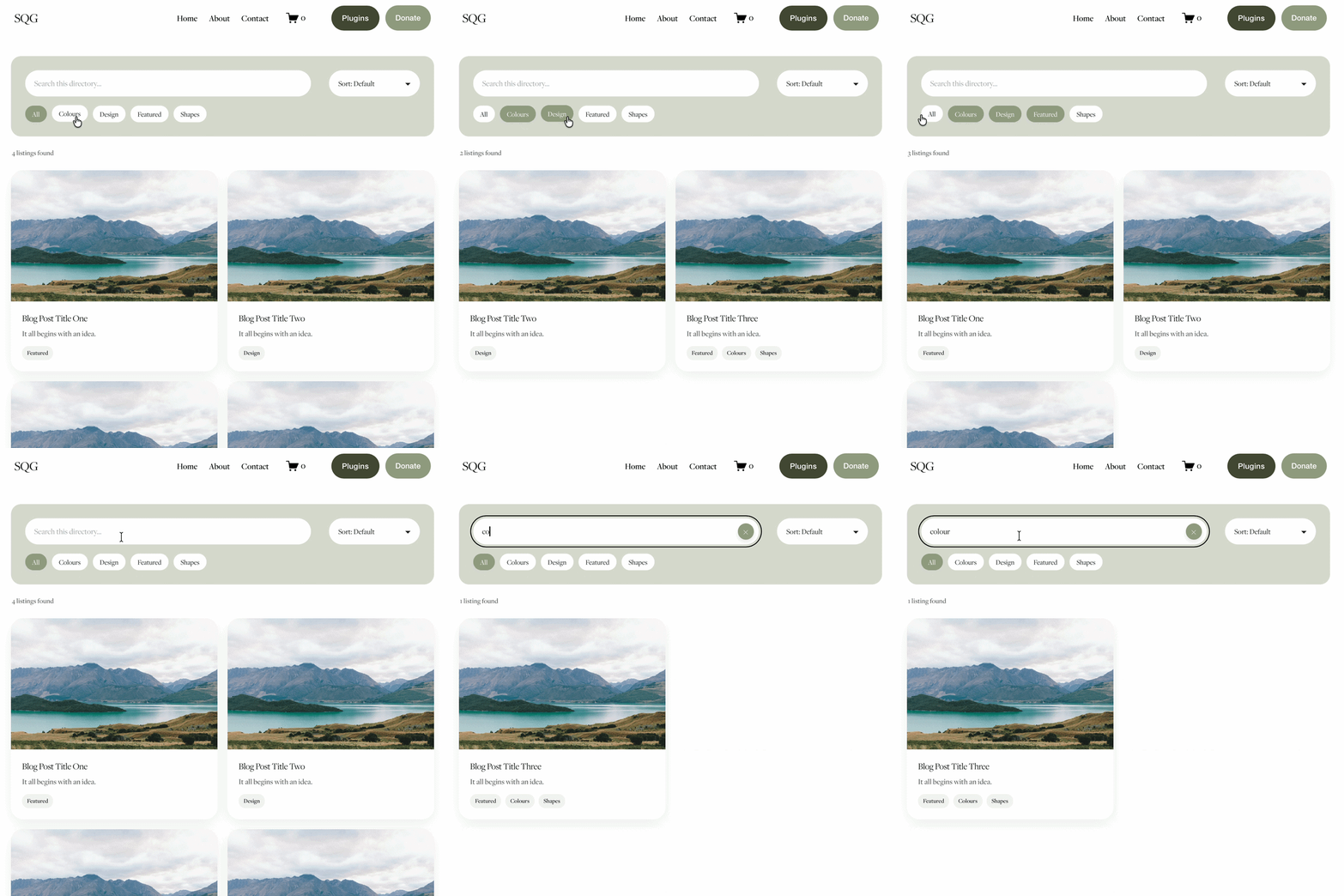
The Genius Squarespace Filter Plugin helps you turn busy portfolio pages, blogs, event pages and galleries into a cleaner, easier to browse experience.
Visitors can quickly filter your content by category, topic, service, location, resource type or any labels you choose, instead of scrolling through everything.
Perfect for portfolios, blog archives, event listings, galleries (grid, masonry & strips only) resource hubs and larger content collections, this plugin gives your visitors a smoother way to explore your content without the cost or complexity of custom development.
Portfolio Filter Demo ➜
NEW Advanced Dropdown Portfolio Filter Demo ➜
Gallery Filter Demo ➜
Blog Filter Demo ➜
Event Filter Demo ➜
Key Features:
Simple to install and customise
Filter options for portfolio pages, galleries, blogs and events
Includes the new advanced dropdown portfolio filter
Ideal for Squarespace sites needing more in depth filtering options with a simple user experience
Beginner friendly setup with copy and paste instructions
Designed for Squarespace 7.1 websites