

Updated 26/09/2026
How to Add Multiple Header Buttons on Squarespace - Free Guide
If you're looking to boost conversions and give your visitors clear paths to key actions like "Donate", "Get a Quote", or "Book a Call", then it’s time to add multiple header buttons on Squarespace.
This small but mighty tweak can really help improve your site's usability, and best of all, it’s completely free! In this tutorial, I’ll show you exactly how to do it with just a bit of copy-paste code.
Why Add Multiple Header Buttons on Squarespace?
Adding more than one button to your header is a great idea if you:
Want to highlight multiple CTAs (calls to action)
Run a charity or business where actions like "Donate" or "Support Us" are key
Want to guide visitors more effectively through your site
Need separate desktop and mobile button styles
Squarespace doesn’t give you this feature out of the box—but with a simple custom script and some CSS, we’ll make it happen.
Step-by-Step: Add Multiple Header Buttons on Squarespace
This solution works on both desktop and mobile views, and you can easily customise the text, links, and colours to match your brand.
1. Add JavaScript in the Footer Code Injection Area
Go to: Pages → Scroll Down To Website Tools → Code Injection → Footer
Then paste the following JavaScript:
Customising Your Buttons
Here’s what you can change easily:
Button text: Change
"Donate"to anything you like (e.g., "Book Now", "Contact", "Shop").Button URL: Update
/donatewith any internal or external link.Colors and fonts: Use your brand’s colors and fonts in the CSS.
Add more buttons: Just repeat the
createElementsection in the JS and change the label and URL link.
2. Add The CSS Code To style Your New Button
Now head to Pages → Scroll Down To Website Tools → Custom CSS and paste in the below CSS code. I've added comments to help you easily tweak styles for your brand.
Why This Tweak Is Worth Doing
In a world of short attention spans, making it easy for your visitors to take action is key. When you add multiple header buttons on Squarespace, you’re giving them direct access to what matters most—without cluttering your design or relying on clunky workarounds.
This is one of those small changes that can make a big difference—and you don’t need to pay a developer to make it happen.
Want to take your header further? Extra buttons are a great start, but if you'd like your whole navigation to feel more polished, the Squarespace Navigation Upgrade Kit gives your menu a modern, custom-designed look without rebuilding your header or wrestling with heavy code. It's beginner-friendly, copy-and-paste setup, and works alongside the header buttons you've just added.
You might also be interested in my article on how to add a progress bar to show viewers how far you’ve got to reach your goals - whatever they may be!
Did I help you? Consider buying me a coffee as thanks!
For more cool Squarespace tips check out my blog, or sign up to my newsletter.



Turn Squarespace List Sections into searchable content libraries
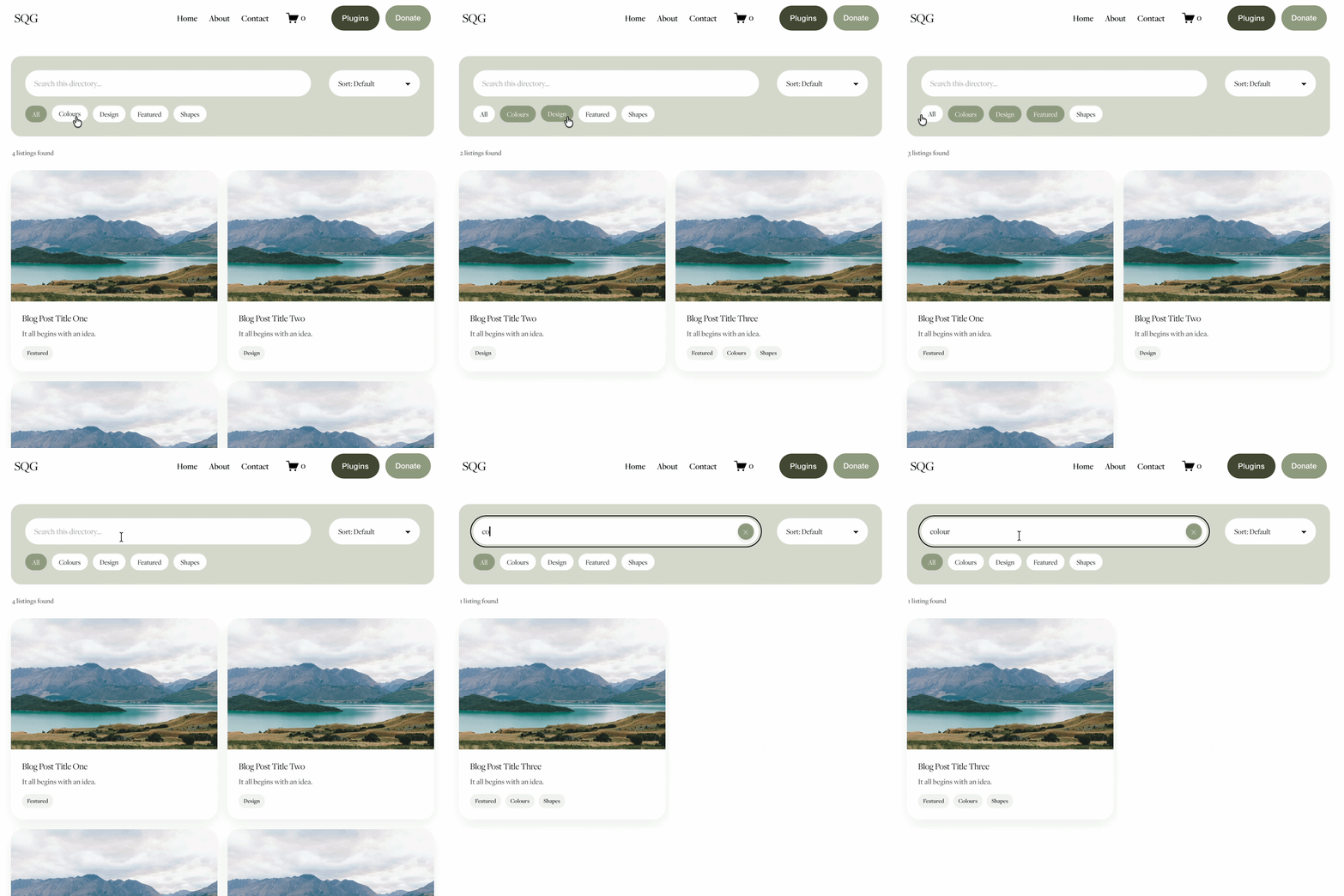
Create a more organised, searchable experience on your Squarespace website with the Content Library Filter Plugin.
Designed specifically for Squarespace 7.1 List Sections, this plugin adds clickable category filters, instant keyword search, alphabetical sorting and Show More functionality to your existing content.
Whether you're creating a resource library, collection of downloadable guides, video hub, team directory or useful links page, visitors can quickly find what they're looking for without endless scrolling.
The best part? You continue managing your content directly in Squarespace. Simply add and edit your List Section cards as normal, assign categories using a small label in the description, and let the plugin handle the filtering.
Searchable. Filterable. Fully customisable. No separate CMS required.
View Demo ➜
Important:
This plugin only works with the built in list section page on Squarespace (It does not work with summary blocks or any other page type)
This plugin is only compatible with Squarespace 7.1 sites.
One-off cost for a full license to use on multiple Squarespace 7.1 websites