Image 1 of 2
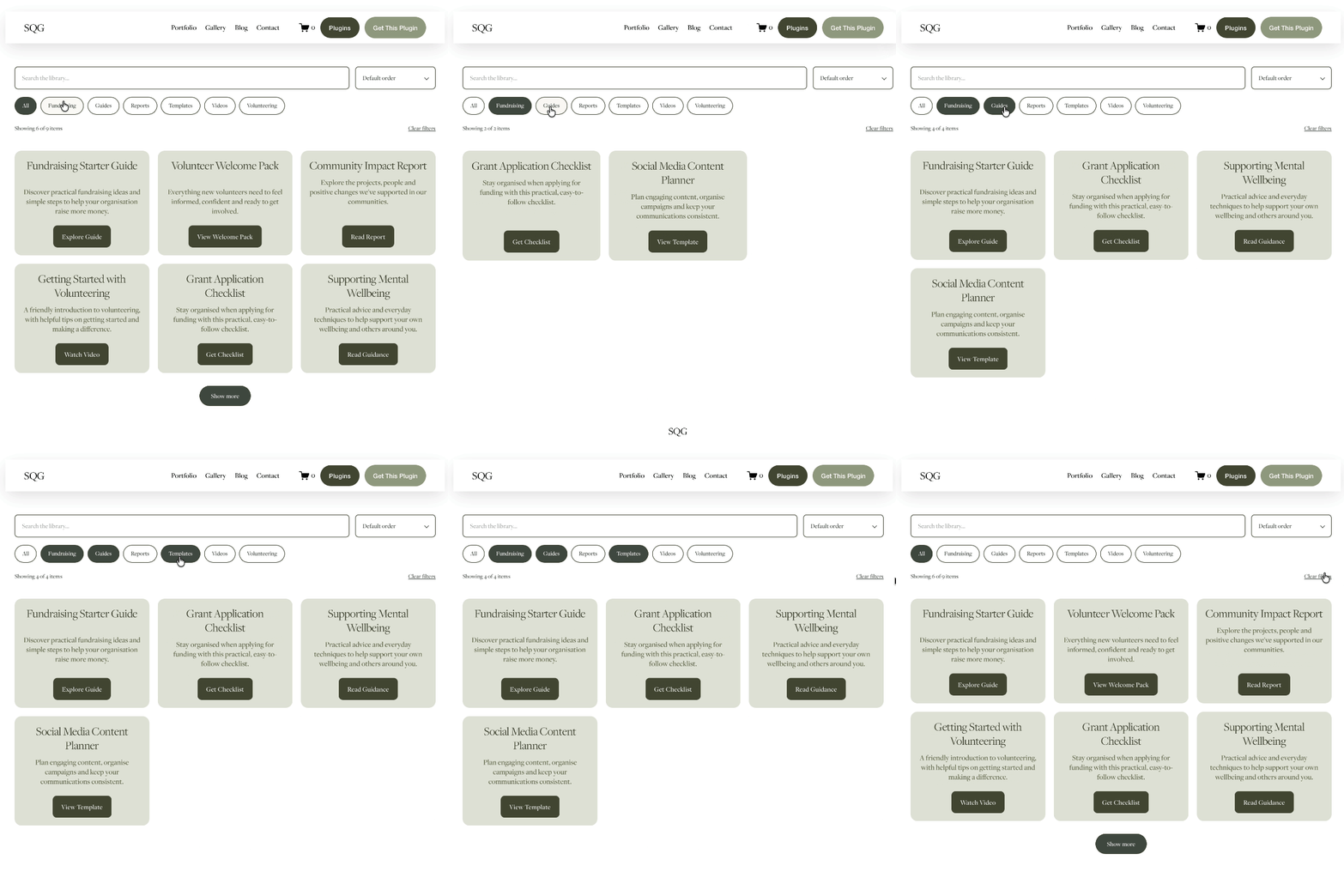 Image 2 of 2
Squarespace Content Library Filter Plugin
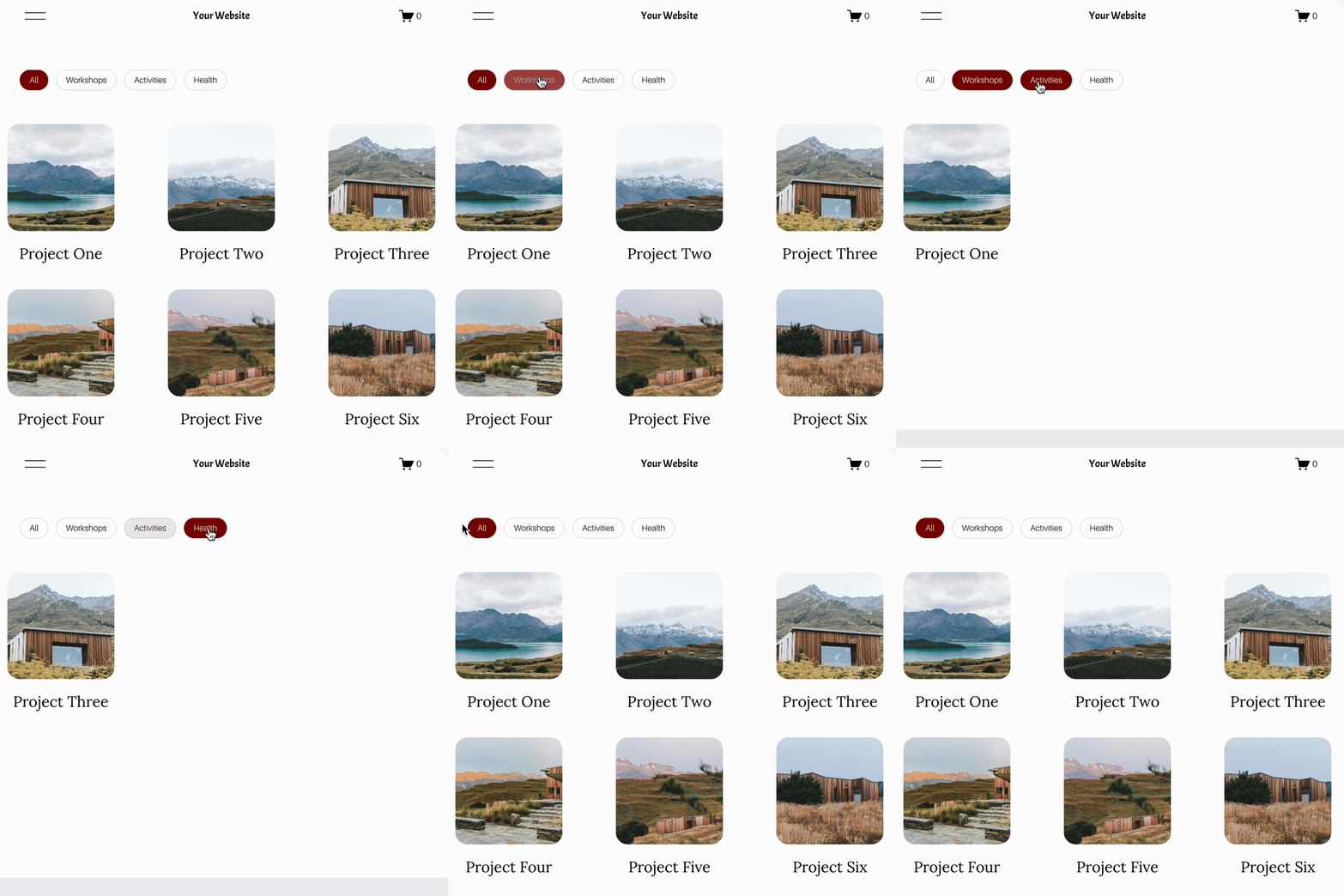

A smarter way to organise content
Create a searchable resource library in Squarespace — without rebuilding your website
Squarespace List Sections make it easy to display guides, videos, resources and useful links in beautifully designed cards. But as your collection grows, finding one particular item can become harder.
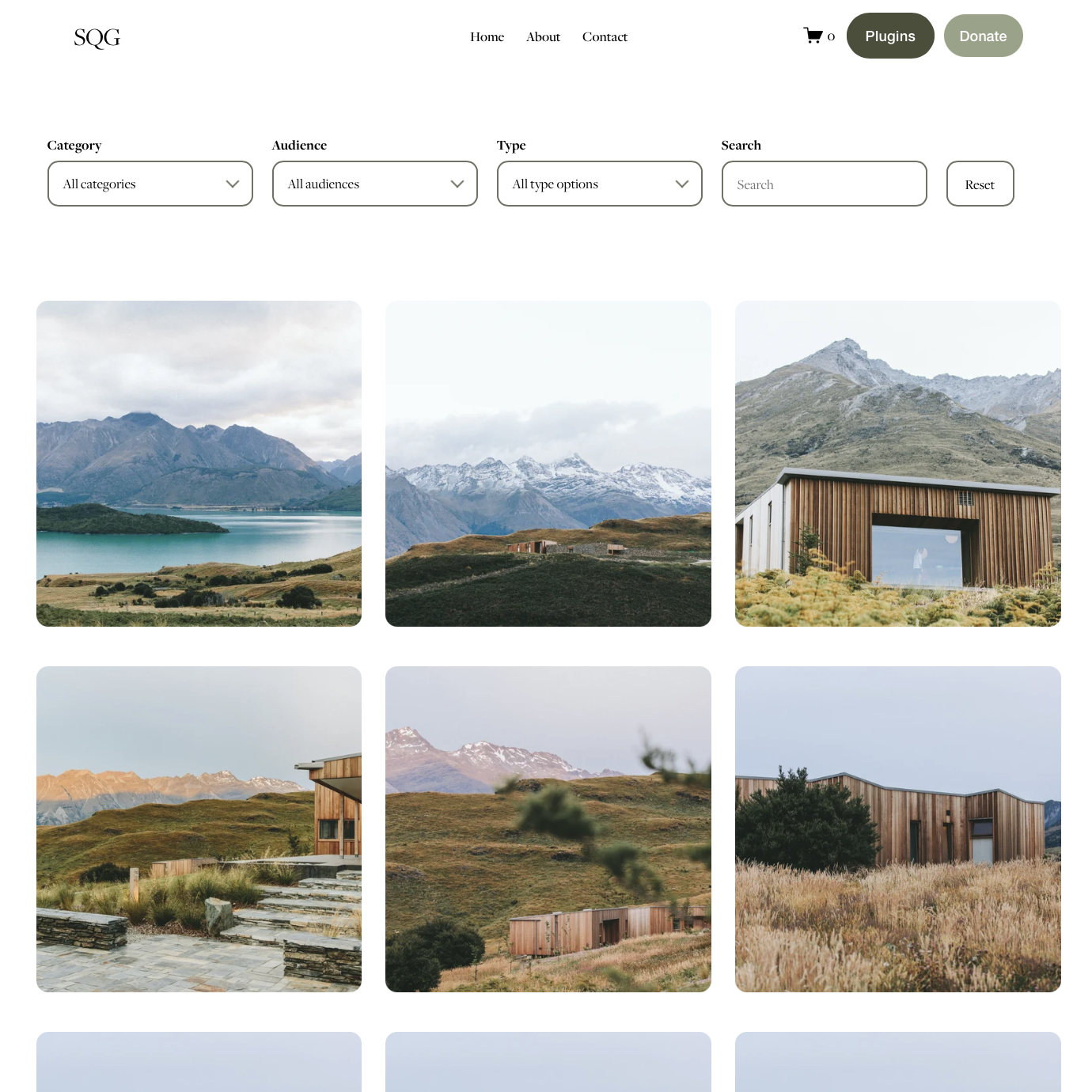
Content Library Filter adds a smarter way to explore your content, with live search, category filters, alphabetical sorting and Show More.
Keep your original Squarespace cards, images, descriptions and links — without setting up a separate database or rebuilding your website.
Built for easier browsing
Everything your visitors need to find the right content
Instant keyword search
Help visitors find resources as they type. Search across card titles, descriptions and assigned categories, with results updating instantly. A handy clear button makes starting a new search easy.
Automatic category filters
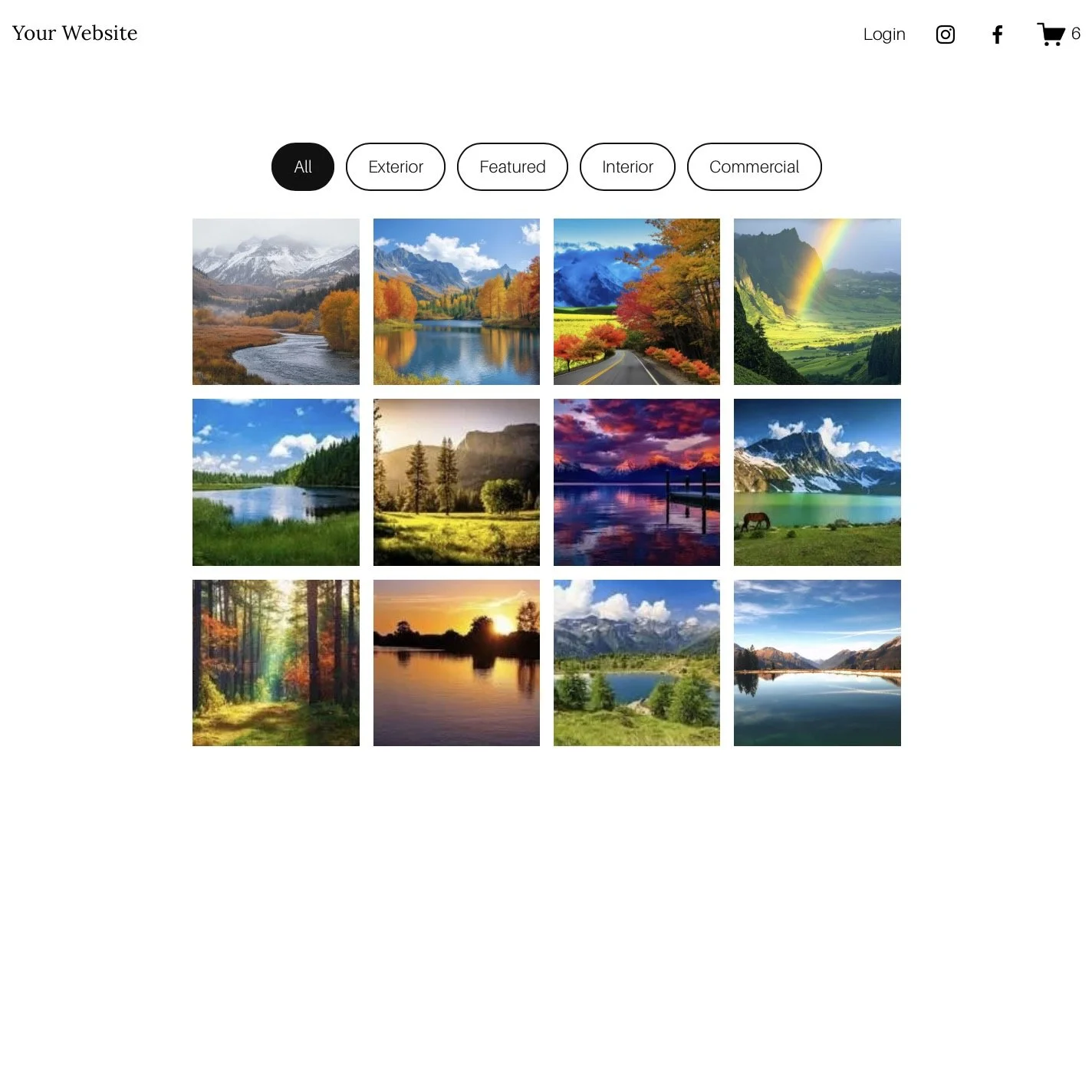
Organise items into categories such as Guides, Reports, Videos or Downloads. The plugin generates filter buttons automatically, with single or multiple category selection available.
Alphabetical sorting
Let visitors browse using the original Squarespace order, Title A–Z or Title Z–A. The sorting dropdown is customisable and can be removed entirely.
Show More / Show Less
Choose how many cards visitors see initially. If more matching items are available, a Show More button reveals the remaining cards without opening another page.
Designed to match your website
Customise colours, borders, buttons, hover effects, rounded corners and spacing. Add an optional background panel to your controls while keeping your native Squarespace card designs.
Simple to set up
How does the Squarespace Content Library Filter work?
The plugin enhances your existing Squarespace 7.1 Simple List Section. You can continue editing your content in Squarespace's familiar page editor.
Create your List Section
Add a native Simple List Section to your Squarespace page and style the cards using the built-in design options. Add images, titles, descriptions and links as normal.
Add content and categories
Assign categories using a short label inside each item's description. For example:
[category: Guides]
For multiple categories, use:
[category: Guides, Fundraising]
The plugin reads these labels and hides them from the displayed descriptions.
Install and customise
Add the supplied CSS and JavaScript following the installation instructions. Choose your filter mode, initial card count and sorting options, then customise the colours and styling to match your site.
Let visitors explore
Visitors can search, filter, sort and reveal additional items without leaving the page. When you add or update cards, the plugin reads the published content again when the page loads.
One plugin. Lots of possibilities.
What can you create with the Content Library Filter?
Although it's called Content Library Filter, this Squarespace plugin isn't limited to resources. Use your existing List Section cards to create searchable collections of almost any type of content.
Resource libraries
Organise downloadable guides, PDFs, templates and reports into an easy-to-search resource hub. Ideal for charities, nonprofits and educational organisations.
Video and training libraries
Help visitors find webinars, tutorials and training content by topic. Link your cards directly to videos, courses or dedicated training pages.
Services and support directories
Display services, departments, community organisations or support options and make them easier to browse by category.
Team and member directories
Create a searchable collection of team profiles, volunteers, speakers or trainers using native Squarespace List Section cards.
Useful links and recommendations
Bring together recommended tools, websites, helpful articles and external resources in one organised collection.
Case studies and projects
Showcase projects, success stories and client examples, helping visitors filter by topic, service or sector.
More functionality. Less complexity.
Why use Content Library Filter instead of a standard Squarespace List Section?
A standard Squarespace List Section is a useful way to display content, but it doesn't include interactive category filtering, keyword search, alphabetical sorting and Show More functionality.
Content Library Filter adds these browsing features to your existing Simple List Section, without requiring a separate content management system or custom-built directory.
Keep managing everything through the familiar Squarespace editor while giving your visitors a more intuitive way to find the information they need.
Content Library Filter vs Squarespace Directory Plugin — which one do you need?
Both plugins help visitors search and explore organised content on Squarespace, but they're designed for different types of pages. Here's how they compare.
| Feature | Content Library Filter | Directory Plugin |
|---|---|---|
| Content source | Native Squarespace 7.1 Simple List Section cards | Squarespace blog posts |
| Category filtering | Yes | Yes |
| Live keyword search | Yes | Yes |
| A–Z sorting | Yes | Yes |
| Show More functionality | Yes | Yes |
| Edit content using | Squarespace List Section editor | Squarespace blog editor |
| Best for | Resources, links, videos and smaller card-based collections | Members, suppliers, organisations and blog-based directories |
Choose Content Library Filter if...
You want to keep everything inside a standard Squarespace Simple List Section. It's ideal for creating a searchable resource library without setting up a separate blog collection.
Explore Content Library Filter →Choose Directory Plugin if...
You're building your listings as individual blog posts and want a directory that uses Squarespace's blogging system for managing content and individual listing pages.
Explore Directory Plugin →Frequently Asked Questions
-
Yes. The Content Library Filter Plugin adds clickable category filters to supported Squarespace 7.1 Simple List Sections. Visitors can browse cards by category without navigating to a different page.
-
Content Library Filter adds a live keyword search field above your List Section. Visitors can search card titles, descriptions and assigned categories, with results updating as they type.
-
Yes. You can create a resource library using a native Squarespace List Section to display guides, PDFs, videos, templates or other resources. Content Library Filter adds search, category filtering, sorting and Show More functionality to make the library easier to browse.
-
Squarespace 7.1 Simple List Sections do not include the category-filtering functionality provided by this plugin. Content Library Filter adds interactive controls to an existing List Section.
-
Yes. The plugin supports single-select and multi-select category filtering. With multiple selection enabled, visitors can choose several categories and view items matching any of their selections.
-
Yes. The plugin includes a custom sorting dropdown with Default order, Title A–Z and Title Z–A options. You can also disable the sorting dropdown entirely.
-
No. Unlike directory plugins that use Squarespace blog collections, Content Library Filter works with native Simple List Section items. You create and manage your cards using Squarespace's normal page editor.
-
Add a category label inside each List Section item's description, such as [category: Guides]. For multiple categories, separate them with commas. The plugin reads these labels to generate the category buttons and hides the labels from the visible descriptions.
-
Yes. The plugin includes CSS settings for colours, borders, selected states, hover effects, rounded corners, spacing and an optional background panel. The sorting dropdown can also be styled to match your website.
-
Yes. The toolbar is designed to respond to different screen sizes, with the search and sorting controls stacking vertically on smaller screens.
-
Yes. Set the initial number of visible cards in the JavaScript settings. If there are more matching items than this limit, visitors can use the Show More button to reveal them.
-
No. Content Library Filter is specifically designed for Squarespace 7.1 Simple List Sections. For supported blog, portfolio, gallery and event filtering, choose the Genius Squarespace Filter Plugin instead.
-
Content Library Filter enhances native Squarespace Simple List Sections, making it suitable for resource cards, useful links, small directories and content hubs.
The Squarespace Directory Plugin works with Squarespace blog collections and is better suited to directories where each listing is managed as a blog post.
The right choice depends on how you want to create and manage your content.
-
No. Content Library Filter is designed for Squarespace 7.1 Simple List Sections.
-
You don't need to write JavaScript yourself. The plugin is installed using copy-and-paste CSS and JavaScript, with clearly labelled settings for the main options. You will need access to Squarespace's code injection features.
-
No. The plugin searches the items in the selected List Section, rather than performing a site-wide search.
-
Yes. You can continue managing card titles, descriptions, images and links using the Squarespace editor. The plugin reads the List Section content when the published page loads.