

Add Product Pagination (Previous, Next Links) to Squarespace 7.1 — The Complete Guide
How to Add Product Pagination (Previous & Next Links) to Squarespace
If you run a shop on Squarespace 7.1, you’ve probably noticed something frustrating: there’s no easy way for customers to move between product pages. Once someone opens a product, they often hit a dead end,and that means fewer page views, fewer add-to-basket actions, and fewer sales.
In this guide, you’ll learn exactly how to add Previous and Next product links to your Squarespace store, why this feature matters, and the easiest way to install it with a simple plug-and-play solution, the Squarespace Product Pagination Plugin
What Is Product Pagination in Squarespace?
“Product pagination” refers to the small navigation links you see in many online shops that let users move smoothly from one product to the next. Typically they appear at the bottom of the product page and look something like:
← Previous Product
Next Product →
These simple links help customers browse your products sequentially rather than returning to the main shop page every time.
Squarespace doesn’t provide this function by default — but it’s easy to add using code or a ready-made plugin.
Why Product Pagination Matters for Squarespace Shops
If you want customers to explore more items, adding pagination is one of the easiest and most effective upgrades you can make.
Here’s why it matters:
Keeps visitors browsing longer
Reduces bounce rates
Helps shoppers discover more products
Creates a much smoother browsing experience
Improves mobile usability
Increases the chances of multi-product purchases
It’s a tiny UX change with a big impact on behaviour.
Squarespace Doesn’t Include This Feature by Default
Squarespace 7.1 is powerful, but it lacks built-in previous/next product navigation.
Without pagination:
Customers rely on the browser’s “back” button
Product pages feel disconnected from the full shop
Discovery drops
Conversions can suffer
The good news?
You can add this feature with a small script or — even easier — a purpose-built plugin.
How to Add Product Pagination to Squarespace (Two Easy Methods)
There are two ways to add previous and next product links to Squarespace:
Method 1: Adding Custom Code Manually
You can write your own JavaScript to:
Detect all product URLs
Determine product order
Inject a pagination bar
Add custom CSS
Ensure it works across mobile and desktop
Test it across layouts
This approach works if you’re comfortable with coding and debugging.
However, most shop owners prefer a simpler, quicker method.
Method 2: Use a Ready-Made Plugin (Recommended)
The Squarespace Product Pagination Plugin is the easiest way to add clean, reliable Previous/Next links to your store — perfect if you don’t want to touch code.
It installs in minutes, requires no coding knowledge, and works on multiple Squarespace 7.1 product pages.
What Makes a Good Squarespace Pagination Plugin?
A strong Squarespace pagination solution should work seamlessly across all 7.1 templates, load quickly, and remain as lightweight as possible. It shouldn’t rely on outdated libraries like jQuery and should be smart enough to auto-detect your products based on your shop layout. The design needs to look clean on both desktop and mobile, while still being easy to customise with simple CSS. Most importantly, it should require no manual linking or maintenance from you. This is exactly what the Square Genius Product Pagination Plugin delivers.
The Easiest Way to Add Product Pagination: The Square Genius Plugin
I created the Product Pagination Plugin because I wanted a solution that works instantly, looks modern, and stays reliable even as Squarespace releases updates. It’s designed to work beautifully across all Squarespace 7.1 store layouts and encourages customers to browse more of your products naturally — which can lead to increased sales and a much smoother shopping experience.
Key features include:
Automatic detection of product order
Smooth Previous/Next navigation bar
Clean mobile-friendly design
Fully customisable colours and fonts
Lightweight code
Quick installation
How to Install Pagination in Squarespace (Using the Plugin)
Here’s how installation works in just a few steps:
1. Add the CSS code
Copy the provided stylesheet into:
Pages → Scroll Down To Custom Code → Custom CSS
2. Add the JavaScript
Paste the script into:
Go To Your Shop Page → Hit The Cog Icon (Settings) → Advanced Code Injection
3. Refresh a product page
Your pagination bar appears instantly — no manual edits needed.
Full instructions are included with your purchase.
Can Product Pagination Improve SEO?
Indirectly — yes.
Google considers user engagement signals like:
Time on page
Number of pages visited
Bounce rate
When users click through several products, it sends positive behaviour signals that reinforce your site’s relevance and quality.
More browsing = better engagement = stronger SEO performance.
Common Questions About Squarespace Product Pagination
Does it work with multiple categories?
Yes, the plugin intelligently maps links from your main shop page.
Is it mobile-friendly?
Completely. It adapts naturally to smaller screens.
Will it slow down my site?
No. The code is minimal and optimised.
Do I need to edit each product page?
No. Install once and it works everywhere.
Pagination Makes Squarespace Shops Better
Product pagination makes a huge difference to how customers interact with your shop. It keeps people moving, encourages them to explore more, and creates a more polished, professional browsing experience.
If you want the simplest and cleanest way to add previous and next product links to Squarespace, try the plugin here:
Did I help you? Consider buying me a coffee as thanks!



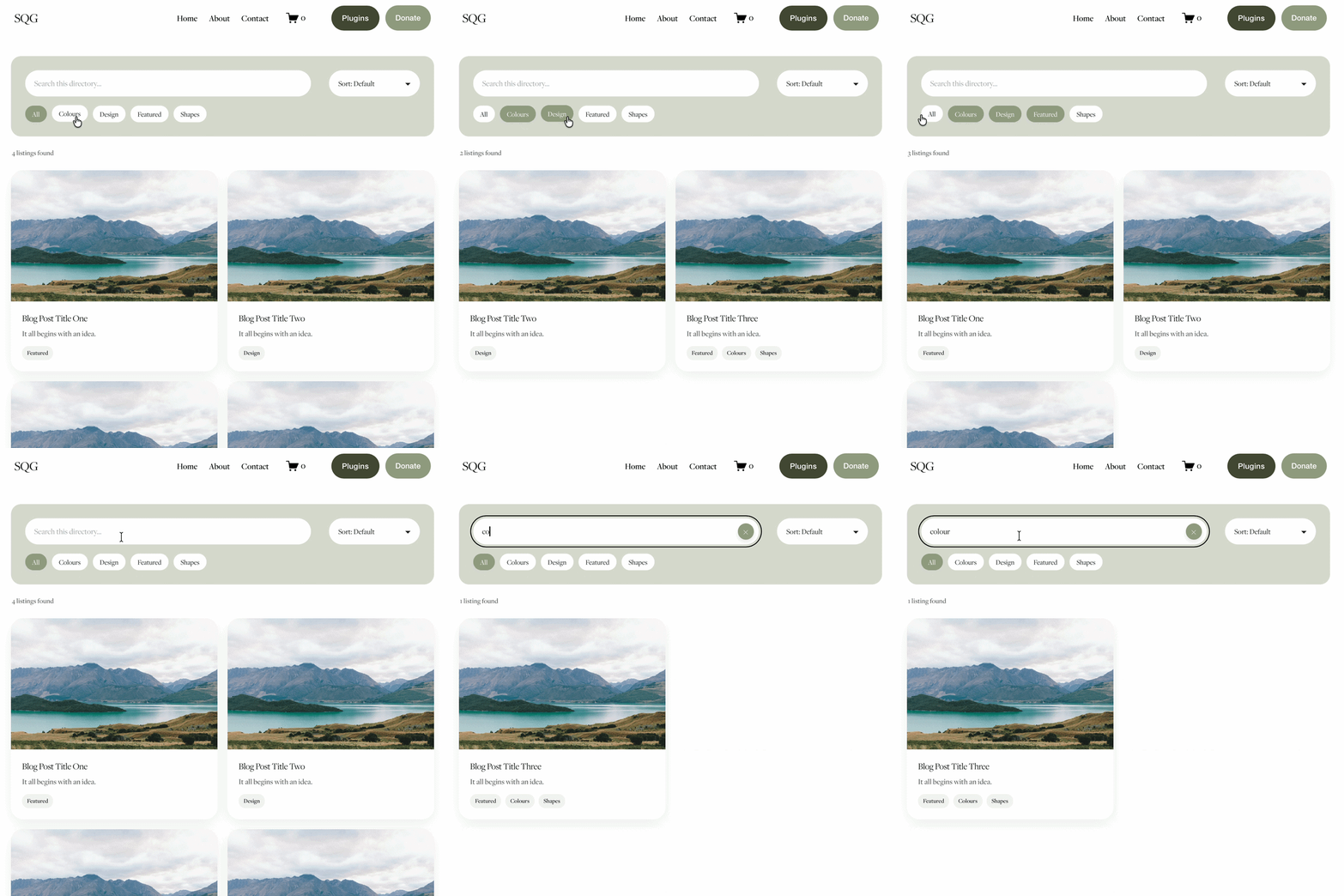
Looking for an easy way to add filters to Squarespace?
The Genius Squarespace Filter Plugin helps you turn busy portfolio pages, blogs, event pages and galleries into a cleaner, easier to browse experience.
Visitors can quickly filter your content by category, topic, service, location, resource type or any labels you choose, instead of scrolling through everything.
Perfect for portfolios, blog archives, event listings, galleries (grid, masonry & strips only) resource hubs and larger content collections, this plugin gives your visitors a smoother way to explore your content without the cost or complexity of custom development.
Portfolio Filter Demo ➜
NEW Advanced Dropdown Portfolio Filter Demo ➜
Gallery Filter Demo ➜
Blog Filter Demo ➜
Event Filter Demo ➜
Key Features:
Simple to install and customise
Filter options for portfolio pages, galleries, blogs and events
Includes the new advanced dropdown portfolio filter
Ideal for Squarespace sites needing more in depth filtering options with a simple user experience
Beginner friendly setup with copy and paste instructions
Designed for Squarespace 7.1 websites