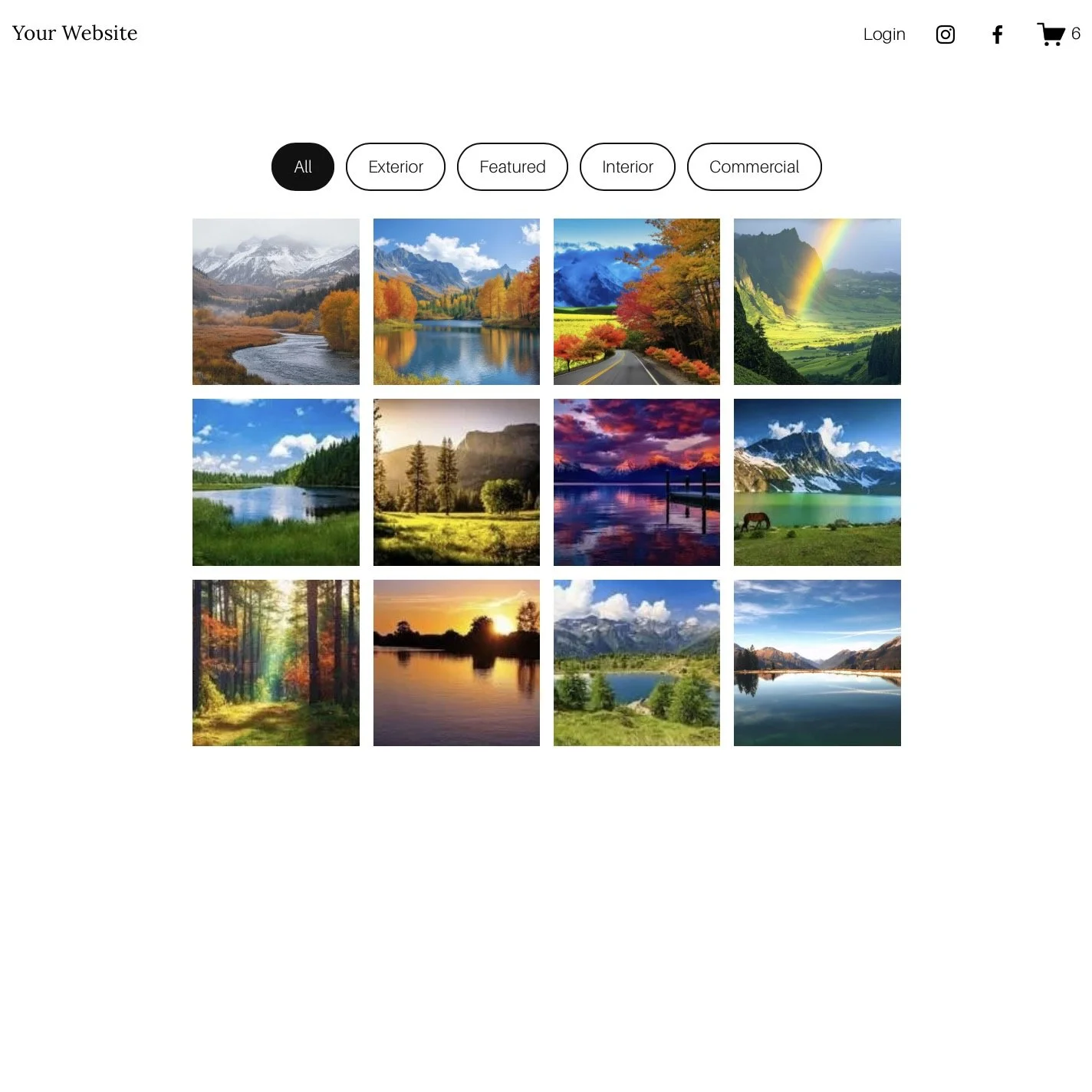
 Image 1 of 2
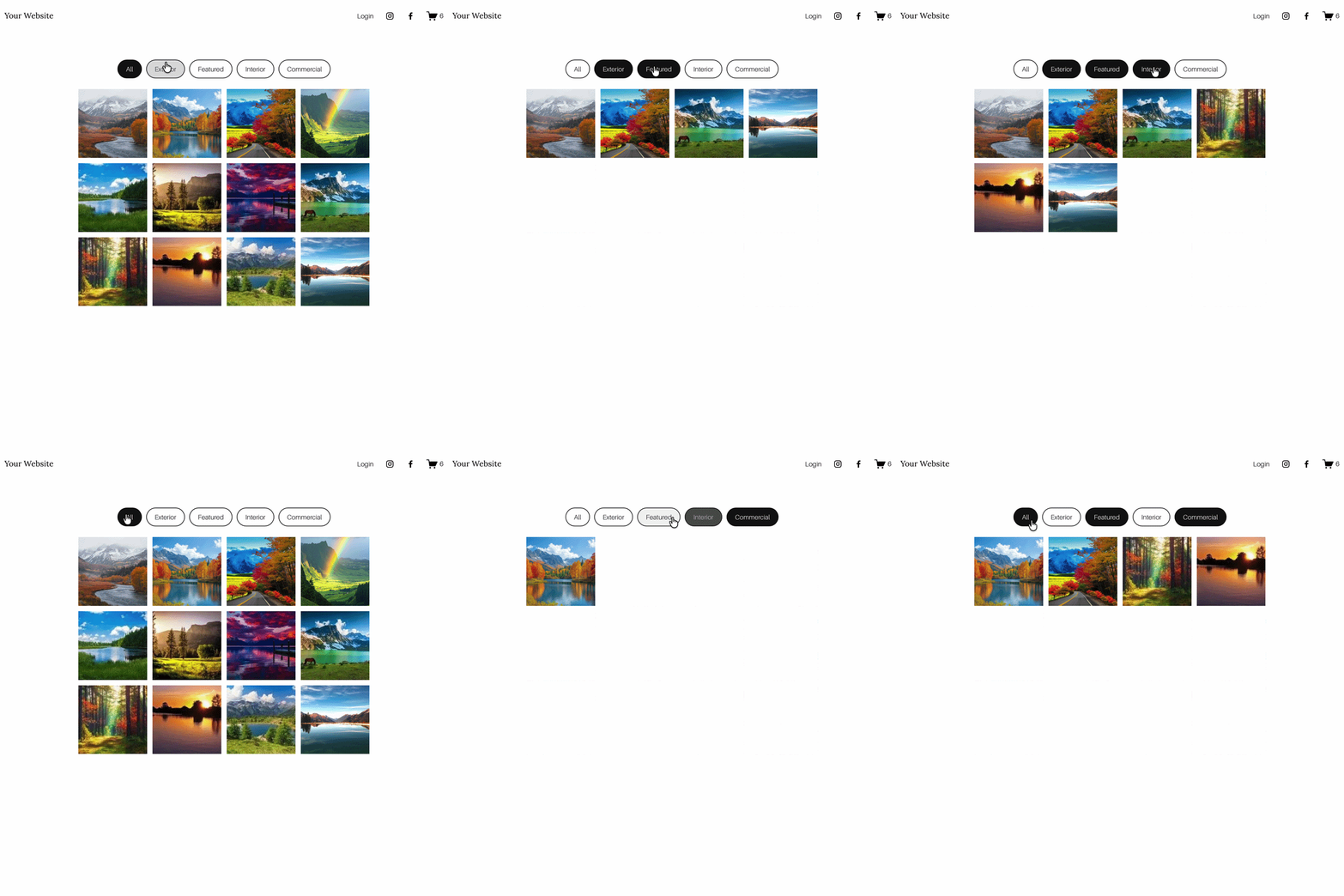 Image 2 of 2
Squarespace Gallery Filter Plugin
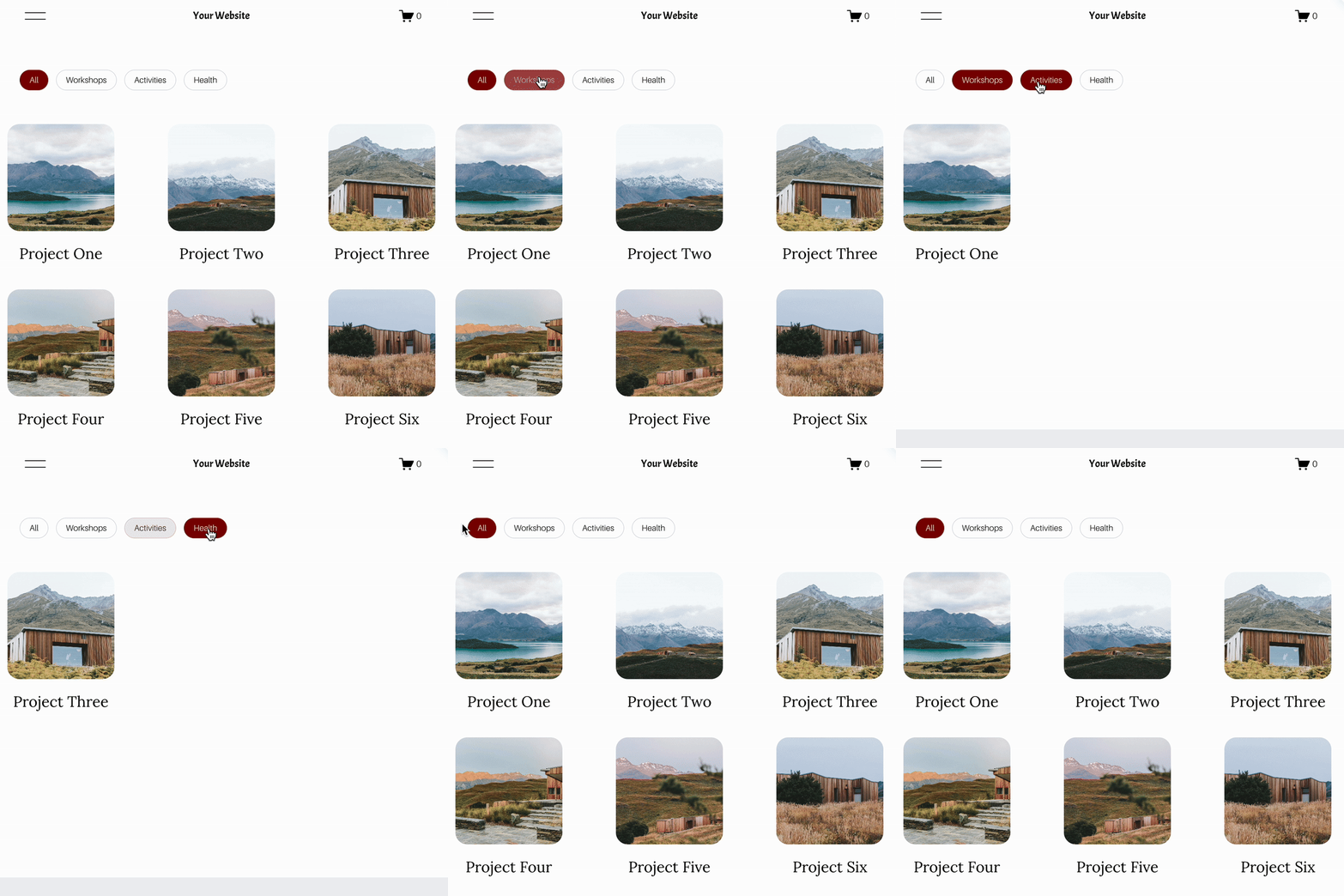

FAQs For The Squarespace Gallery Filter
-
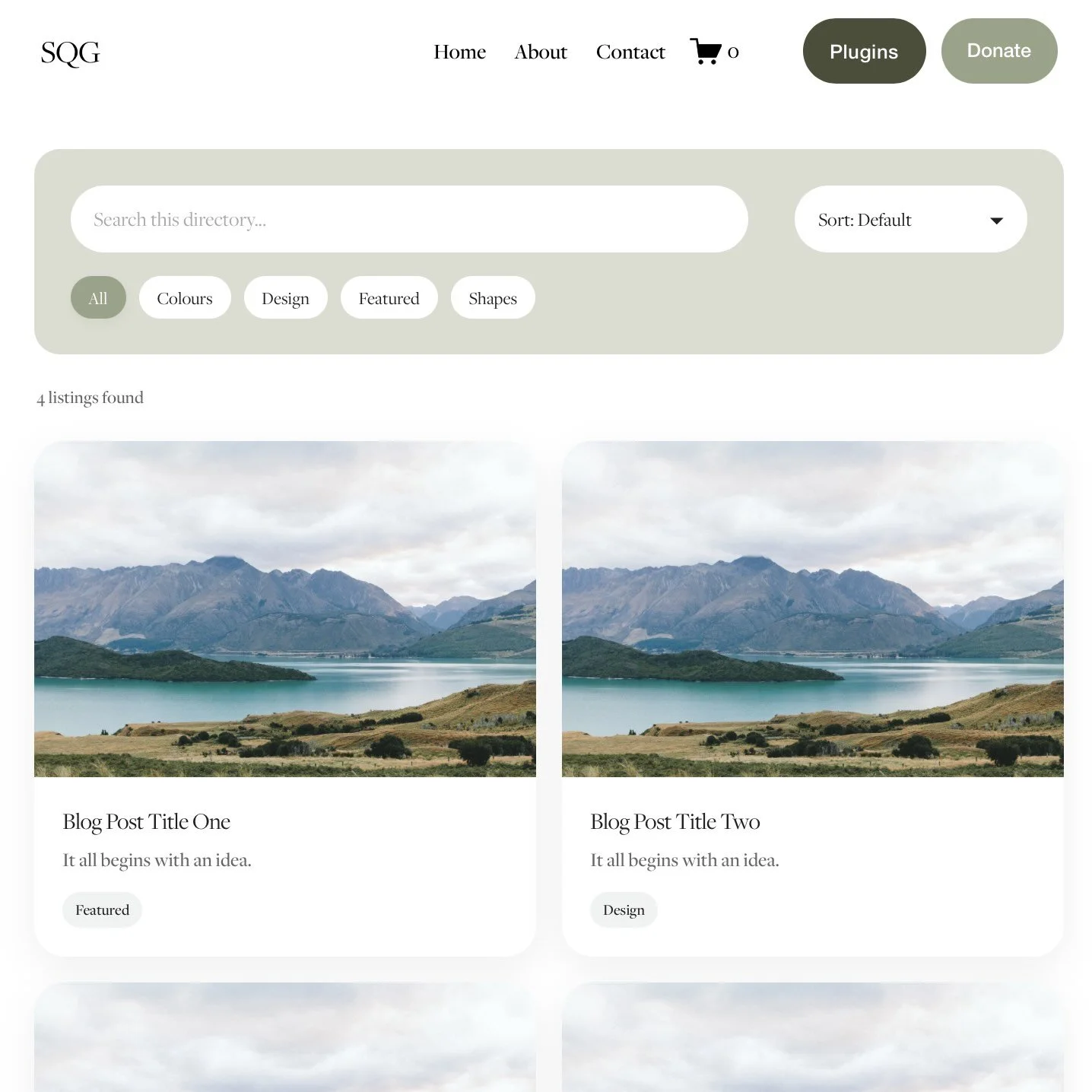
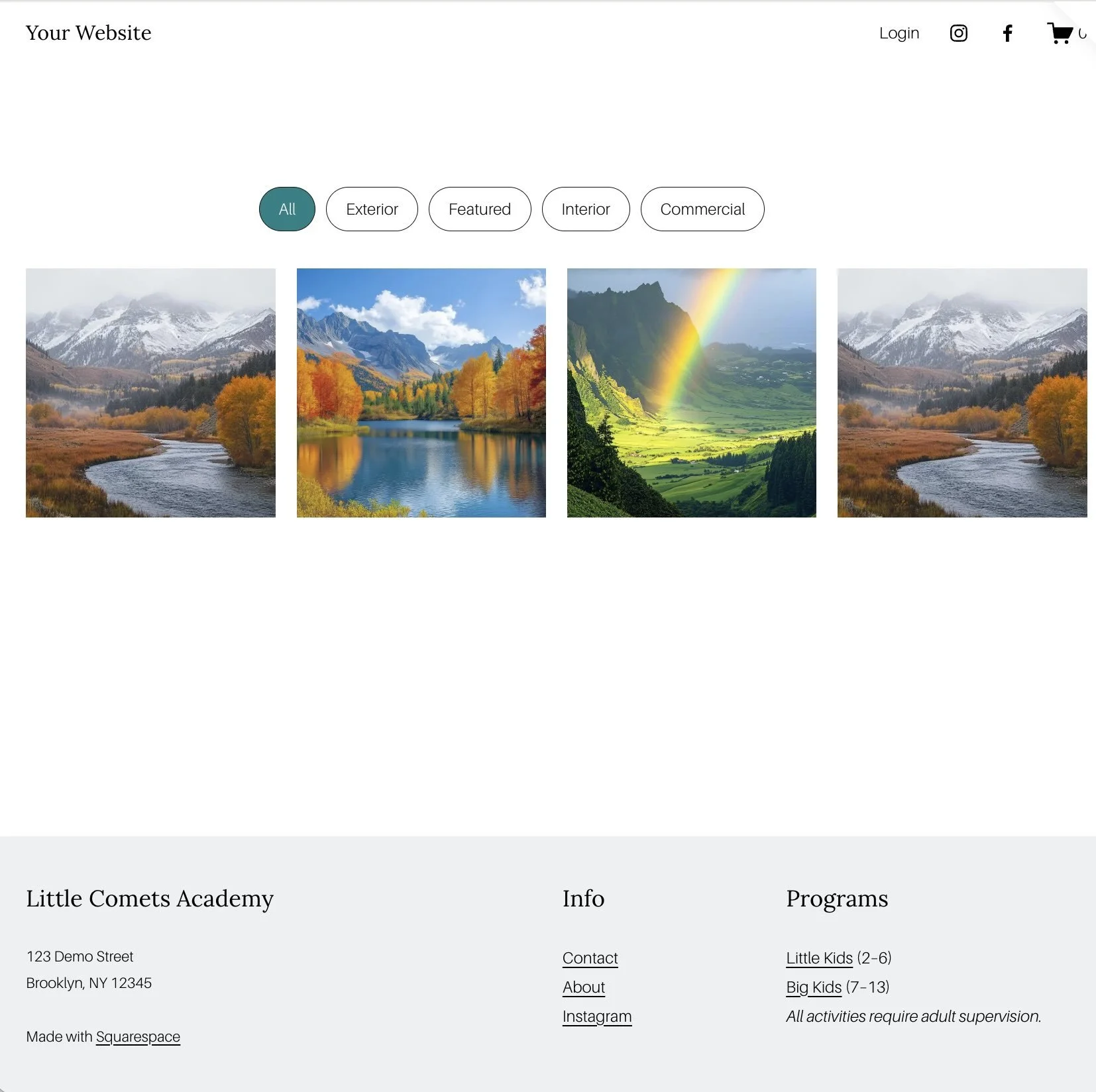
Simply add tags inside square brackets in your image description. For example: [exterior] [featured]
-
No. It’s simple copy and paste. Once installed, everything is controlled through your image descriptions and optional CSS settings. There is a full video tutorial included.
-
This plugin is designed for gallery blocks. It does not work with gallery pages/sections or summary blocks.
-
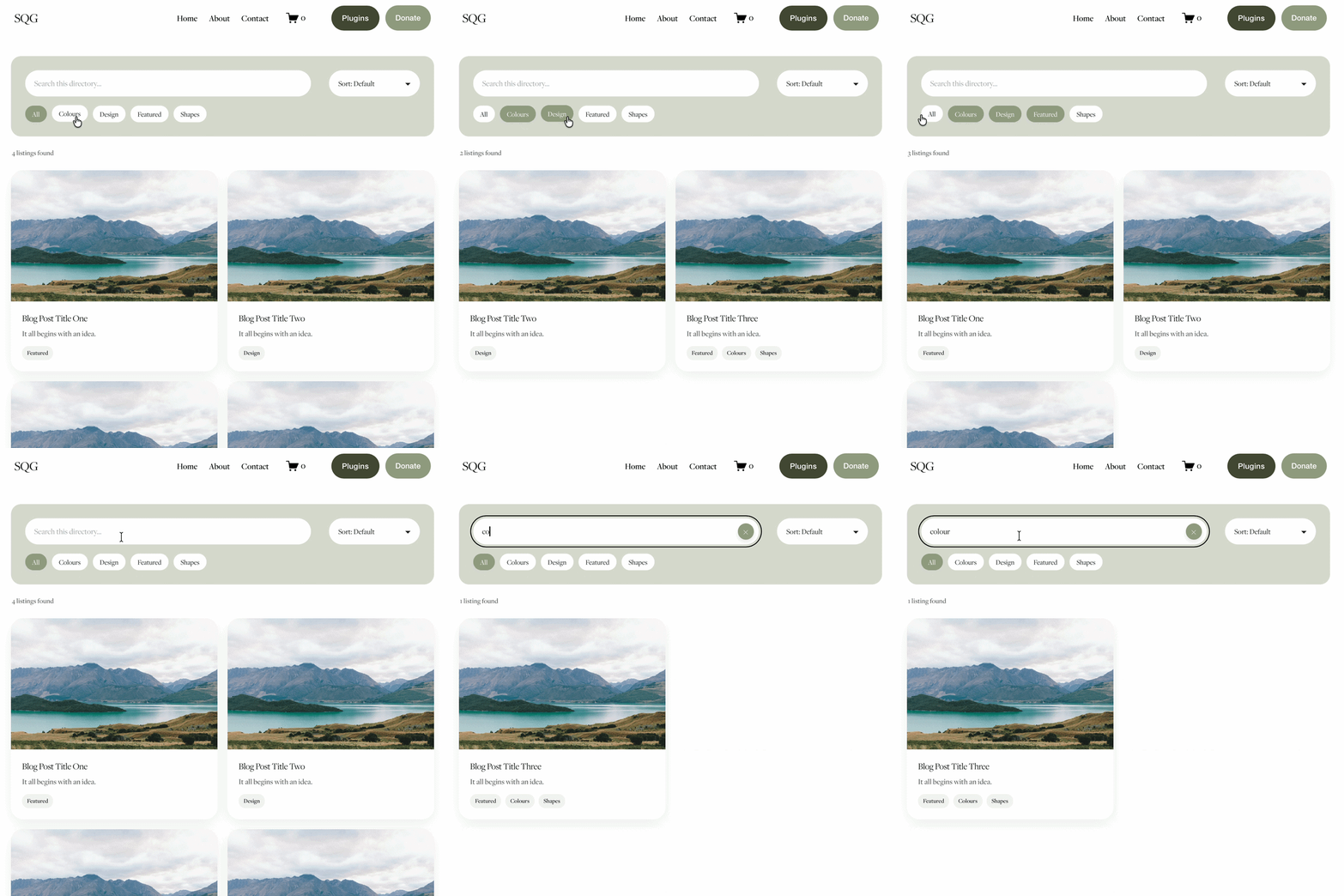
Yes. Visitors can select multiple filters and the gallery will show all matching images.
-
Yes. You can change:
Number of images per row
Mobile layout
Spacing between images
Button colours and styles
Image corner radius
All using simple CSS variables.
-
The plugin replaces the visible gallery with a custom grid to enable filtering, but you can fully style it to match your website.
-
Yes. The lightbox only displays images from the selected filter, creating a smooth and relevant browsing experience.
Why Choose the Gallery Filter Plugin
If you have ever tried to create a Squarespace filter gallery, you will know it is not something Squarespace offers out of the box.
This plugin solves that problem in a simple and user friendly way.
Built for real Squarespace users
No complicated systems. Your customers just add tags to image descriptions and it works.
No messy workarounds
Unlike other solutions that rely on collections or external tools, this is a true Squarespace filter plugin designed specifically for gallery blocks.
Flexible and scalable
Whether you are filtering by project type, room, product category, or service, this plugin adapts to your content.
Designed for conversion
A filtered gallery helps users find what they want faster, keeping them engaged and increasing the chances of enquiry or sale.
Easy to style
With simple CSS variables, you can match your brand in seconds without touching the core code.