

10 Squarespace Plugins I Can’t Live Without
Last updated 17/03/2026
Squarespace plugins can help you customise your website, improve functionality, and create a more engaging user experience. The best plugins solve specific problems such as improving design, adding features, or boosting conversions. In this guide, I share the Squarespace plugins I personally use and recommend.
Squarespace is brilliant for building beautiful websites quickly. It is clean, intuitive and packed with great design tools. But when you start building more advanced sites, you may find the built in features do not always go far enough.
For example:
adding multiple header buttons
improving content filtering
showing fundraising progress
enhancing SEO functionality
That is where Squarespace plugins come in.
Plugins allow you to extend what Squarespace can do without complex development or switching platforms. With the right plugin, you can add powerful features, improve usability, and create a more customised website.
Over the past few years, I have tested a wide range of plugins while building websites for charities, purpose led organisations, and businesses. Some are nice to have. Others have become tools I use again and again.
In this article, I am sharing the Squarespace plugins I cannot live without and why they make such a difference.
Top 10 Squarespace Plugins for 2026
If you want to extend what Squarespace can do, these are the plugins I recommend most. They add powerful features that improve design, usability and functionality without needing complex development.
1. Mega Menu Plugin for Squarespace

Squarespace’s default navigation works fine for small sites, but if you’ve got lots of pages, it quickly gets messy. That’s where the Mega Menu Plugin shines.
This plugin allows you to build dropdown menus with columns, categories, and images, making it much easier for visitors to navigate your site. It’s especially useful for large blogs, resource libraries, or e-commerce stores with multiple product ranges.
Why it’s great:
Professional, sleek design.
Better user experience for sites with many pages.
Looks like a premium feature you’d expect from custom-built websites.
2. Squarespace Genius Filter Plugin
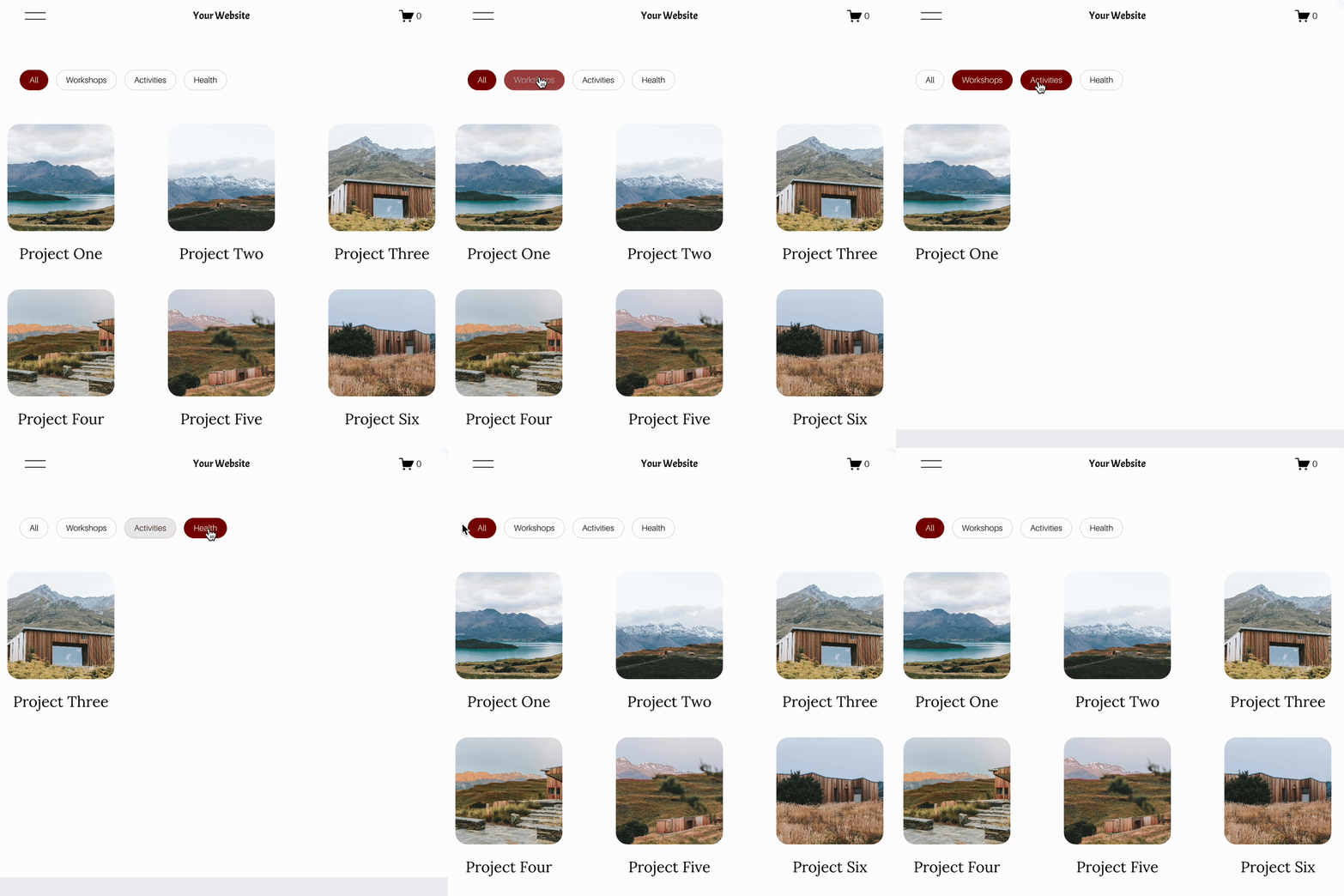
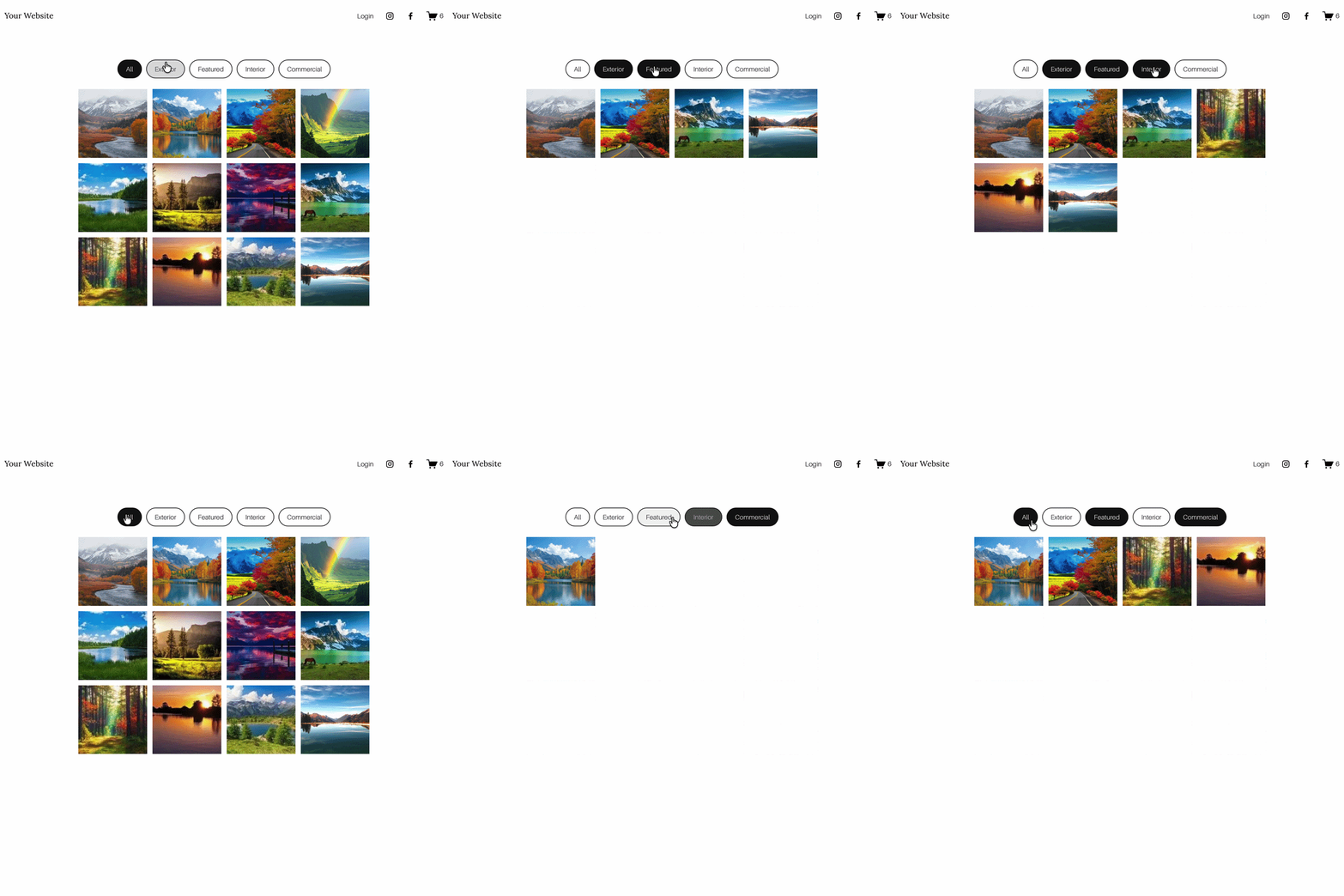
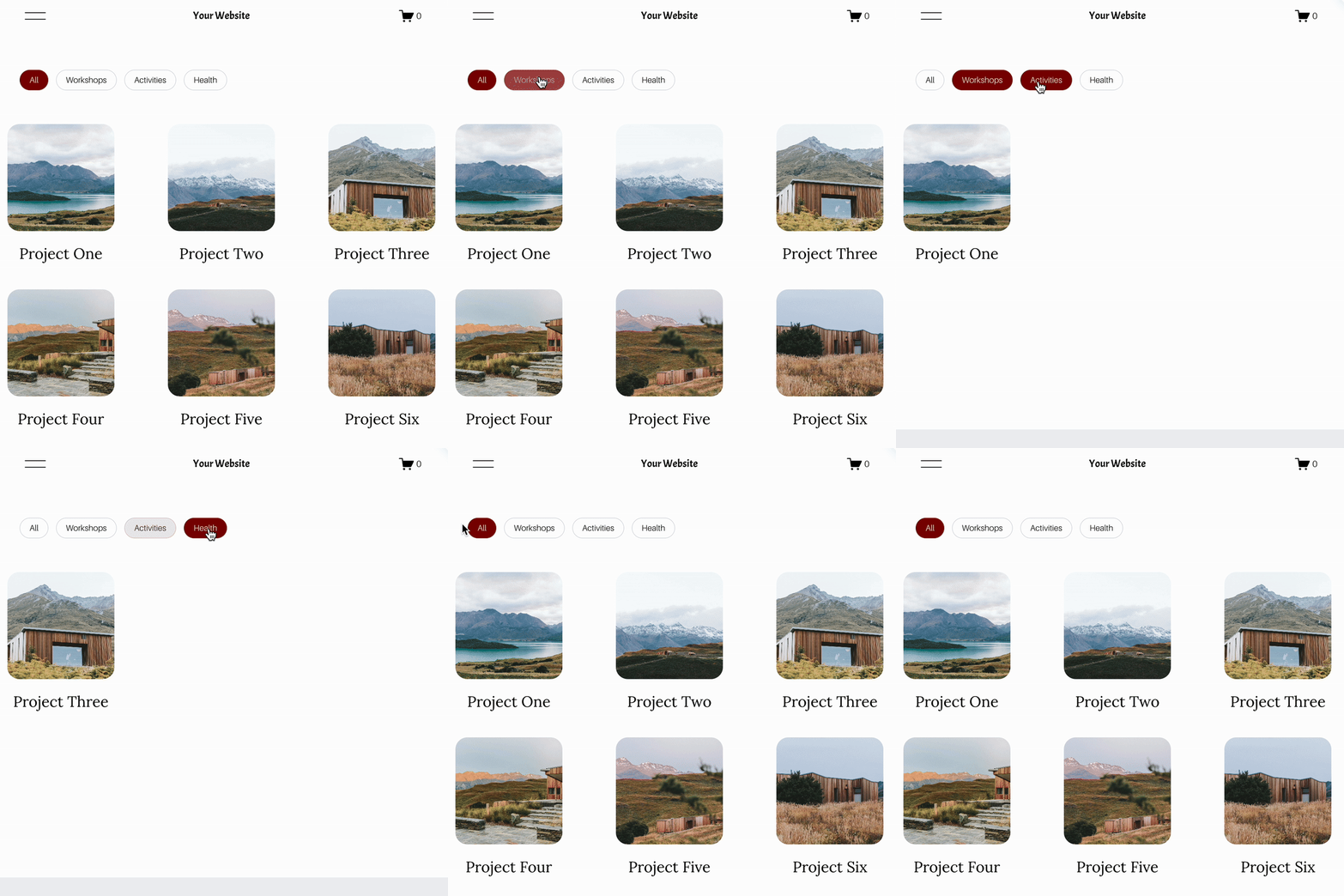
A Squarespace Filter Plugin is one of the best ways to improve usability on content-heavy websites. If you run a blog, portfolio, events page, directory or resource hub, filters help visitors quickly narrow down what they want to see instead of scrolling endlessly.
This is a particularly smart plugin for growing websites that need better organisation without moving away from Squarespace. You can use it to create a cleaner browsing experience, improve content discovery and make your pages feel much more intuitive.
Why it’s great:
Perfect for blogs, portfolios, directories and resource libraries
Helps visitors filter content by category, type or topic
Improves user experience on larger Squarespace websites
Encourages more page views by making content easier to explore
Adds a premium feature without the cost of full custom development
👉 Get The Genius Squarespace Filter Plugin
3. Progress Bar Plugin
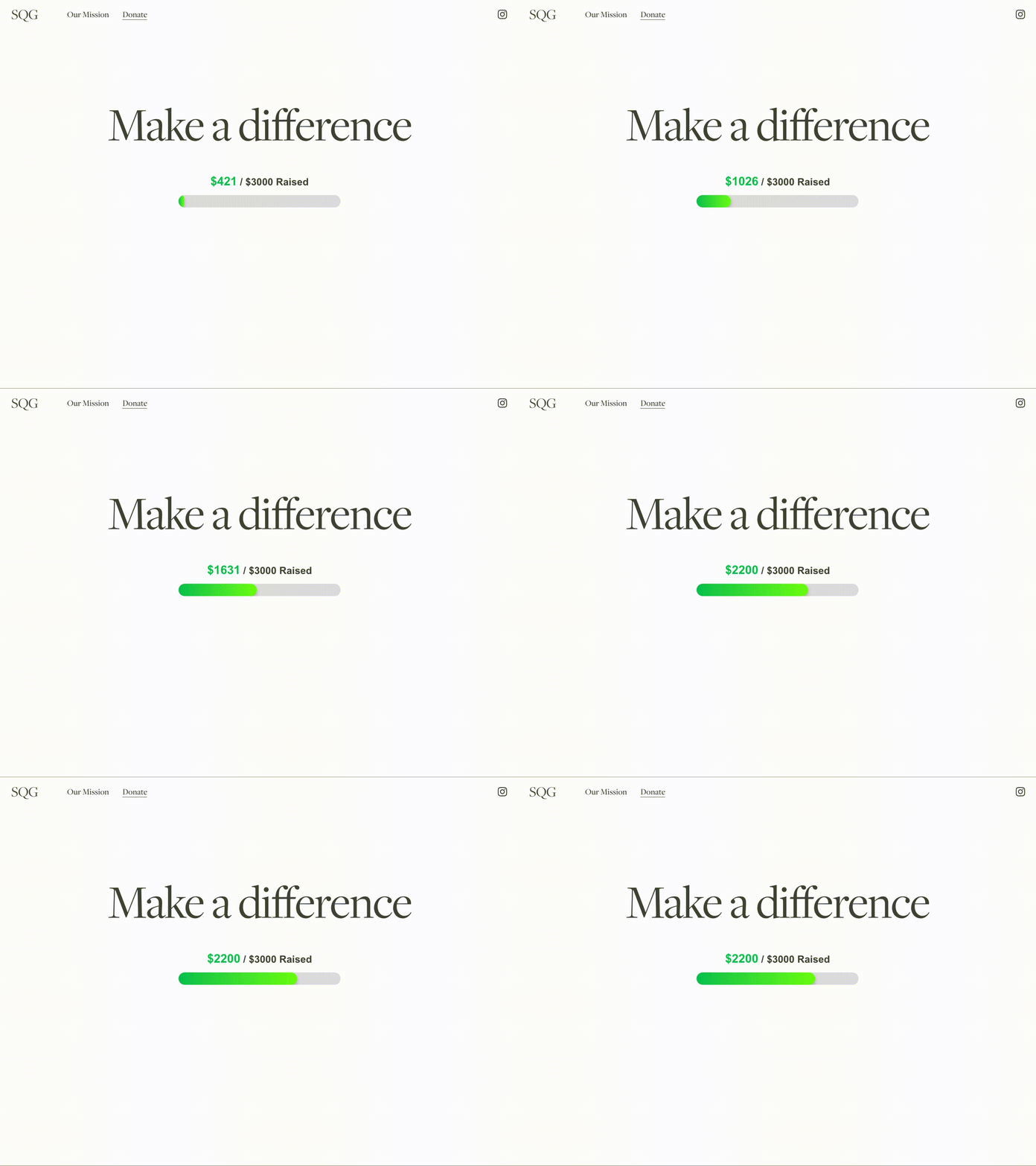
Want to show off a fundraising target, course completion rate, or sales milestone? The Progress Bar Plugin makes it easy to display animated bars that update as you go.
Nonprofits use it to display donation goals. Creatives use it to track projects. And e-commerce stores use it for seasonal campaigns.
Why it’s great:
Fully customisable colours, widths, and text.
Engages visitors by making your progress visible.
Creates urgency and motivation to contribute.

If you sell products online, you know that photos don’t always capture everything. Enter the Product Gallery Video Plugin.
👉 See a demo here
This add-on lets you embed videos directly into your product galleries, giving customers a 360-degree experience. Studies show product videos can increase conversions by up to 80%—so this one is a no-brainer for e-commerce sites.
Why it’s great:
Showcase demos, tutorials, or lifestyle clips.
Makes your product pages stand out from competitors.
Super easy to install via SQSP Themes.
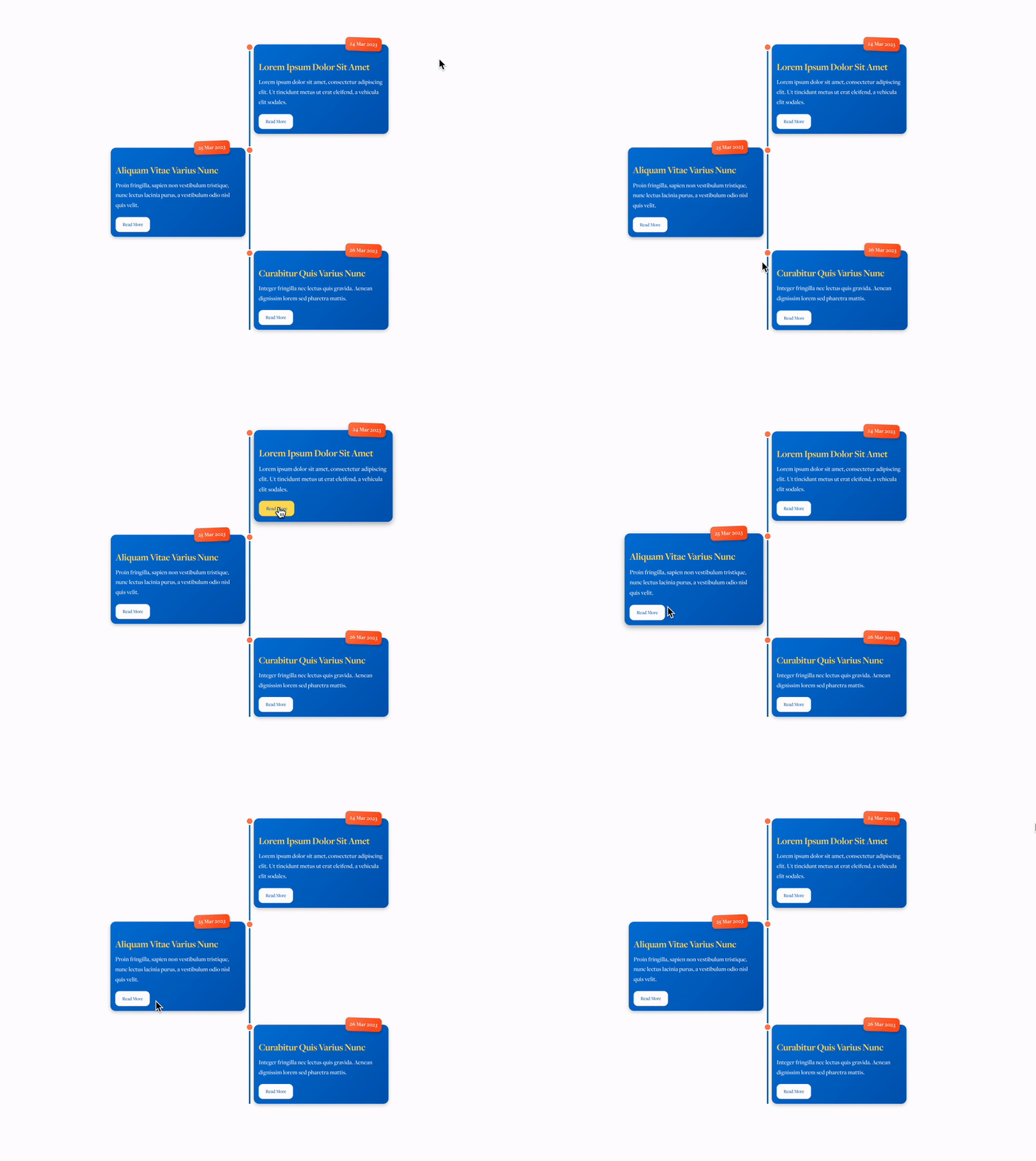
If you want to tell a story visually, the Timeline Plugin is perfect. Whether it’s your organisation’s history, a project journey, or a series of milestones, this plugin lays everything out in a clear, engaging format.
Why it’s great:
Ideal for About pages.
Helps charities and nonprofits highlight their impact.
Adds structure and professionalism to your storytelling.

Static images can be… well, static. The Image Hotspots Plugin makes them interactive by letting you add clickable points with tooltips.
Think of a house photo where clicking each room reveals more info. Or an infographic with extra detail behind each point. It’s interactive design without the custom dev costs.
Why it’s great:
Increases engagement on visual content.
Adds storytelling elements to any image.
Perfect for portfolios, tours, and product features.

Squarespace doesn’t offer sidebars by default—but they can be incredibly useful for blogs and resource sites. The Sidebar Plugin gives you a flexible panel for navigation, CTAs, or featured content.
Why it’s great:
Keeps key links visible without cluttering your main nav.
Perfect for blogs, guides, and member resources.
Increases time-on-page and internal link clicks.
8. Pinned Navigation Bar by Will Myers

Want to give visitors a smooth browsing experience on long scrolling pages? The Pinned Page Nav Bar Plugin by Will Myers adds a floating navigation bar that sticks to the top of the page and lets users jump to different sections with ease.
This is especially useful for landing pages, sales pages, or long-form blog posts where you don’t want readers to get lost.
Why it’s great:
Improves user experience on long scroll pages.
Keeps CTAs and section links always visible.
Professional look without custom coding.

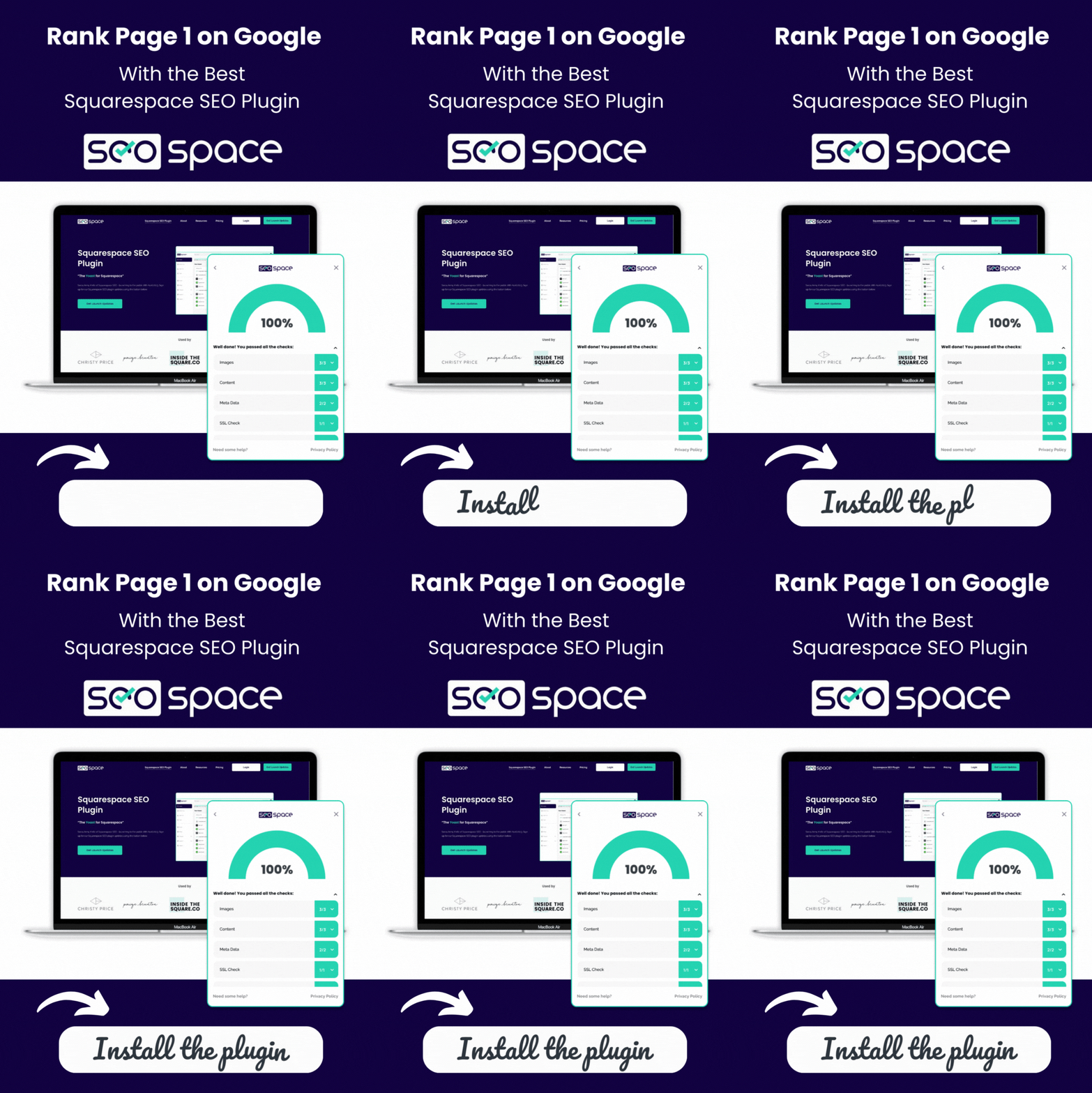
Squarespace SEO is fine out of the box—but if you want to dominate Google and AI search results, you need more control.
That’s where SEOspace comes in. It lets you optimise metadata, schema, headings, and keywords—all things that boost your visibility and ranking.
Why it’s great:
Add structured data for rich results.
Improve on-page SEO without guesswork.
Perfect for businesses, nonprofits, and blogs that want organic traffic.

Nothing drives urgency like a ticking clock. The Countdown Timer Plugin helps you promote events, product launches, or seasonal sales with a bold, animated timer.
Why it’s great:
Creates urgency and boosts conversions.
Easy to customise colours, fonts, and layout.
Works perfectly for fundraising deadlines or holiday sales.
11. BONUS! Free Squarespace Plugin - Logo Carousel Slider Plugin
If you want a simple way to showcase partners, sponsors, clients or brands on your website, a Scrolling Logos Squarespace Plugin is a brilliant addition.
This plugin creates a smooth, auto scrolling logo carousel that helps highlight the organisations you work with while keeping your page clean and professional. It is perfect for displaying charity partners, client logos, media mentions, sponsors or trusted brands without taking up too much space on the page.
The plugin includes features such as automatic scrolling, hover pause, logo zoom effects and adjustable speed, so you can easily customise the slider to match your site design.
👉 View the Scrolling Logos Squarespace Plugin
Comparison Table: Which Squarespace Plugin Do You Need?
| Plugin | Best for | Link |
|---|---|---|
| Mega Menu | Navigation for large sites & shops | View |
| Squarespace Filter Plugin | Filtering blog posts, portfolios, directories & resources | View |
| Progress Bar | Fundraising goals, milestones, project progress | View |
| Product Gallery Video | Video inside product galleries to boost conversions | View |
| Timeline | Storytelling for About pages & project history | View |
| Image Hotspots | Interactive images with clickable tooltips | View |
| Sidebar | Blog navigation, CTAs, featured content | View |
| SEOspace | Metadata, schema & on-page optimisation | View |
| Countdown Timer | Urgency for launches, events & sales | View |
| Pinned Page Nav Bar | Floating section nav for long pages | View |
| Scrolling Logos Squarespace Plugin | Displaying client logos, sponsors & partner brands | Get Free |
How to Install Squarespace Plugins
Installing plugins on Squarespace is simple. Here’s how:
Choose your plugin from a trusted source
Copy the custom code provided (usually JavaScript, HTML, or CSS)
Paste into your site:
For site-wide features: Pages > Custom code > Code Injection
For page-specific features: Add a Code Block.
For style changes: Pages > > Custom code > Custom CSS
Test on desktop and mobile.
Customise colours, text, and settings as per the plugin’s guide.
Pro tip: Always back up your custom code or keep a copy saved in case you need to roll back changes.
-
Squarespace plugins are custom code snippets or add-ons that extend your site’s functionality—adding new design features, SEO tools, or e-commerce upgrades.
-
Yes, when bought from trusted developers like SQSP Themes, Will Myers, or The Square Genius. Always avoid random code from unverified sources.
-
Definitely. Plugins like SEOspace improve metadata and structured data, which can boost rankings and even help your site appear in AI-generated search answers.
-
The Double Header Button Plugin is a great free option. Other Squarespace free plugins include basic counters, styling add-ons, and menu tweaks.
-
Extensions are official integrations (like Printful or ShipStation). Plugins are custom features created by independent developers to extend site functionality.
-
Most lightweight plugins won’t. However, always check load speeds after installation and avoid stacking too many heavy scripts.
-
The Product Gallery Video, and Countdown Timer plugins are all perfect for boosting conversions in online stores.
-
Yes, pricing table plugins help you display service packages or memberships in a clear, professional format. They’re great for agencies, SaaS, and coaches.
My honest take on Squarespace plugins
In my experience, the biggest mistake people make with Squarespace plugins is adding too many without a clear purpose. The best plugins solve a specific problem or improve the user experience, rather than just adding visual effects.
Quick list of my go to Squarespace plugins:
Supercharge Your Squarespace Site
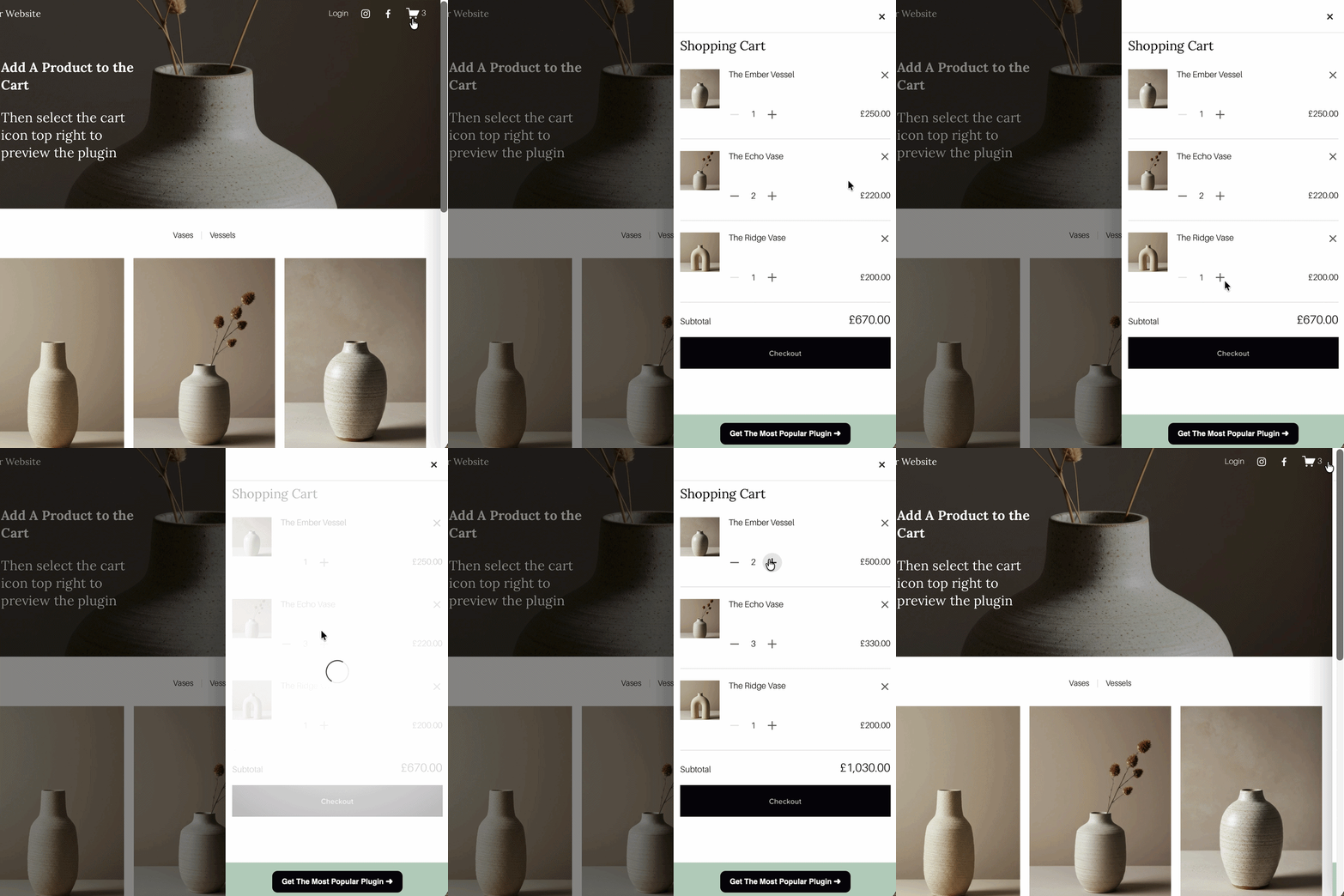
Squarespace is a fantastic platform out of the box—but with the right plugins, it becomes unstoppable. Whether you’re boosting SEO with SEOspace, enhancing e-commerce with the Slide Out Cart, or adding design flair with the Timeline and Hotspot plugins, there’s something here for every site.
Looking for more Squarespace plugins?
If you want to extend what Squarespace can do, I’ve created a growing collection of design focused Squarespace plugins that help you add powerful features without complicated development.
You’ll find tools for improving navigation, adding interactive elements, showcasing logos, organising content and more.
👉 Browse All Squarespace Plugins
For more cool Squarespace tips check out my blog, or sign up to my newsletter.









![How to Add Multiple Header Buttons on Squarespace [2025]](https://images.squarespace-cdn.com/content/v1/62c2c3cdb503a23ea69c8834/e0dd6de8-2023-47f5-a005-b62e6a2de8d3/2+Buttons.jpg)


![Squarespace Back To Top Button [With Indicator Animation]](https://images.squarespace-cdn.com/content/v1/62c2c3cdb503a23ea69c8834/1730734790109-XTAJPP06KGHP7ZYMU7FY/Squarespace-back-to-top-button-guide.jpg)