

Add A Countdown Timer Squarespace Websites


Countdown Timer Squarespace
Why Use a Countdown Timer on Squarespace?
With a countdown timer Squarespace users can add to their site helps create urgency, boost engagement, and highlight time-sensitive events. Whether it's a product launch, a sale deadline, or a special announcement, adding a Squarespace countdown timer feature makes your site more dynamic and interactive. It’s great for up coming events.
Benefits of Adding a Free Countdown Timer Squarespace Offers
Urgency Boost: Highlight time-limited offers.
Visual Appeal: Make your website look professional and dynamic.
Ease of Setup: Adding a free countdown timer Squarespace integration is quick and requires no plugins.
Adding a countdown timer Squarespace feature is a fantastic way to increase engagement and excitement for your audience. Follow this guide to integrate a free, effective countdown timer today.
The below plugin code is for my standard Squarespace countdown timer. I do have a new upgraded countdown timer if you want some extra zazz! This has an animated ‘pop in’ digital clock effect! This premium animated Countdown Timer Plugin is fully customizable, mobile-friendly with seamless animations and brand-ready styling!
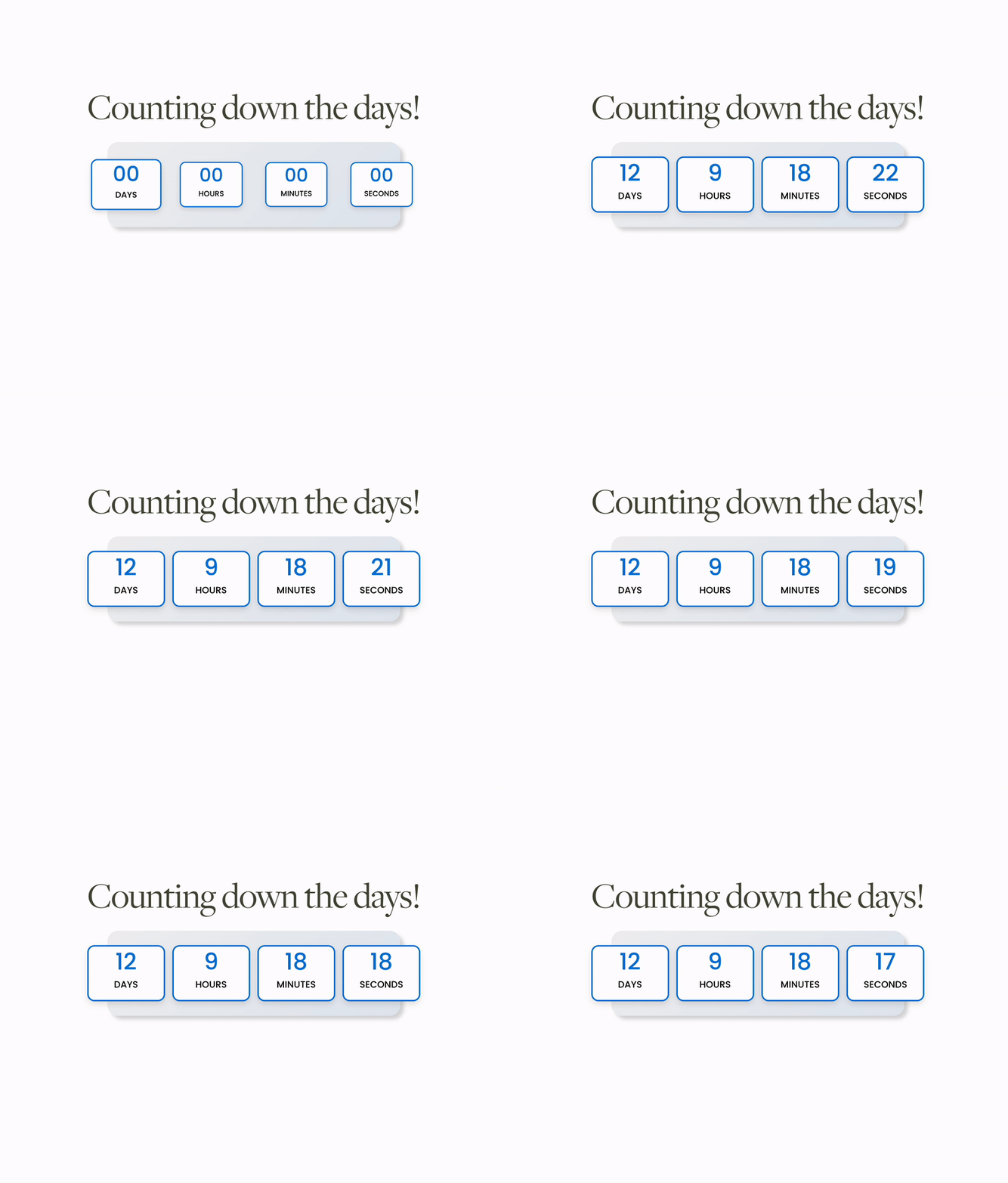
Adding The Standard Squarespace Countdown Timer to Your Website:
Step 1: Add a Code Block
Paste the below code into a code block wherever you want your countdown timer to be visible on your website.
Paste the following in the code block:
<center>
<div id="countDownTimer">
</div>
</center>

Step 2: Advance Code in Page Settings
Paste the below code into your page’s advanced code injection area

To change the date simple amend the below code highlighted in bold to your required date.
<!--- Countdown timer --->
<script>
// Set the date you would like to count to
let countDownDate = new Date("march 21, 2026 00:00:01").getTime();
// Update the count down every 1 second
let x = setInterval(function() {
// Today's date and time
let now = new Date().getTime();
// Distance between now and the count down date
let countDifference = countDownDate - now;
let days = Math.floor(countDifference / (1000 * 60 * 60 * 24));
let hours = Math.floor((countDifference % (1000 * 60 * 60 * 24)) / (1000 * 60 * 60));
let minutes = Math.floor((countDifference % (1000 * 60 * 60)) / (1000 * 60));
let seconds = Math.floor((countDifference % (1000 * 60)) / 1000);
document.getElementById("countDownTimer").innerHTML = "<div><span class='text'>" + days + "</span><div>Days</div></div><div><span class='text'>" + hours + "</span><div>Hours</div></div><div><span class='text'>" + minutes + "</span><div >Minutes</div></div><div><span class='text'>" + seconds + "</span><div>Seconds</div></div>";
if (countDifference < 0) {
clearInterval(x);
document.getElementById("countDownTimer").innerHTML = "<div><span class='text'>EXPIRED</span></div>";
}
}, 1000);
</script>
<!--- End Countdown timer --->
Step 3: Add the CSS to style your countdown timer
Paste the below CSS code into your custom CSS section on your website. Adjust the colors and text sizes as required.
/* countdown timer */
#countDownTimer .text{
display:inline-block;
font-weight: bold;
color:#000;
font-size:1.5rem}
#countDownTimer{
display:inline-block;
color:#000;
text-align:center;
font-size:1rem}
#countDownTimer>div{
display:inline-block;
padding: 10px;
background: #FFDB48;
border-radius: 20px;
}
#countDownTimer div>span{
display:inline-block;
padding:10px; }
In conclusion, maximize the potential of your Squarespace website by integrating a countdown timer Squarespace users can easily customize. Boost user engagement, build anticipation, and drive conversions with this simple yet powerful tool. Transform your site into a dynamic and interactive platform, keeping your audience connected and eager for upcoming events. Elevate your digital presence effortlessly with the seamless addition of a countdown timer Squarespace, and watch your website captivate visitors like never before.
You might also be interested in my article about ‘how to add a progress bar to Squarespace’
So thats my guide on how create Squarespace anchor links. For more Squarespace tips and hacks feel free to sign up to my newsletter!
Did I help you? Consider buying me a coffee as thanks!





Looking for an easy way to add filters to Squarespace?
The Genius Squarespace Filter Plugin helps you turn busy portfolio pages, blogs, event pages and galleries into a cleaner, easier to browse experience.
Visitors can quickly filter your content by category, topic, service, location, resource type or any labels you choose, instead of scrolling through everything.
Perfect for portfolios, blog archives, event listings, galleries (grid, masonry & strips only) resource hubs and larger content collections, this plugin gives your visitors a smoother way to explore your content without the cost or complexity of custom development.
Portfolio Filter Demo ➜
NEW Advanced Dropdown Portfolio Filter Demo ➜
Gallery Filter Demo ➜
Blog Filter Demo ➜
Event Filter Demo ➜
Key Features:
Simple to install and customise
Filter options for portfolio pages, galleries, blogs and events
Includes the new advanced dropdown portfolio filter
Ideal for Squarespace sites needing more in depth filtering options with a simple user experience
Beginner friendly setup with copy and paste instructions
Designed for Squarespace 7.1 websites