

How to Add the Price to Your Squarespace Add to Cart Button
Quick answer
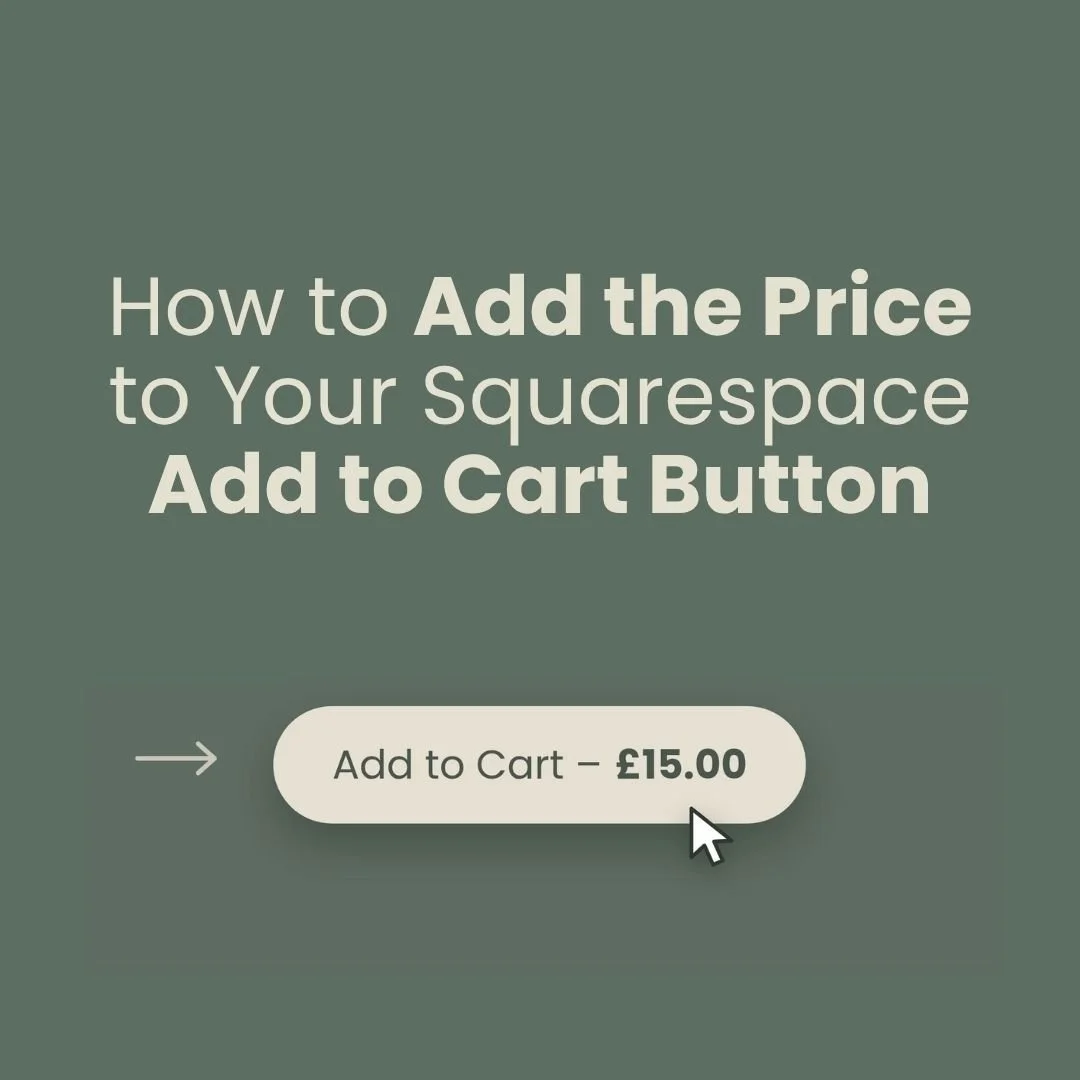
Can you show the price on the Add to Cart button in Squarespace? Yes. Squarespace 7.1 has no built-in setting for it, but a short script in Code Injection adds the price to your button automatically. Your button reads something like "Buy Now – £15.00".
The code keeps whatever button text you set in the product editor. It also uses the sale price when an item is discounted and updates when a shopper picks a different variant. You never have to edit a button when your prices change.
Why add the price to your Add to Cart button?
Showing the price on the button puts the cost right where the buying decision happens. Here's why that can help.
Shoppers see the cost at the moment they click. On mobile, the price often sits above the fold while the button is further down, after the description and options. Putting the price on the button means nobody has to scroll back up to check.
It removes surprises. Price surprises are a big reason people leave. In Baymard Institute's checkout research, 40% of US shoppers who abandoned a cart (excluding those just browsing) said extra costs were too high, and 12% said they couldn't see the total cost up front. A visible price on the button won't fix shipping fees, but it keeps the product cost clear and honest.
It reassures buyers on affordable products. If your price is a selling point, the button is a great plaQuick answerce to repeat it. "Buy Now – £9" can feel like an easy yes.
It works with friendlier button text. Labels like "Get this Plugin" or "Get Instant Access" sound warmer than "Buy", but on their own they can make people wonder if something is free. Adding the price keeps the friendly tone and makes the cost obvious.
Sales show up on the button automatically. When you put a product on sale, the button shows the sale price straight away. There's nothing to update by hand.
It's a small touch rather than a magic fix. If you want proof it works for your shop, compare your conversion rate in Analytics → Purchase Funnel for a few weeks before and after adding it.
When it might not suit your shop
A price on the button works best for clear, fixed-price products. Think twice in these cases:
High-ticket items. For luxury products or big-ticket services, leading with value usually works better than repeating the cost.
Products with lots of price-changing variants. The code hides the price until a shopper picks an option, so the button only shows a price once one is chosen.
Very minimal designs. Longer button text can wrap onto two lines on small screens. Check your product pages on mobile after adding it.
What the code does
The script reads the price from your product page and adds it to the end of your Add to Cart button. Your button text stays exactly as you set it in Squarespace.
Keeps your label. Whatever you've set ("Add to Cart", "Buy Now", "Get this Plugin") stays, and the price is added after it.
Uses the sale price. On discounted items, it ignores the crossed-out original price.
Follows variants. When a shopper picks a different size or option, the price on the button updates. If the page shows a price range before an option is chosen, the button shows your label only.
Leaves Squarespace's messages alone. "Adding…" and "Added!" still appear when someone clicks, then the price comes back.
Runs only on product pages. Product blocks and other pages aren't affected.
This is why a simple one-line snippet usually doesn't work. Squarespace redraws the button when variants change or items are added, so the price disappears. This version watches for those changes and puts it back.
How to add the price to your Add to Cart button
You'll need Squarespace 7.1 on the Core plan or above, because Code Injection isn't available on lower plans. It takes about two minutes.
Set your button text (optional). Open a product in the product editor and set your custom button label, such as "Buy Now". If you skip this, the code works with the default "Add to Cart".
Copy the code below. Use the copy button so you get it exactly as written.
Open Code Injection. Go to Settings → Developer Tools → Code Injection.
Paste into the Footer box. Add it below any code that's already there, then click Save.
Test a product page. Open a product page in a new tab, logged out or in a private window. Check a regular item, a sale item and a product with variants.
Paste it into Code Injection, not a Code Block. Squarespace's Code Block editor can turn straight quotes into curly "smart" quotes, which breaks the script.
The code
Copy this into Settings → Developer Tools → Code Injection → Footer. There's nothing to edit: it picks up your button text and price automatically.
Customising and troubleshooting
Change the separator. The dash between your label and the price is set on one line near the top. Swap ' – ' for ' · ' or ' | ' to match your style.
Price not showing? Work through these checks:
Check the location. The code must be in Code Injection, not a Code Block or the page header of a different page.
Check for curly quotes. If you pasted via a notes app or Word, straight quotes may have turned curly. Copy it again directly from this page.
View it logged out. Some scripts don't run inside the Squarespace editor preview, so test in a private window.
Check for a price range. If your product shows something like "£10 – £20", the price only appears once an option is selected. That's intentional.
Check your currency. The code recognises £, $, €, ¥ and ₹. Get in touch if you sell in another currency.
Button text wrapping onto two lines? Shorten your button label, or reduce the button's side padding in Site Styles → Buttons.
FAQs
-
Not with a built-in setting. You can add it with a short script in Code Injection, which reads the product price and adds it to the end of the button text automatically.
-
No. The code keeps the label you set in the Squarespace product editor and adds the price after it, so "Buy Now" becomes "Buy Now – £15.00". description
-
Yes. On discounted products, the button shows the sale price and ignores the crossed-out original price.
-
Yes. The price on the button updates when a shopper picks a different option. If the page shows a price range before an option is chosen, the button shows your label only until they choose.
-
No. The code reads the live price from your product page every time it loads, so price changes and sales show up automatically.
-
It can reduce hesitation by keeping the cost visible at the moment of decision, but results vary by shop. Compare your Purchase Funnel in Squarespace Analytics for a few weeks before and after to see the effect on your store.
-
You need Squarespace 7.1 on the Core plan or above, because Code Injection isn't available on lower plans.
Did I help you? Consider buying me a coffee as thanks!
Looking for more ways to make your Squarespace website stand out?
Browse the full range of Squarespace plugins.

You might also find these helpful:



Looking for an easy way to add filters to Squarespace?
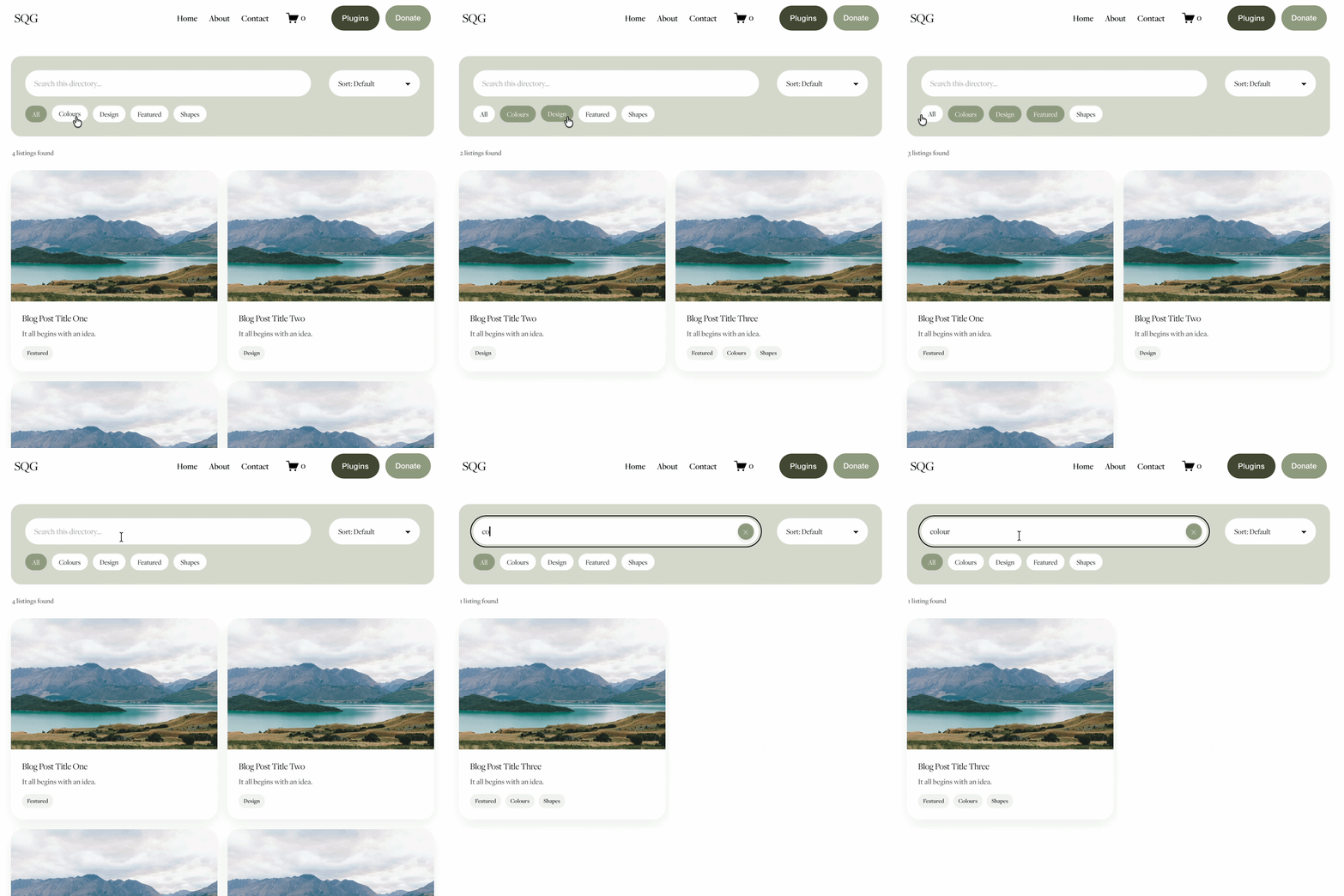
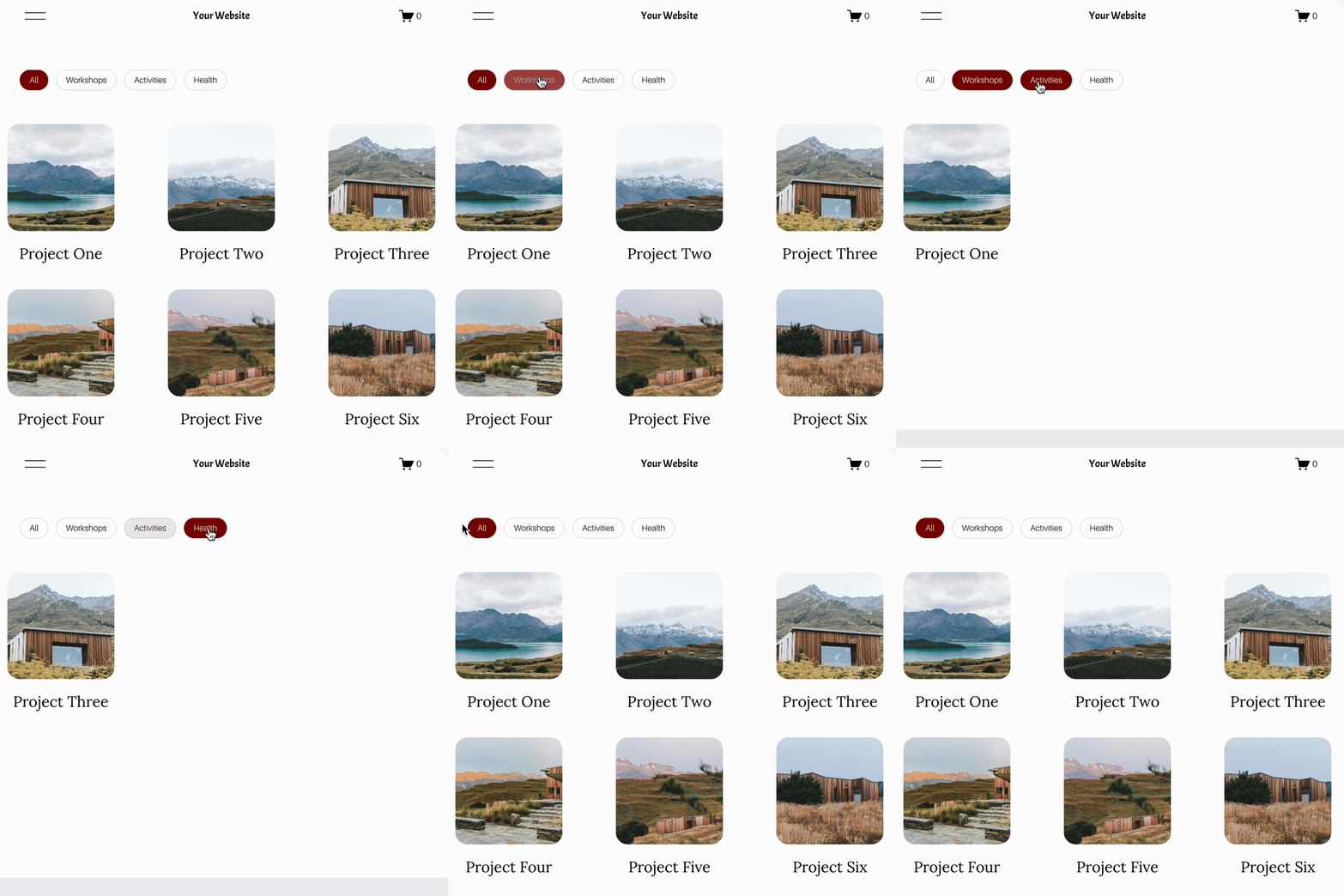
The Genius Squarespace Filter Plugin helps you turn busy portfolio pages, blogs, event pages and galleries into a cleaner, easier to browse experience.
Visitors can quickly filter your content by category, topic, service, location, resource type or any labels you choose, instead of scrolling through everything.
Perfect for portfolios, blog archives, event listings, galleries (grid, masonry & strips only) resource hubs and larger content collections, this plugin gives your visitors a smoother way to explore your content without the cost or complexity of custom development.
Portfolio Filter Demo ➜
NEW Advanced Dropdown Portfolio Filter Demo ➜
Gallery Filter Demo ➜
Blog Filter Demo ➜
Event Filter Demo ➜
Key Features:
Simple to install and customise
Filter options for portfolio pages, galleries, blogs and events
Includes the new advanced dropdown portfolio filter
Ideal for Squarespace sites needing more in depth filtering options with a simple user experience
Beginner friendly setup with copy and paste instructions
Designed for Squarespace 7.1 websites