

How to Add Filters and Search to Squarespace List Sections

Quick Answer: Squarespace 7.1 Simple List Sections don't include built-in category filters, live keyword search or alphabetical sorting. You can add these features using a plugin designed specifically for List Sections, allowing visitors to browse and search your existing cards without creating a separate blog collection.
Can You Filter Squarespace List Sections?
Squarespace List Sections are useful for displaying resources, guides, services, team profiles and other content in attractive cards.
You can manage each card directly in the Squarespace editor, adding titles, descriptions, images and links without creating a separate collection page.
But there's one limitation: native Simple List Sections don't offer interactive category filtering.
As your collection grows, visitors may have to scroll through every item to find what they're looking for.
That's where a Squarespace List Section filter can help.
How to Add Category Filters to a Squarespace List Section
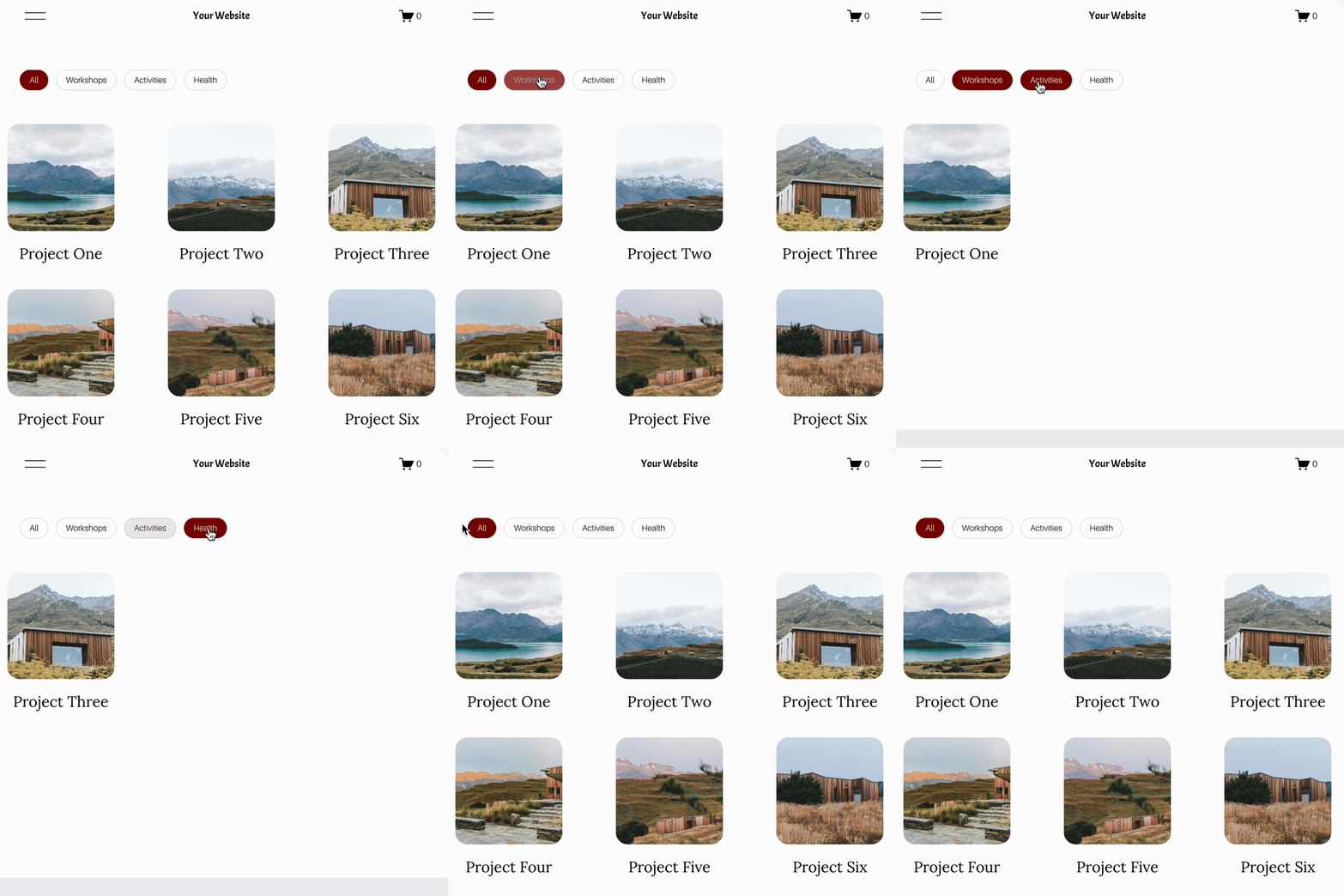
The Squarespace Content Library Filter Plugin adds category filtering, search and sorting to native Squarespace 7.1 Simple List Sections.

Here's how the setup works.
Step 1 — Create a Simple List Section
Open your Squarespace page editor and add a Simple List Section.
Create your resource cards as normal, including any images, titles, descriptions and links.
Step 2 — Assign Categories to Your Cards
The plugin uses a short category label inside each card's description to identify which filter buttons should appear.
For example:
[category: Guides]
You can also assign multiple categories to the same item:
[category: Guides, Templates]
The plugin reads these labels to generate the filter buttons and removes them from the visible descriptions.
Step 3 — Install the List Section Filter Plugin
Follow the supplied instructions to add the plugin's CSS and JavaScript to your Squarespace website.
You can then customise the filter colours, search bar, sorting dropdown and other options to match your design.
Step 4 — Test Your Search and Filtering
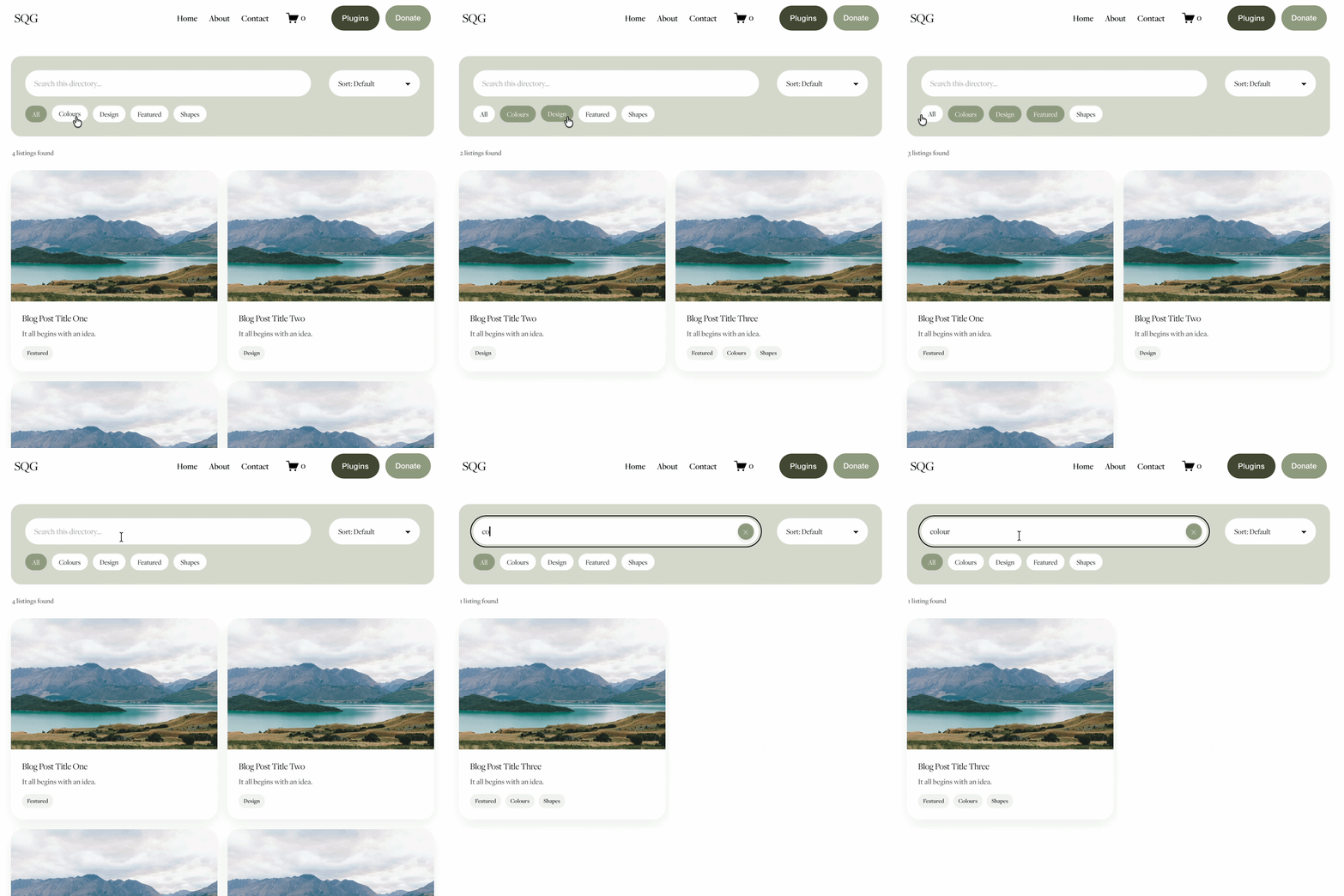
Once installed, visitors can click category buttons to narrow the visible cards.
The search field checks card titles, descriptions and assigned categories, updating the results as visitors type.
You can also enable multiple-category selection and alphabetical sorting.
Try the live Content Library Filter demo.
Can You Add a Search Bar to a Squarespace List Section?

Yes, with a List Section-compatible plugin.
Squarespace's built-in Search Block is intended for searching site content, rather than dynamically filtering individual List Section cards in place.
The Content Library Filter provides a search field specifically for the selected List Section, so matching cards update directly on the page.
This can be useful for resource libraries, training hubs, useful links pages and support directories.
Can You Sort Squarespace List Section Cards Alphabetically?
Yes. The Content Library Filter includes a sorting dropdown that allows visitors to display cards in their original order or sort titles alphabetically from A–Z or Z–A.
If your website doesn't need sorting, the control can be switched off.
Squarespace List Section Filter vs Blog Directory Plugin
The right plugin depends on how your content is organised. Both offer search, category filtering, alphabetical sorting and Show More functionality, but they work with different Squarespace content types.
| Feature | List Section Filter | Directory Plugin |
|---|---|---|
| Works with native List Section cards | Yes | No |
| Works with blog-based listings | No | Yes |
| Live keyword search | Yes | Yes |
| Category filtering | Yes | Yes |
| Alphabetical sorting | Yes | Yes |
| Show More | Yes | Yes |
Choose Content Library Filter if you want to manage everything through the normal Squarespace List Section editor. Explore the Content Library Filter .
Choose Directory Plugin if each listing is a blog post and you want to use Squarespace's blogging system. Explore the Directory Plugin .
If you want to manage everything through the normal Squarespace List Section editor, choose the Content Library Filter.
If each listing is a blog post, choose the Squarespace Directory Plugin.
For a broader comparison of filtering options, see my Complete Guide to Squarespace Filtering.
What Can You Create With a Squarespace List Section Filter?
There are lots of possibilities, including searchable resource libraries, video collections, training materials, team directories, useful links pages, service listings and project showcases.
For charities and educational organisations, it can be particularly useful for helping visitors find specific guides, reports or support resources without searching through a long page.
Frequently Asked Questions
-
Native Squarespace 7.1 Simple List Sections don't include the interactive category-filtering features offered by this plugin.
-
Yes. Content Library Filter updates the visible cards as visitors type into its search field.
-
No. Content Library Filter is designed for native Squarespace 7.1 Simple List Sections, not Summary Blocks.
-
No. The plugin works with your existing Simple List Section cards, provided the section is in a supported layout.
Make Your Squarespace Content Easier to Explore
If you're building a growing resource library, collection of useful links or directory using native Squarespace cards, adding filters and search can make a big difference to how visitors find information.
The Content Library Filter makes this possible while keeping your existing Squarespace editing workflow.
Explore the Squarespace Content Library Filter Plugin →
Did I help you? Consider buying me a coffee as thanks!
Looking for more ways to make your Squarespace website stand out? Browse the full range of Squarespace plugins.
You might also find these helpful:



Turn Squarespace List Sections into searchable content libraries
Create a more organised, searchable experience on your Squarespace website with the Content Library Filter Plugin.
Designed specifically for Squarespace 7.1 List Sections, this plugin adds clickable category filters, instant keyword search, alphabetical sorting and Show More functionality to your existing content.
Whether you're creating a resource library, collection of downloadable guides, video hub, team directory or useful links page, visitors can quickly find what they're looking for without endless scrolling.
The best part? You continue managing your content directly in Squarespace. Simply add and edit your List Section cards as normal, assign categories using a small label in the description, and let the plugin handle the filtering.
Searchable. Filterable. Fully customisable. No separate CMS required.
View Demo ➜
Important:
This plugin only works with the built in list section page on Squarespace (It does not work with summary blocks or any other page type)
This plugin is only compatible with Squarespace 7.1 sites.
One-off cost for a full license to use on multiple Squarespace 7.1 websites