

How to Display Multiple Squarespace Courses on One Page (Course Library Guide)
Quick Answer: Squarespace Courses doesn't include a built-in way to show all your courses together. Each course lives on its own Course page. To create a course library, you can either build course cards manually using a List Section or Fluid Engine blocks, or use the Squarespace Course Grid Plugin, which pulls in each course's title, thumbnail and lesson count automatically and displays them in a responsive grid.
Why Do You Need a Course Library Page?
Squarespace Courses works really well for a single course. Once you have two, three or ten, it gets harder for visitors to see everything you offer.
Without a central page, your courses tend to end up:
Hidden in a navigation dropdown with no images or context
Linked one by one from different pages across your site
Missing from your site entirely until someone has the direct link
A course library page fixes that. It gives visitors one place to browse, compare and choose. It also gives you a single page to link from your navigation, emails and social bio.
Can You Show All Your Squarespace Courses on One Page Natively?
Not automatically. There's currently no native block that lists all your courses. Summary Blocks pull from collections like blogs, stores and events, but not from Course pages.
That leaves two native workarounds.
Option 1: Use a List Section
Add a new section, choose List, and pick a cards layout. Each item gives you an image, title, description and button, so you can build a card for each course and link the button to the Course page.
Good for: two or three courses that rarely change.
The catch: everything is manual. If you change a course thumbnail, rename a course or add lessons, you have to update the card yourself.
Option 2: Build cards with Fluid Engine blocks
You can also lay out an Image Block, Text Block and Button Block for each course in a grid. You get more design freedom than with a List Section, but it takes longer to build. It can also be fiddly to keep aligned on mobile, especially as you add more courses.
Both options work. They just turn into a maintenance job as your course catalogue grows.
What Is the Easiest Way to Create a Squarespace Course Library?
The easiest way is to use a plugin that reads your Course pages for you. I built the Squarespace Course Grid Plugin for exactly this.
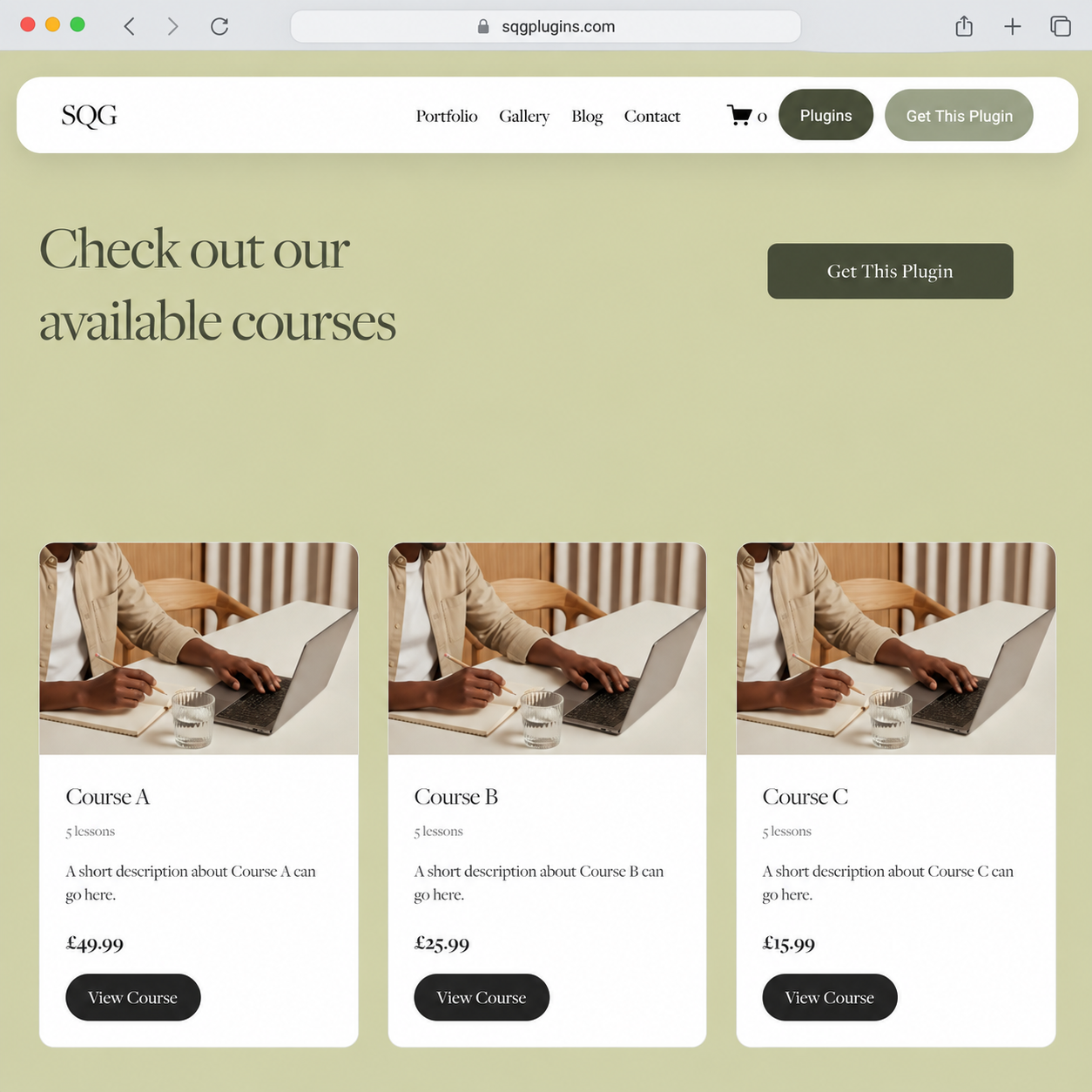
You add the URL of each course, and the plugin automatically pulls in:
The course title
The course thumbnail
The number of lessons
The link to the course
You can then add your own short description and price to each card. Everything displays in a clean, responsive grid that fits your site's design.
How to Set Up a Course Library Page Using the Course Grid Plugin (Step by Step)
These steps use the Squarespace Course Grid Plugin. If you're building cards manually with a List Section instead, see Option 1 above.
1. Set each course's Paywall Placement to "Lessons Only".
In each course's settings, set the paywall to cover lessons only. This keeps the course overview public while your lessons stay behind the paywall. The plugin needs this to read your course information, and it's a good idea anyway (see the next section).

2. Create your library page.
Add a new page, call it something like "Courses" or "Course Library", and add it to your main navigation.
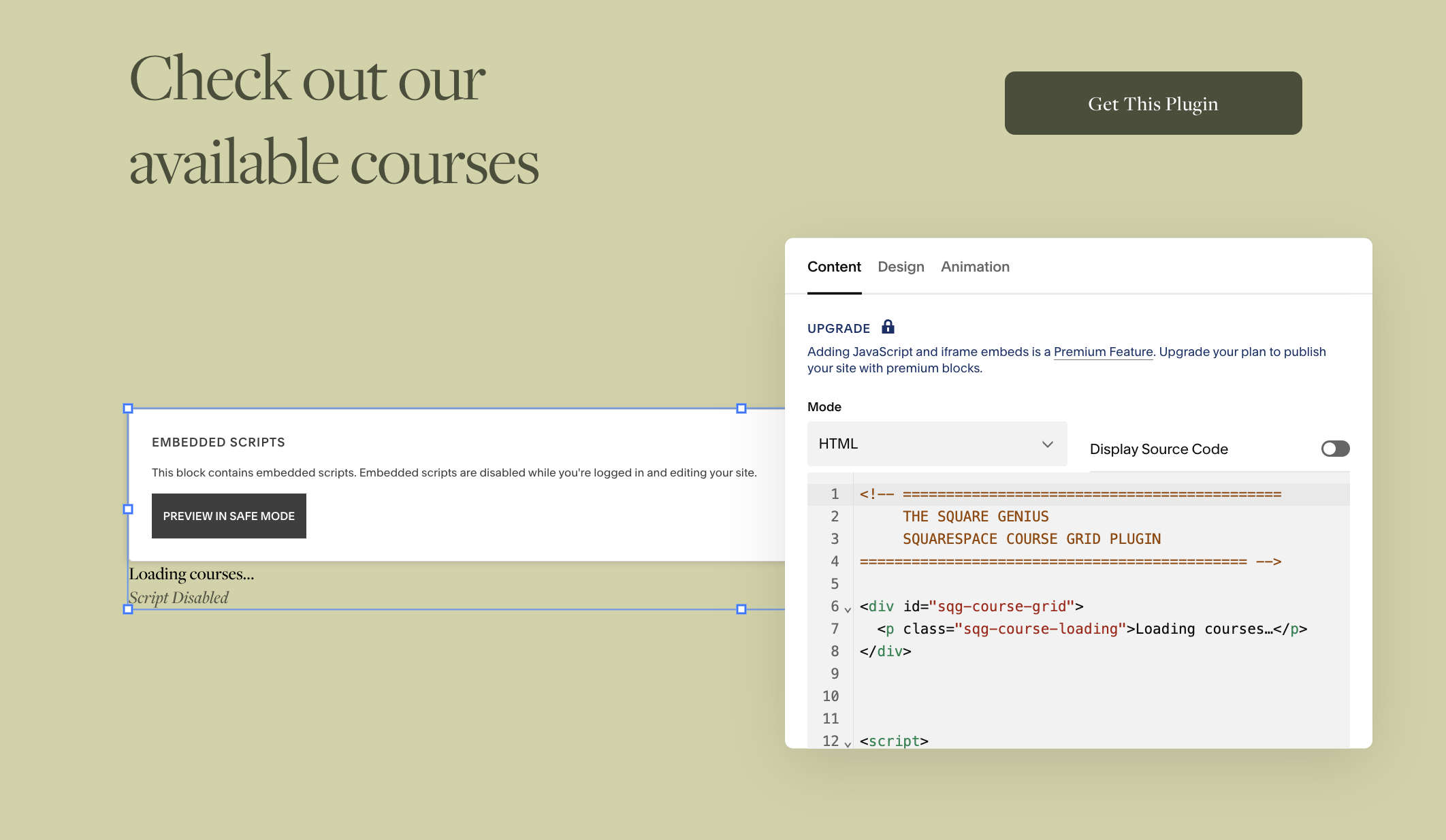
3. Add the plugin code.
Add a Code Block to the page and paste in the plugin code, following the step-by-step guide and video tutorial that come with the plugin.
4. Add your course URLs to the plugin.
Paste in the URL of each course you want to show. The plugin fetches the title, thumbnail and lesson count for you.
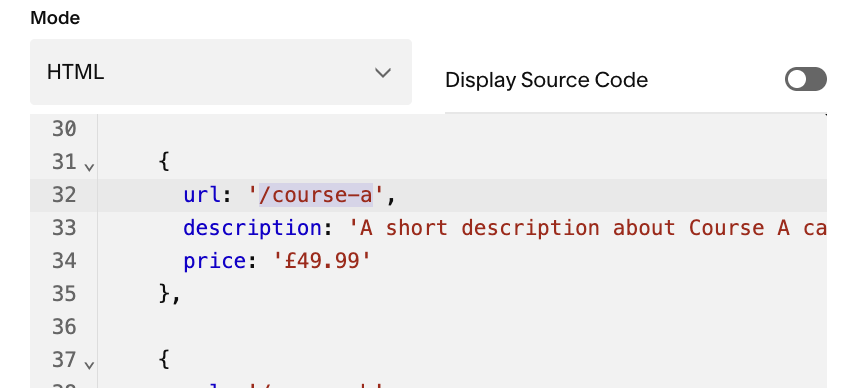
5. Add descriptions and prices (optional).
Add a short one- or two-line description and a price to each course card if you want the page to work as a sales page.
6. Style it to match your site.
Adjust the columns, spacing, colours, rounded corners, typography, image ratio and buttons using the plugin's labelled style settings.
7. Test it while logged out.
Open the page in a private browser window and click every card, so you see exactly what a new visitor sees.
Why Should Your Course Overview Page Stay Public?
This step is easy to miss. If you lock the whole course, including the overview page, visitors can't see what's inside before they buy. Your best sales content then sits behind the paywall.
Setting Paywall Placement to Lessons Only lets the overview page work as a sales page. Visitors can see the curriculum, chapters and lesson titles, while the lesson content stays protected. That's the setup the Course Grid Plugin needs, and it usually converts better too.
Who Is a Course Grid Plugin For?
Course creators with two or more Squarespace Courses who want one place to sell them
Coaches and educators adding courses alongside services or 1:1 work
Training providers and charities offering several learning programmes or CPD modules
Membership sites that want a browsable library rather than a list of links
Squarespace designers building course sites for clients who need something easy to maintain
When a Plugin Isn't the Right Fit
If you need advanced features across many courses, such as drip-fed content, community spaces or complex membership tiers, a dedicated platform like MemberSpace or Thinkific may suit you better than native Squarespace Courses.
If you're happy with Squarespace Courses and just need a better way to display them, a course grid is the simpler and cheaper option. The Course Grid Plugin is a one-off $35 with a full licence for multiple Squarespace 7.1 sites.
FAQs: Displaying Multiple Squarespace Courses
-
Yes, but not automatically with native tools. You can build course cards manually using a List Section or Fluid Engine blocks, or use a course grid plugin that pulls each course's title, thumbnail and lesson count onto one page for you.
-
No. Squarespace doesn't currently have a block that lists all your courses, and Summary Blocks don't pull from Course pages. Each course card has to be built manually unless you use a plugin.
-
Create a new page, add it to your navigation, then add a card for each course. You can build the cards manually with a List Section, or use the Squarespace Course Grid Plugin to generate them from your course URLs.
-
Yes. Set each course's Paywall Placement to Lessons Only. This keeps the course overview public so the grid can read it, while your lessons stay behind the paywall.
-
Yes. The title, thumbnail and number of lessons are pulled from each course automatically. If you create a brand new course, you just add its URL to the plugin once.
-
No. The plugin comes with a step-by-step installation guide and video tutorial. You mainly add your course URLs and adjust clearly labelled style settings.
Did I help you? Consider buying me a coffee as thanks!
Looking for more ways to make your Squarespace website stand out? Browse the full range of Squarespace plugins.
You might also find these helpful:



Looking for an easy way to add filters to Squarespace?
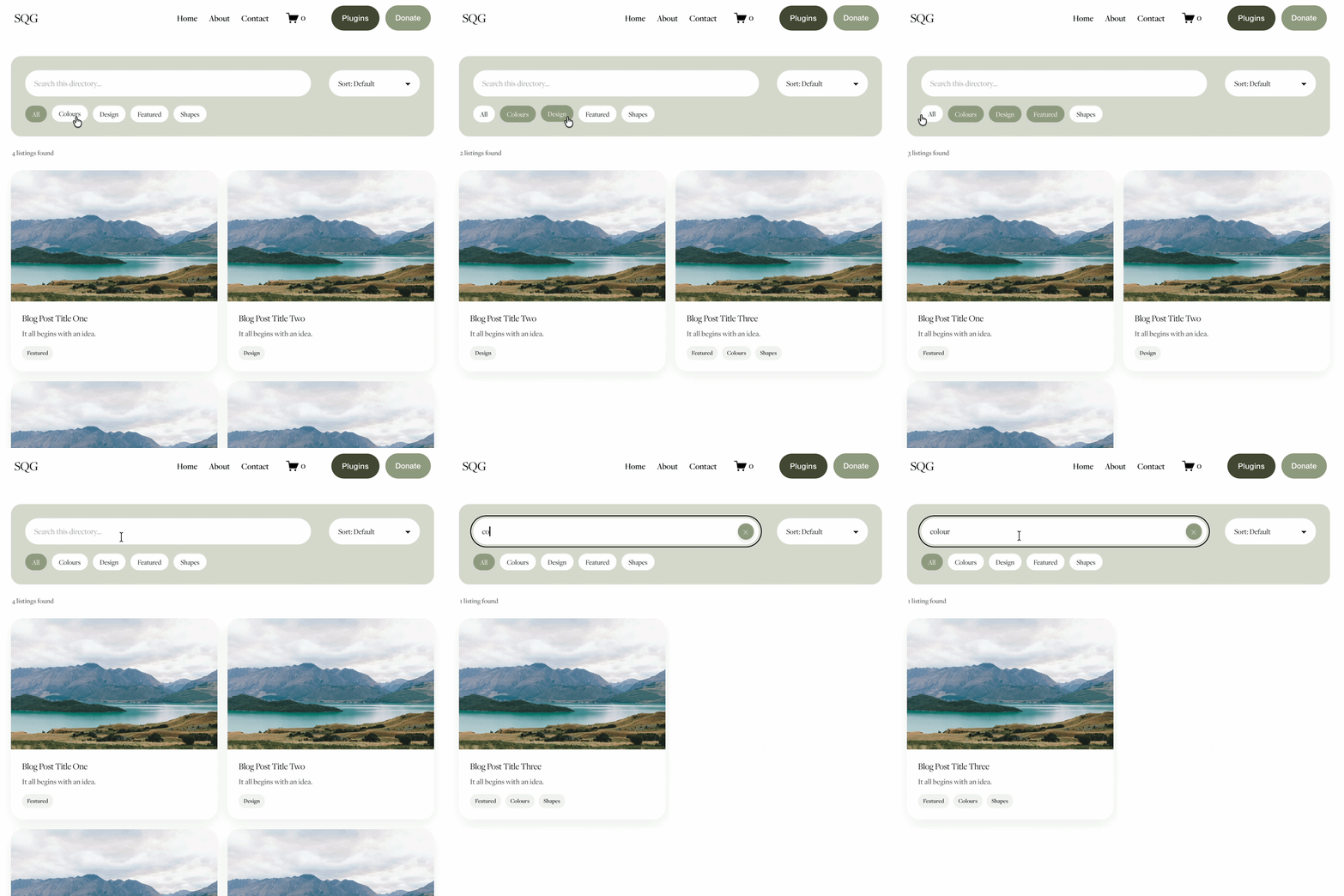
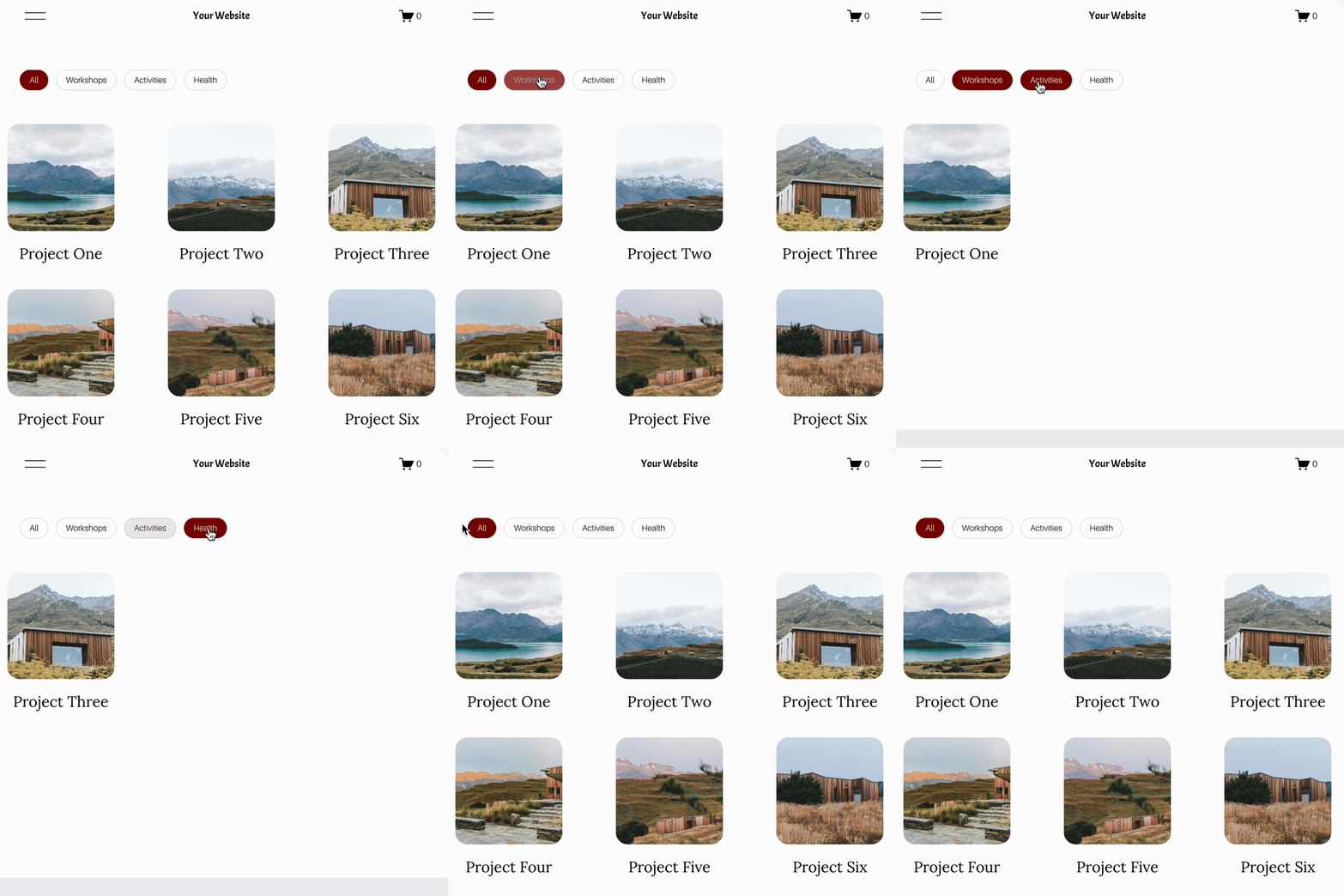
The Genius Squarespace Filter Plugin helps you turn busy portfolio pages, blogs, event pages and galleries into a cleaner, easier to browse experience.
Visitors can quickly filter your content by category, topic, service, location, resource type or any labels you choose, instead of scrolling through everything.
Perfect for portfolios, blog archives, event listings, galleries (grid, masonry & strips only) resource hubs and larger content collections, this plugin gives your visitors a smoother way to explore your content without the cost or complexity of custom development.
Portfolio Filter Demo ➜
NEW Advanced Dropdown Portfolio Filter Demo ➜
Gallery Filter Demo ➜
Blog Filter Demo ➜
Event Filter Demo ➜
Key Features:
Simple to install and customise
Filter options for portfolio pages, galleries, blogs and events
Includes the new advanced dropdown portfolio filter
Ideal for Squarespace sites needing more in depth filtering options with a simple user experience
Beginner friendly setup with copy and paste instructions
Designed for Squarespace 7.1 websites