How to Create a Directory in Squarespace

Quick answer: how do you create a directory in Squarespace?
The easiest way to create a directory in Squarespace is to use a blog page as your directory structure. Each blog post becomes one listing, and you can organise listings with categories, tags, images and excerpts.
To make the directory easier to search and browse, you can use a Squarespace directory plugin. This gives visitors a cleaner way to explore your listings without needing a fully custom website build.
If you want to create a directory in Squarespace, you might have already discovered that there is not a dedicated built in directory feature.
That does not mean it cannot be done.
With the right setup, you can turn a standard Squarespace blog page into a clean, searchable directory that helps visitors browse listings, find relevant information and explore your content more easily.
This can work beautifully for member directories, supplier directories, charity directories, team profiles, local business listings, resource hubs, partner pages and more.
In this guide, I will walk you through a simple way to create a directory in Squarespace, what to think about before you build it, and how to make the finished directory easier for visitors to use.
What is a Squarespace directory?
A Squarespace directory is a page that organises multiple listings in one place.
Each listing could represent a person, organisation, business, service, resource, location or profile. Instead of placing all the information on one long page, you create individual entries and organise them so visitors can browse or search through them.
For example, you could use a Squarespace directory for:
Members
Staff profiles
Suppliers
Local businesses
Partners
Venues
Events
Resources
Courses
Services
Case studies
Community groups
A good directory should make it easy for people to find what they are looking for quickly. That means clear categories, simple listing cards, useful search options and a layout that does not feel overwhelming.
Can Squarespace be used as a directory website?
Yes, Squarespace can be used as a directory website, especially if your directory is fairly simple and does not need complex membership features.
For many websites, a blog page can work really well as the base of a directory. Each blog post becomes one listing, and the main blog page becomes the place where visitors browse those listings.
This approach can work well for:
Member directories
Supplier directories
Charity directories
Local business directories
Resource directories
Team directories
Partner directories
Service directories
If your directory needs advanced features, such as public submissions, paid memberships, account dashboards or complex map search, you may need something more custom. But for many Squarespace websites, a blog based directory is a practical and affordable option.
Can you create a directory in Squarespace?
Yes, you can create a directory in Squarespace, but you will usually need to be a little creative with how you structure it.
Squarespace does not currently have a dedicated directory block that lets you add searchable listings straight out of the box. However, you can use existing Squarespace features, especially blog pages, to create a directory style layout.
A blog page works well because each blog post can act as one directory listing. You can then use categories, tags, summaries, images and excerpts to organise the information.
This is one of the simplest ways to build a directory without needing a completely custom website.
What is the best way to create a searchable directory in Squarespace?
The best way to create a searchable directory in Squarespace is to use a blog page for your listings and then add search or filtering to improve the browsing experience.
A standard blog page gives you the structure. A directory plugin gives visitors a better way to explore the content.
This means you can keep your listings inside Squarespace while making the front end feel more like a proper directory.
Why use a blog page for a Squarespace directory?
A Squarespace blog page gives you a flexible structure for adding and managing listings.
Each blog post can become one item in your directory. For example, if you are creating a supplier directory, each supplier would have their own post. If you are creating a member directory, each member would have their own post.
This gives you space to include helpful details such as:
Name
Image or logo
Category
Location
Description
Contact details
Website link
Services offered
Tags
Additional information
It also means you can update, add or remove listings easily inside Squarespace without needing to rebuild the whole page.
Step 1: Plan what your directory needs to include
Before you start building your directory, think about what your visitors actually need to find.
Ask yourself:
What type of listings will I be adding?
What information does each listing need?
Do visitors need to search by keyword?
Do visitors need to filter by category?
Will each listing need its own full page?
How many listings will I have now?
How many listings might I have in future?
This matters because a directory with ten listings can be fairly simple. A directory with one hundred listings needs a much clearer browsing experience.
If visitors have to scroll endlessly to find the right item, they may give up before they find what they need.
Step 2: Create a blog page for your directory
Inside Squarespace, create a new blog page and use it as the home for your directory listings.
You can name the blog page something clear, such as:
Directory
Member Directory
Supplier Directory
Resources
Local Directory
Partner Directory
Listings
Each blog post will become one listing in your directory.
This keeps things organised and gives you a repeatable structure, which is much easier than trying to manually design every listing on a standard page.
Step 3: Add one listing per blog post
Next, create a separate blog post for each listing.
Try to keep the structure consistent. For example, each listing could include:
A clear title
A featured image or logo
A short excerpt
A category
Relevant tags
A description
Contact information
A call to action
Consistency is important because it helps your directory feel professional and easier to use.
If one listing has lots of detail and another has almost none, the page can start to feel messy. A simple template for each listing will help you keep everything tidy.
Step 4: Use categories and tags carefully
Categories and tags can help organise your directory.
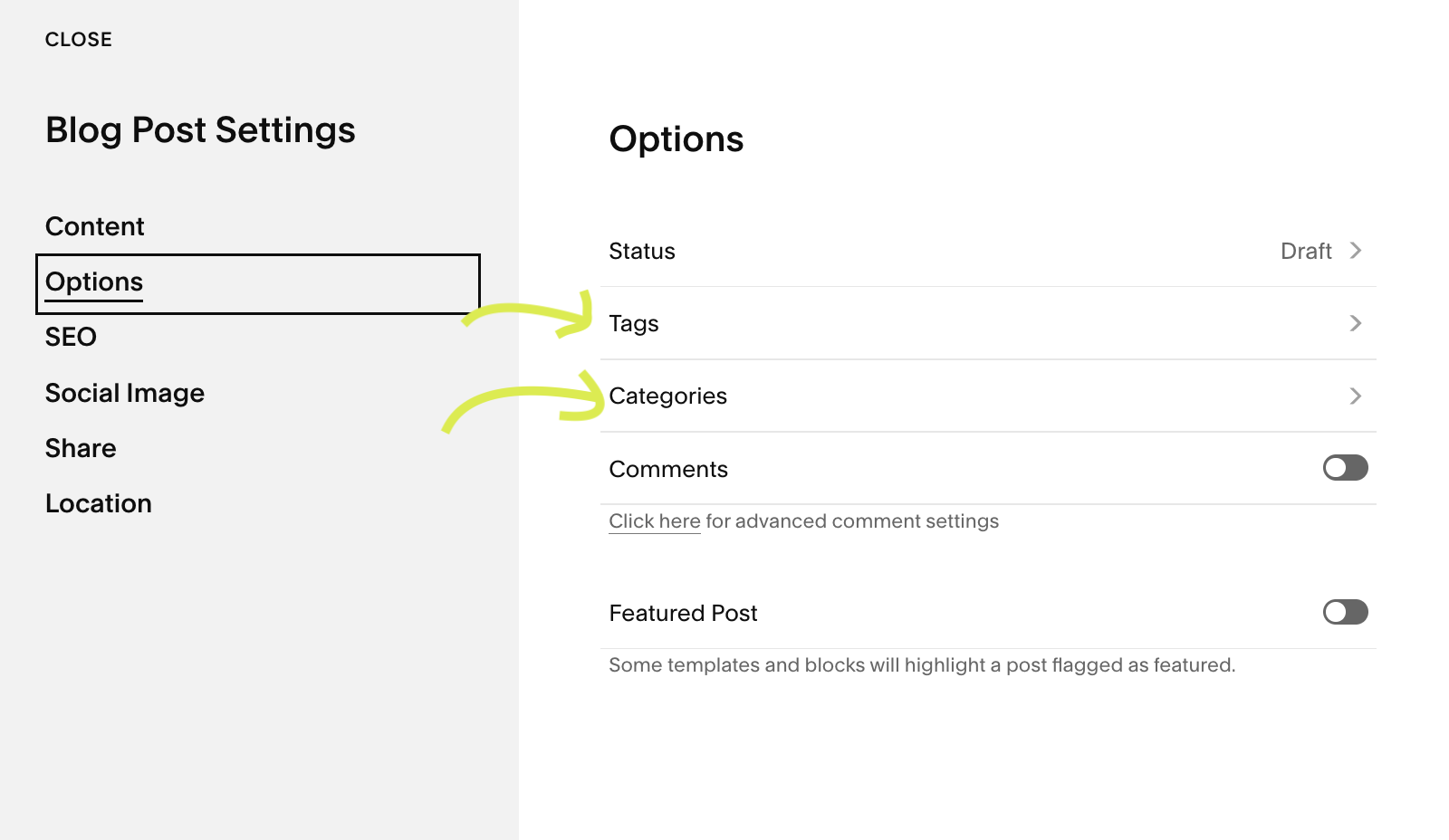
For example, a charity directory might use categories such as:
Children and young people
Community
Environment
Mental health
Homelessness
Family support
A supplier directory might use categories such as:
Web design
Marketing
Accountancy
Printing
Legal support
Fundraising
Training
Try not to create too many categories at the beginning. Too many options can make your directory harder to use.
Start with the most useful categories and add more only when you need them.
Step 5: Make the directory easier to browse
A standard Squarespace blog page can work as a basic directory, but it may not offer the best user experience if you have lots of listings.
This is where a directory plugin can help.
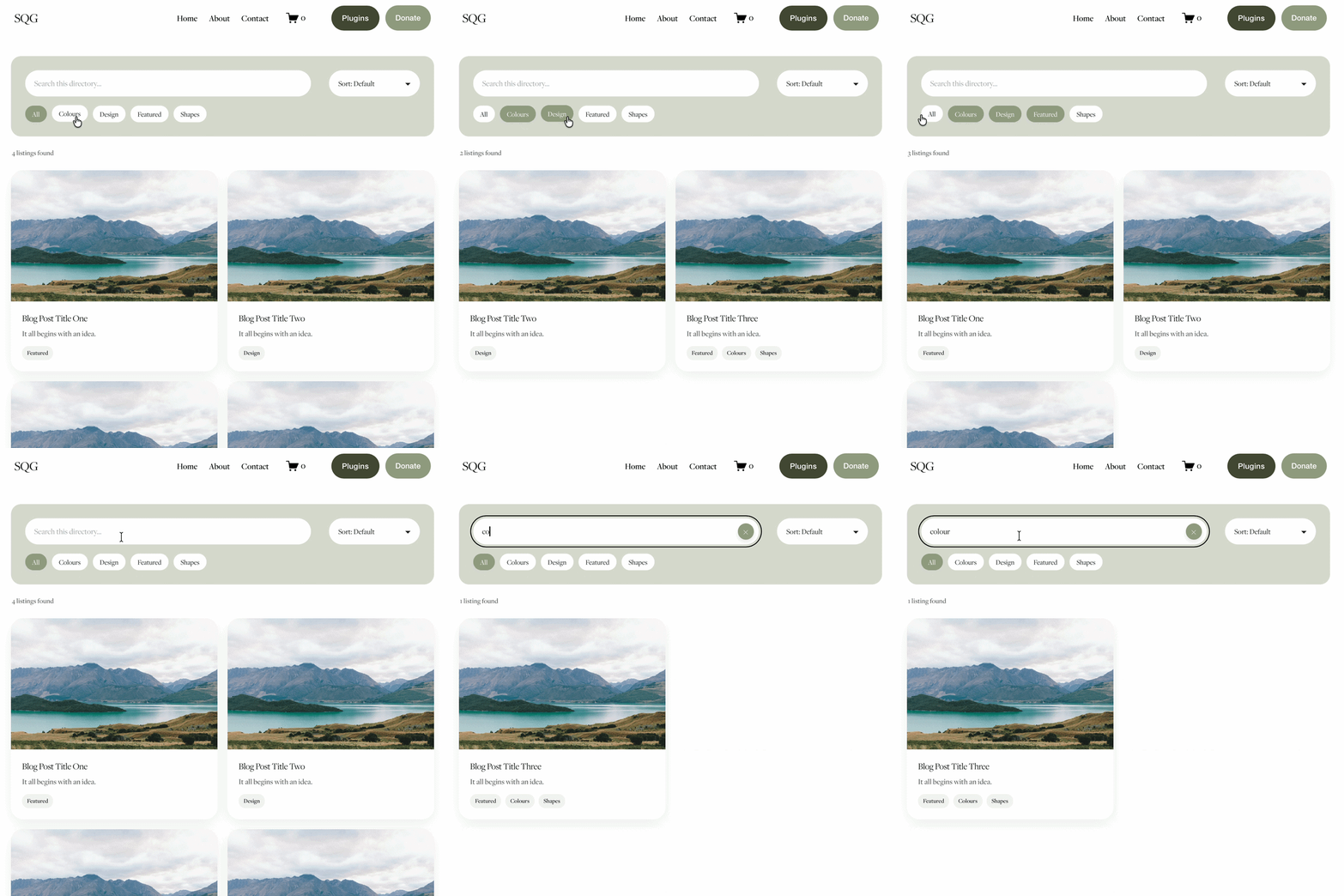
A plugin can improve the way your blog page behaves by making it easier for visitors to search, browse and find relevant listings.
For example, the Squarespace Directory Plugin by The Square Genius is designed to turn a standard Squarespace blog page into a cleaner and more user friendly directory experience.
Instead of asking visitors to scroll through a long list of posts, it helps them explore your listings in a more intuitive way.
This is especially useful if your directory includes members, suppliers, charities, local businesses, partners, team profiles or resources.
Do I need a plugin to build a Squarespace directory?
You do not always need a plugin to build a basic Squarespace directory, but a plugin can make the directory much easier for visitors to use.
If you only have a few listings, a standard blog or portfolio page may be enough. But once your directory grows, search and filtering become much more important.
A plugin can help visitors find what they need faster, especially if your directory has lots of categories, services, locations, members or resources.
Can you use a Squarespace portfolio page as a directory?
Yes, in some cases a Squarespace portfolio page can also work as a directory style layout, especially if your directory is more visual.
For example, if you want to showcase creative work, projects, case studies, venues, locations, suppliers, team members or service categories, a portfolio page can give you a more image led layout than a blog page.
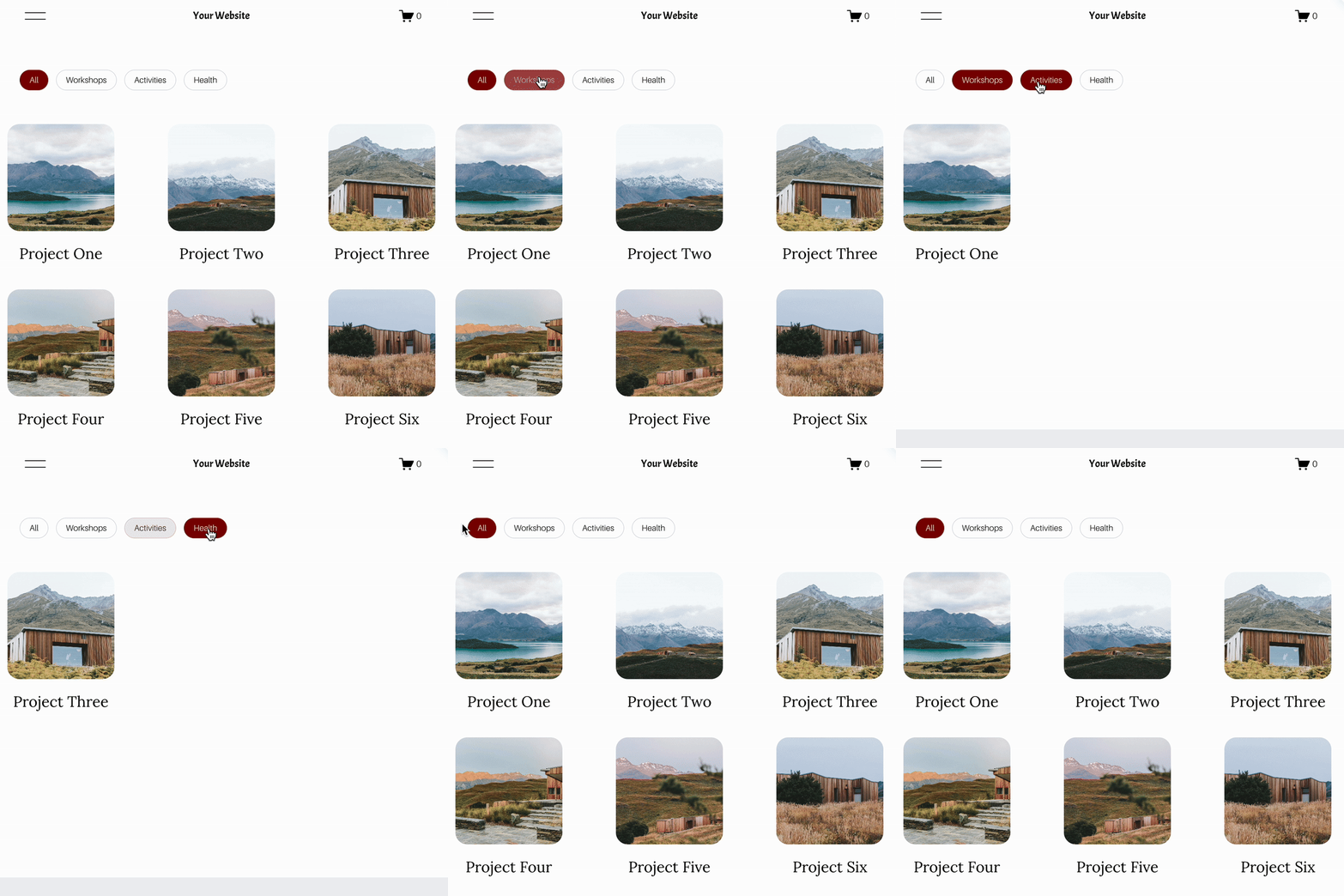
This is where the Genius Squarespace Filter Plugin could be a better fit. It includes a portfolio filter option, including an advanced dropdown portfolio filter, which lets visitors browse portfolio items by category.
A portfolio based directory can work well for:
Creative directories
Supplier showcases
Venue listings
Case study libraries
Team or expert profiles
Project directories
Visual resource hubs
However, if you want each listing to behave more like a traditional directory entry, with searchable blog style listings, categories, excerpts and regular updates, the Squarespace Directory Plugin is likely to be the better choice.
In simple terms:
Use the Squarespace Directory Plugin if you want to turn blog posts into a searchable directory.
Use the Genius Squarespace Filter Plugin if you want to turn a portfolio page into a visual, filterable directory.
Which plugin should you use?
Choose the Squarespace Directory Plugin if you want to create a searchable directory using blog posts. This is best for member directories, supplier directories, charity directories, local business listings and resource hubs.
Choose the Genius Squarespace Filter Plugin if you want to create a more visual, filterable directory using a portfolio page. This is best for creative directories, case studies, venues, project galleries and image led listings.
Can I create a member directory in Squarespace?
Yes, you can create a member directory in Squarespace using a blog page structure.
Each member can have their own blog post, with a profile image, short description, category, tags and contact details. The main blog page can then become the member directory where visitors browse or search through members.
This works well for:
Charity networks
Business networks
Professional associations
Community groups
Creative collectives
Supplier networks
Partner directories
If you want the member directory to be easier to search and browse, a Squarespace directory plugin can improve the experience for visitors.
Step 6: Think about the visitor journey
A directory is not just about displaying information. It is about helping people take the next step.
Think about what someone should do after they find a listing.
Should they:
Click through to a full profile?
Contact the organisation?
Visit an external website?
Make an enquiry?
Read more information?
Browse related listings?
Each listing should have a clear next step.
For example, if your directory includes suppliers, you might add a button that says “Visit website” or “Contact supplier”.
If your directory includes members, you might add “View profile” or “Find out more”.
Step 7: Keep the design clean and simple
Directories can quickly feel cluttered if there is too much information on the main page.
A good directory layout should show enough information to help visitors decide what to click, without overwhelming them.
For listing cards, you might include:
Image or logo
Name
Short description
Category
Button or link
Then the full listing page can include more detailed information.
This keeps the main directory page easier to scan.
Step 8: Optimise your directory for search engines
If your directory is public, it can also help bring more traffic to your website.
Each listing has the potential to rank for relevant searches, especially if the content is useful, specific and well structured.
To improve your directory SEO:
Give each listing a clear title
Write unique descriptions
Add helpful excerpts
Use relevant categories and tags
Include location information where useful
Add internal links
Use descriptive image names and alt text
Avoid duplicate content across listings
For example, if you are creating a local business directory, each listing could include the business name, location, services and a short description that explains who they help.
When might you need something more advanced?
A blog based directory is a great option for many Squarespace websites, especially if you want a simple, affordable way to organise listings.
However, you may need a more advanced directory system if you require features such as:
Paid member accounts
User submitted listings
Complex approval workflows
Advanced maps
Public profile editing
Membership billing
Private member dashboards
For many small businesses, charities, networks and community websites, a blog based directory with a plugin will be more than enough.
It gives you a practical way to create a professional directory without the cost of a fully custom build.
The easiest way to create a directory in Squarespace
The easiest way to create a directory in Squarespace is to use a blog page as your directory structure, then improve the experience with a plugin.
This gives you the best of both worlds:
You can manage listings inside Squarespace
Each listing can have its own page
Categories and tags can help organise content
Visitors get a cleaner browsing experience
You avoid the cost of a custom directory build
If you want to create a searchable directory on your Squarespace website, the Squarespace Directory Plugin by The Square Genius is designed to help you do exactly that.
It is ideal for member directories, supplier directories, charity directories, local business listings, team profiles, partner pages and resource hubs.
And if you prefer a more visual portfolio based layout, the Genius Squarespace Filter Plugin is another option to explore, especially for creative directories, project showcases, case studies and image led listings.
Frequently Asked Questions
-
Yes, you can create a directory in Squarespace by using a blog page as your listing structure. Each blog post can become one directory item, which you can organise with categories, tags, images and excerpts.
-
Squarespace does not have a dedicated built in directory feature, but you can create a directory style page using blog posts, categories, tags and custom styling or plugins.
-
The easiest way is to create your listings as blog posts, then use a Squarespace directory plugin to make the directory easier to search, browse and navigate.
-
Yes, a Squarespace portfolio page can work as a visual directory, especially for creative listings, suppliers, venues, case studies, projects or team profiles. If you want to filter portfolio items by category, the Genius Squarespace Filter Plugin may be a better fit.
-
Use a blog page if you want a more traditional searchable directory with detailed listings, categories, excerpts and regular updates. Use a portfolio page if you want a more visual, image led directory with filterable project or profile cards.
-
Yes, a Squarespace directory can work well for members, staff, suppliers, partners, charities, local businesses, venues, resources and community groups.
-
You do not always need a plugin for a very simple directory, but a plugin can make your directory easier to search, filter and browse, especially if you have lots of listings.
-
Not always. If your directory is fairly straightforward, you can often create it using a Squarespace blog page and a directory plugin. A custom build is usually only needed for more complex features such as user accounts, paid memberships or public submissions.






You might also be interested in these super useful Squarespace Plugins:

Did I help you? Consider buying me a coffee as thanks!