

How to Change the Login Text to an Icon in Squarespace
Quick Overview:
To change the login text to an icon in Squarespace, you can use custom CSS to hide the default text and display an icon instead. This works well for many Squarespace 7.1 membership and account login links.
To change the login text to an icon:
Add some simple CSS in Custom CSS
Replace text with a background image
Apply separate styling for desktop and mobile for good UI
Want a cleaner, more modern way to display the login link in your Squarespace header? In this guide, I’ll show you how to change the default login text to an icon in Squarespace using simple CSS you can copy and paste. It’s a small design tweak, but it can make your navigation feel more polished, especially if you want a minimal header or a more custom membership area experience.
This tutorial is ideal if you use Squarespace 7.1 and want to replace the standard “Login” or “Account” text with a user icon without installing a plugin. It is a popular customisation for membership sites, client portals, and online course websites because it helps save space in the header while keeping the login area easy to spot. That matches what users are actively asking for in Squarespace support discussions, where common questions focus on changing login text to an icon, keeping the icon visible after login, and making it work properly on mobile.
If you are also customising the members area branding, you might want to read my related guide too: How to Change the Logo on a Squarespace Membership Area (Step by Step Guide)
It pairs nicely with this tutorial if you want a more joined up, branded membership experience.
How to Change the Login Text to an Icon in Squarespace - Step by step guide.
Step 1: Create Your Login Icon
Have your login icon image ready/. You can use canva or similar to create your icon. I recommend no bigger than 500×500 px here’s an example of one I created:

Add your icon into the custom files area. Then click on the image, a link will then appear in your custom CSS area, copy the link to use in the code later.
How to add your image URL on Squarespace
First, head to your CSS area.
Go To Pages → Scroll Down To The Bottom → Custom Code → Custom CSS.
Then add your logo/image file. Once uploaded click on the file, you will then see the URL appear within your custom CSS box, copy the url and paste it into the above code in your code block.
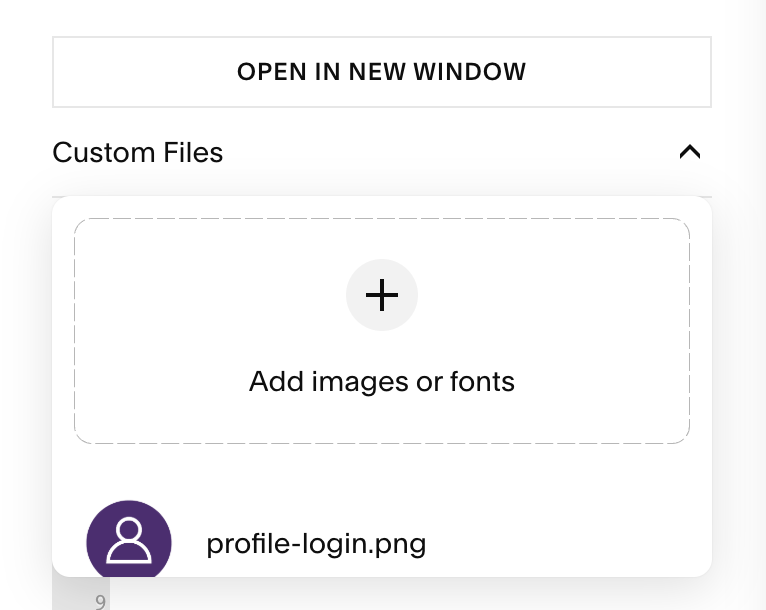
*Make sure to click on the file once it’s uploaded. You’ll then see the image URL in your CSS area.
Step 2: Add The CSS Code
Paste the code below in your custom CSS area
Replace the image URL with your chosen icon
Save your changes
/* Login Icon By The Square Genius */

/* Hide login text */
.user-accounts-link .user-accounts-text-link {
  color: transparent !important;
}

/* Desktop login icon */
@media screen and (min-width: 641px) {
  .user-accounts-text-link {
    background-image: url("YOUR-ICON-IMAGE-URL-HERE");
    background-size: contain;
    background-repeat: no-repeat;
    background-position: center;

    width: 50px;
    height: 50px;

    display: inline-block;
    padding: 0 !important;
  }
}

/* Mobile login icon */
@media screen and (max-width: 640px) {
  .header-menu-nav-item a[href*="/account"] {
    color: transparent !important;

    background-image: url("YOUR-ICON-IMAGE-URL-HERE");
    background-size: 28px;
    background-repeat: no-repeat;
    background-position: center;

    display: inline-block;
    width: 40px;
    height: 40px;
  }
}
Important Notes
Use straight quotation marks (" ") around your image URL
Make sure your icon is uploaded to Squarespace and publicly accessible
SVG or PNG icons work best for sharp, clean results
Keep your icon simple so it’s clear at smaller sizes
Troubleshooting
If your login icon isn’t showing correctly, check:
The image URL is correct
You’ve replaced both desktop and mobile image URLs
Your browser cache has been cleared
The icon isn’t too large or stretched
Optional Tweaks
Once it’s working, you can refine it further:
Adjust the icon size (width and height values)
Use a different icon for mobile vs desktop
Align it perfectly with your navigation spacing
-
Yes, in many cases you can do it with custom CSS alone. That is one of the most common approaches shared across Squarespace tutorials and forum threads, particularly for replacing the “Login” or “Account” text with a user icon or SVG.
-
Usually, yes. Most recent tutorials and discussions around this customisation are specifically focused on Squarespace 7.1, especially for membership areas and account links in the site header.
-
Yes. One common issue people run into is that the text changes from “Login” to “Account” after sign in, which can affect how the icon replacement behaves. With the css code above this should not happen.
-
Yes. This type of CSS tweak is especially useful on Squarespace Member Sites, where the login or account link is part of the user journey. Squarespace still supports Member Sites and member navigation customisation, so this is a helpful enhancement for branded membership experiences.
-
It can. Mobile spacing and icon placement are common sticking points, especially if your header already includes cart icons, buttons, or other navigation elements. It is worth testing the result on both desktop and mobile before publishing. You will find mobile settings in the CSS that you can adjust to suit your site style.
-
Yes, many users choose an SVG because it stays sharp and scalable across screen sizes. SVG based icon swaps are commonly discussed in Squarespace custom code examples for login and account links.
-
From a visual point of view, often yes. Replacing the text with an icon can create a cleaner, more minimal navigation style, particularly on premium looking membership websites. Just make sure the icon is still clear enough for visitors to understand. This is a design led improvement rather than a functional one.
-
Not really. If you can copy and paste CSS into Squarespace’s Custom CSS panel, you can usually apply this change. The main thing is knowing where to paste the code and checking whether your site’s header layout needs any small adjustments afterwards.
Did I help you? Consider buying me a coffee as thanks!
You might also find these helpful:
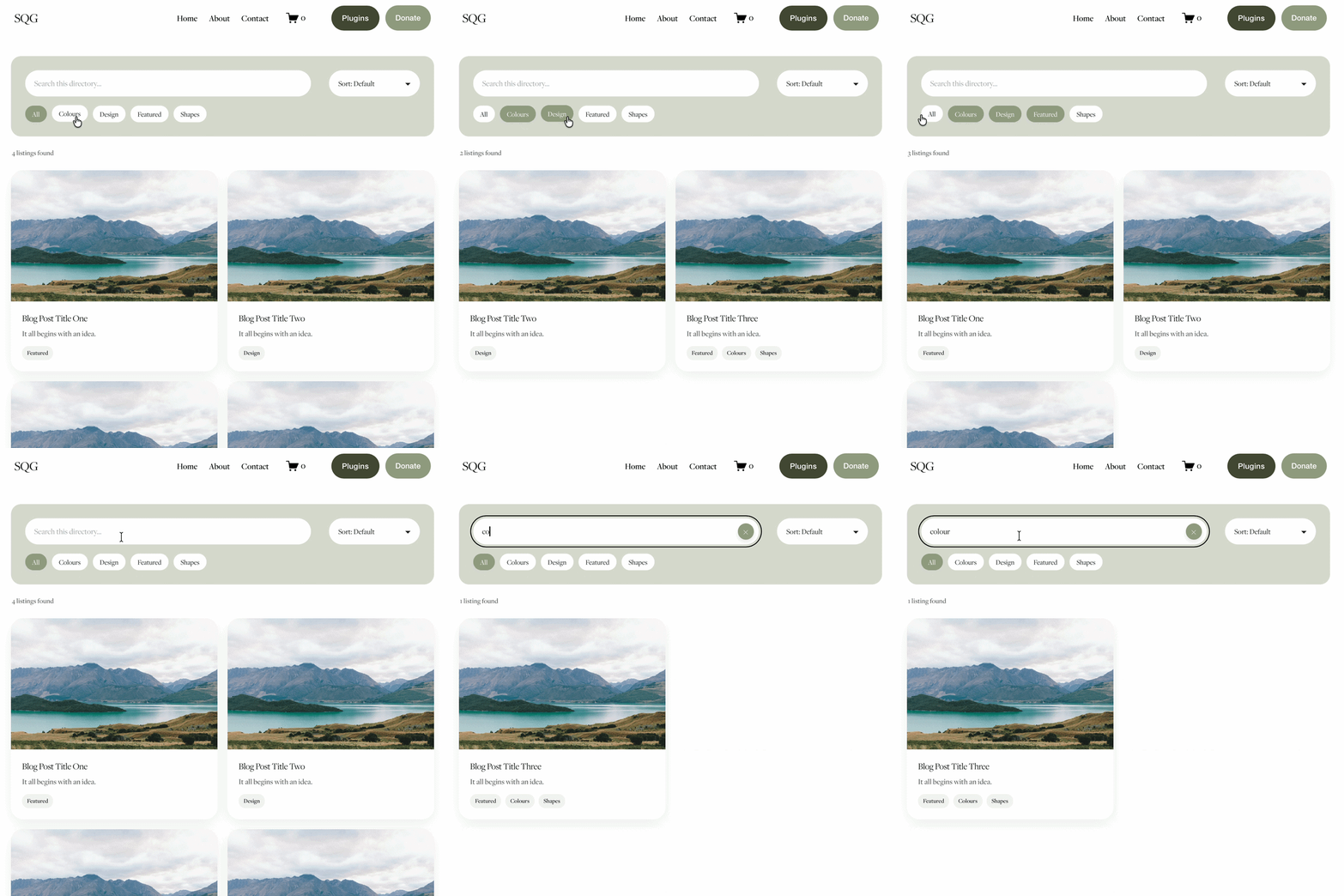
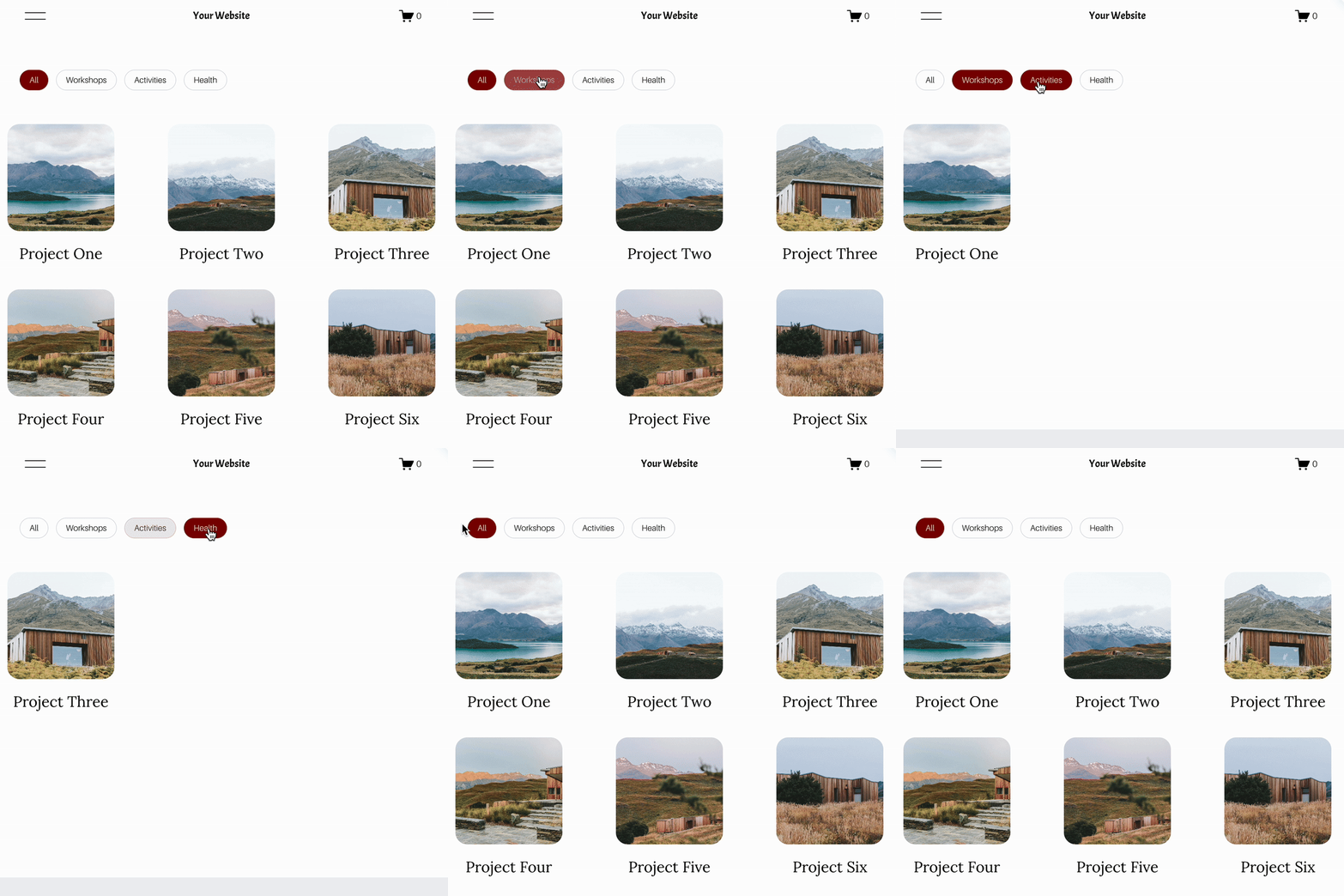
Looking for an easy way to add filters to Squarespace?
The Genius Squarespace Filter Plugin helps you turn busy portfolio pages, blogs, event pages and galleries into a cleaner, easier to browse experience.
Visitors can quickly filter your content by category, topic, service, location, resource type or any labels you choose, instead of scrolling through everything.
Perfect for portfolios, blog archives, event listings, galleries (grid, masonry & strips only) resource hubs and larger content collections, this plugin gives your visitors a smoother way to explore your content without the cost or complexity of custom development.
NEW Advanced Dropdown Portfolio Filter Demo ➜
Key Features:
Simple to install and customise
Filter options for portfolio pages, galleries, blogs and events
Includes the new advanced dropdown portfolio filter
Ideal for Squarespace sites needing more in depth filtering options with a simple user experience
Beginner friendly setup with copy and paste instructions
Designed for Squarespace 7.1 websites



Looking for an easy way to add filters to Squarespace?
The Genius Squarespace Filter Plugin helps you turn busy portfolio pages, blogs, event pages and galleries into a cleaner, easier to browse experience.
Visitors can quickly filter your content by category, topic, service, location, resource type or any labels you choose, instead of scrolling through everything.
Perfect for portfolios, blog archives, event listings, galleries (grid, masonry & strips only) resource hubs and larger content collections, this plugin gives your visitors a smoother way to explore your content without the cost or complexity of custom development.
Portfolio Filter Demo ➜
NEW Advanced Dropdown Portfolio Filter Demo ➜
Gallery Filter Demo ➜
Blog Filter Demo ➜
Event Filter Demo ➜
Key Features:
Simple to install and customise
Filter options for portfolio pages, galleries, blogs and events
Includes the new advanced dropdown portfolio filter
Ideal for Squarespace sites needing more in depth filtering options with a simple user experience
Beginner friendly setup with copy and paste instructions
Designed for Squarespace 7.1 websites