

How to Change the Logo on a Squarespace Membership Area (Step-by-Step Guide)
Quick Overview:
To change the logo in the Squarespace membership area:
Create or source a simple icon (PNG or SVG, max 500×500px)
Upload it to Squarespace Custom Files
Copy the file URL from the Custom CSS area
Paste the CSS code into Design → Custom CSS
Replace the image URL placeholders for desktop and mobile
How to Change the Logo on Squarespace Membership Pages
If you're using Squarespace memberships, you may have noticed there’s no built in way to change the logo in the member area. This can be frustrating if you’re running sub brands, creating a separate membership experience, or simply want your members area to feel more on brand.
Squarespace doesn’t currently offer a native setting for this, but the good news is you can customise the membership area logo using a simple CSS workaround.
When Would You Want to Change the Membership Area Logo?
You might want to customise your Squarespace membership area logo if:
You’re running a sub brand or course platform
You want a more premium, branded member experience
Your membership area has a different name or identity
You want consistency across your customer journey
Step-by-Step Instructions
Go to your Membership Page/s
Add a Code Block anywhere on the page
Paste the code below
Replace the image URL with your logo
Important! Repeat this for every membership page as the logo will only show up on the page that has the code block installed.
<style>
.header-title {
  background-image: url("YOUR-LOGO-IMAGE-URL-HERE");
  background-size: contain;
  background-repeat: no-repeat;
  background-position: center;
}

.header-title img {
  opacity: 0;
}
</style>
How to add your image URL on Squarespace
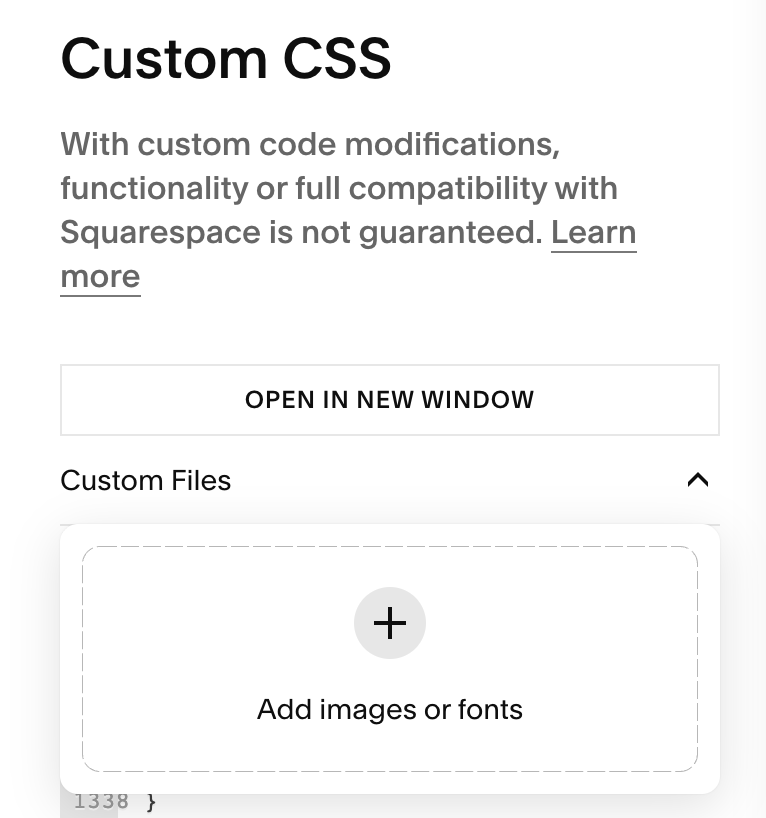
First, head to your CSS area.
Go To Pages → Scroll Down To The Bottom → Custom Code → Custom CSS.
Then add your logo/image file. Once uploaded click on the file, you will then see the URL appear within your custom CSS box, copy the url and paste it into the above code in your code block.
Troubleshooting: Why Your Logo Might Not Be Showing
If your logo isn’t appearing, check the following:
Your image URL is correct and publicly accessible
You’ve used straight quotes " " instead of curly quotes
The code block is added to the correct membership page
Your logo file isn’t too large
You’ve cleared your browser cache
Frequently Asked Questions
-
No. Squarespace doesn't currently offer a native setting to change the logo in the member area. The only way to customise it is by adding CSS inside a Code Block on each membership page.
-
Yes. This CSS method targets classes specific to Squarespace 7.1. If you're on version 7.0, the class names and page structure are different and this code won't work as written.
-
Squarespace applies Code Block CSS only to the page it's placed on. Unlike Custom CSS (which is site-wide), a Code Block is scoped to a single page — so you'll need to repeat the step for each membership page in your area. goes here
-
PNG or SVG work best. PNG is widely supported and renders crisply, while SVG scales perfectly at any size. Avoid JPEG for logos as it doesn't support transparency. Keep the file size small (ideally under 200KB) to avoid any loading delay.
-
The most common causes are: the image URL isn't publicly accessible, curly/smart quotes have replaced straight quotes in the code, or the Code Block was added to the wrong page. Also try clearing your browser cache, as Squarespace aggressively caches CSS changes.
-
No. The CSS targets the .header-title class which only exists within the membership area header. It won't interfere with your main site navigation or global header logo.
Did I help you? Consider buying me a coffee as thanks!
You might also find these articles helpful:
You might also be interested in these super useful Squarespace Plugins:
Looking for an easy way to add filters to Squarespace?
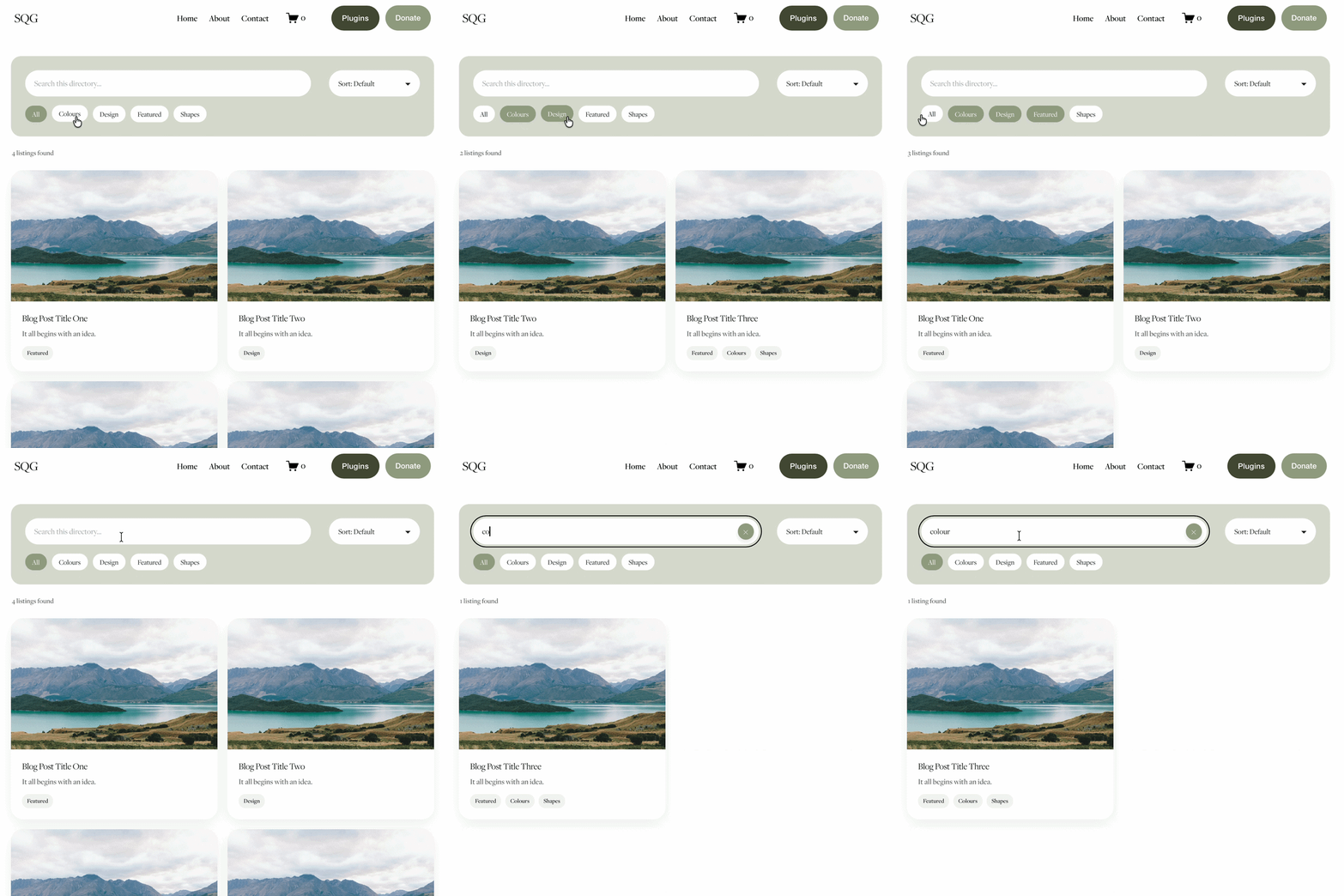
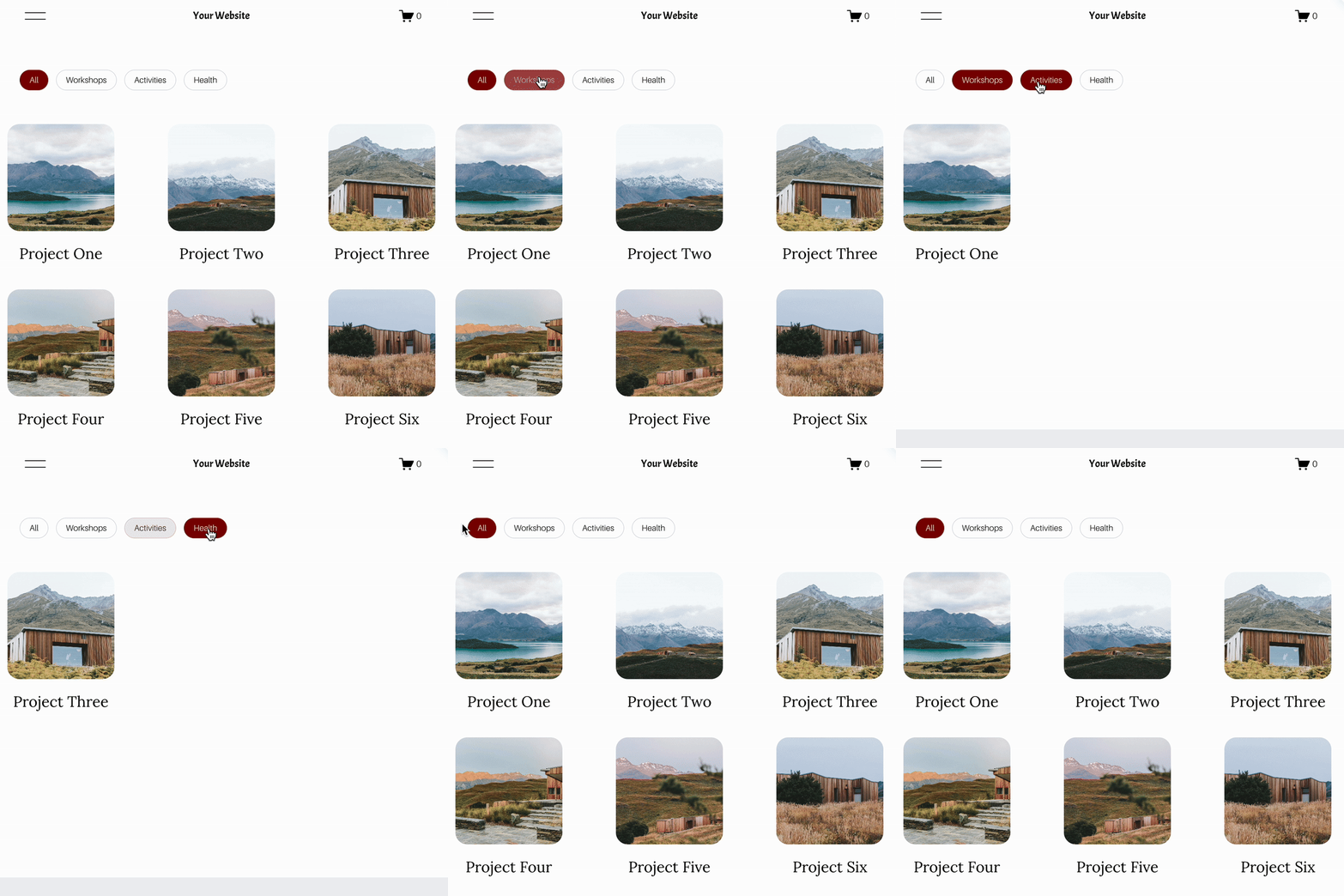
The Genius Squarespace Filter Plugin helps you turn busy portfolio pages, blogs, event pages and galleries into a cleaner, easier to browse experience.
Visitors can quickly filter your content by category, topic, service, location, resource type or any labels you choose, instead of scrolling through everything.
Perfect for portfolios, blog archives, event listings, galleries (grid, masonry & strips only) resource hubs and larger content collections, this plugin gives your visitors a smoother way to explore your content without the cost or complexity of custom development.
NEW Advanced Dropdown Portfolio Filter Demo ➜
Key Features:
Simple to install and customise
Filter options for portfolio pages, galleries, blogs and events
Includes the new advanced dropdown portfolio filter
Ideal for Squarespace sites needing more in depth filtering options with a simple user experience
Beginner friendly setup with copy and paste instructions
Designed for Squarespace 7.1 websites



Looking for an easy way to add filters to Squarespace?
The Genius Squarespace Filter Plugin helps you turn busy portfolio pages, blogs, event pages and galleries into a cleaner, easier to browse experience.
Visitors can quickly filter your content by category, topic, service, location, resource type or any labels you choose, instead of scrolling through everything.
Perfect for portfolios, blog archives, event listings, galleries (grid, masonry & strips only) resource hubs and larger content collections, this plugin gives your visitors a smoother way to explore your content without the cost or complexity of custom development.
Portfolio Filter Demo ➜
NEW Advanced Dropdown Portfolio Filter Demo ➜
Gallery Filter Demo ➜
Blog Filter Demo ➜
Event Filter Demo ➜
Key Features:
Simple to install and customise
Filter options for portfolio pages, galleries, blogs and events
Includes the new advanced dropdown portfolio filter
Ideal for Squarespace sites needing more in depth filtering options with a simple user experience
Beginner friendly setup with copy and paste instructions
Designed for Squarespace 7.1 websites