

How to Style a Squarespace Dropdown Menu
Quick Answer: Squarespace doesn't give you any built-in styling options for dropdown menus (called "folders" in the nav), so out of the box they're plain white boxes with no border, shadow, or spacing. You can style them yourself with custom CSS targeting the folder-content class — free code for that is below — or use a navigation styling plugin if you'd rather not maintain the CSS across template updates.
Why Squarespace Dropdown Menus Look So Plain by Default
If you've grouped a few pages into a folder in your main navigation, you'll have noticed the dropdown that appears on hover or tap is about as basic as it gets — flat white background, no shadow, tight text, nothing that signals it's part of your brand. There's no toggle for this anywhere in Site Styles. It's one of the few remaining corners of Squarespace 7.1 navigation that still needs custom CSS or a plugin to fix.
How to Style a Squarespace Dropdown Menu With CSS
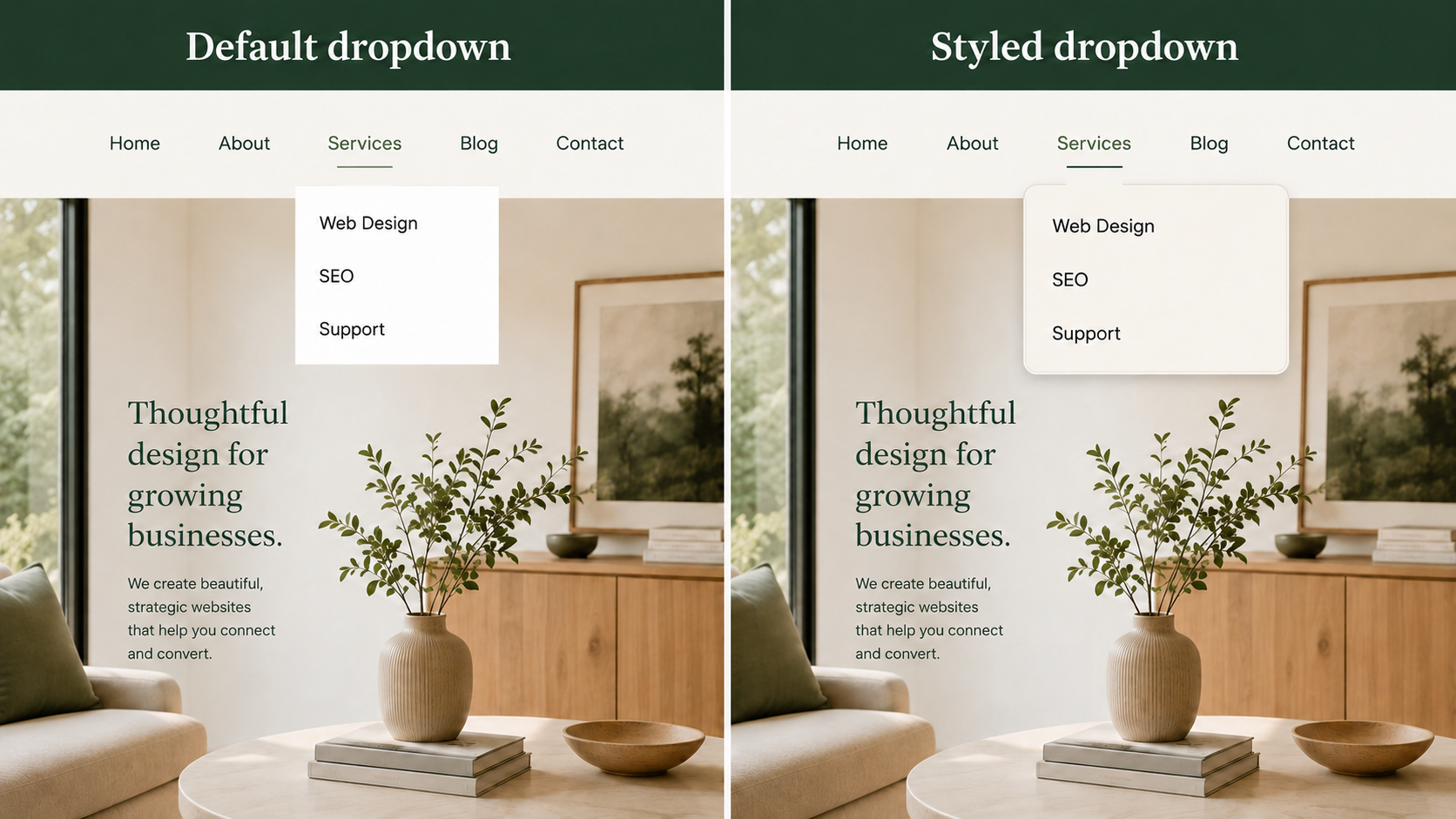
Most dropdown styling comes down to targeting the folder content and its individual items. Here's a fuller starting point you can paste in and adjust:
What each part does:
width: auto + max-width: 200px + min-width: unset — stops the dropdown stretching to match your longest menu item or your header width, so it sizes itself to its content instead and stays a neat, compact box
text-align: center — centres the menu item text inside the dropdown, which suits a narrower box better than the default left alignment
padding: 10px 0 — adds breathing room above and below the list of items so they're not cramped against the top and bottom edges
border-radius: 20px — rounds the corners fairly heavily, giving a pill-like, softer shape rather than a sharp-edged box
box-shadow — a subtle shadow that lifts the dropdown off the page slightly, instead of it looking flat against the background
Go to Pages → Scroll Down To Custom Code → Custom CSS in the Squarespace editor and paste this in, then adjust the colour values to match your site. As before, class names can vary slightly by template, so it's worth checking with your browser's inspector if this doesn't target correctly first try.
From here you can keep adjusting; font size, spacing, the border-radius value for a sharper or softer shape, or tweak the shadow's spread and opacity.
The No-Code knowledge Route: A Navigation Styling Plugin
If you'd rather not maintain this CSS yourself, especially across template updates — the Squarespace Navigation Upgrade Kit gives your whole navigation area — including dropdowns — a more polished, custom-designed look without a full header rebuild. It's a design layer rather than a functional add-on, so it's a good fit if the goal is simply making the nav (dropdowns included) feel more modern and on-brand, not adding new navigation behaviour.
Who Needs Dropdown Styling Most
Sites with folders grouping 3+ pages (services, resources, about-us sub-pages)
Agencies and freelancers who want navigation that doesn't look like a default template
Charities and nonprofits with program or resource sub-pages that benefit from a cleaner, more scannable dropdown
Anyone who's tried the default dropdown and found it clashes with an otherwise polished design

FAQs
-
Not entirely — Squarespace doesn't offer native dropdown styling controls in Site Styles. You can style it yourself with custom CSS, or use a navigation plugin if you'd rather not write or maintain the code.
-
Most 7.1 templates use .header-nav-folder-content for the dropdown panel itself. Exact class names can vary slightly by template, so it's worth checking with your browser's inspector before applying styles.
-
It can. Since dropdown styling relies on unofficial CSS targeting rather than a supported Squarespace setting, template or platform updates can occasionally shift the markup and require a CSS tweak. This is one of the main reasons some site owners prefer a maintained plugin over custom code.
-
Not usually — the mobile menu uses separate styling in Squarespace 7.1, so dropdown CSS changes need to be checked and often adjusted separately in Mobile Styles.
Did I help you? Consider buying me a coffee as thanks!
Looking for more ways to make your Squarespace website stand out?
Browse the full range of Squarespace plugins.
You might also find these helpful:
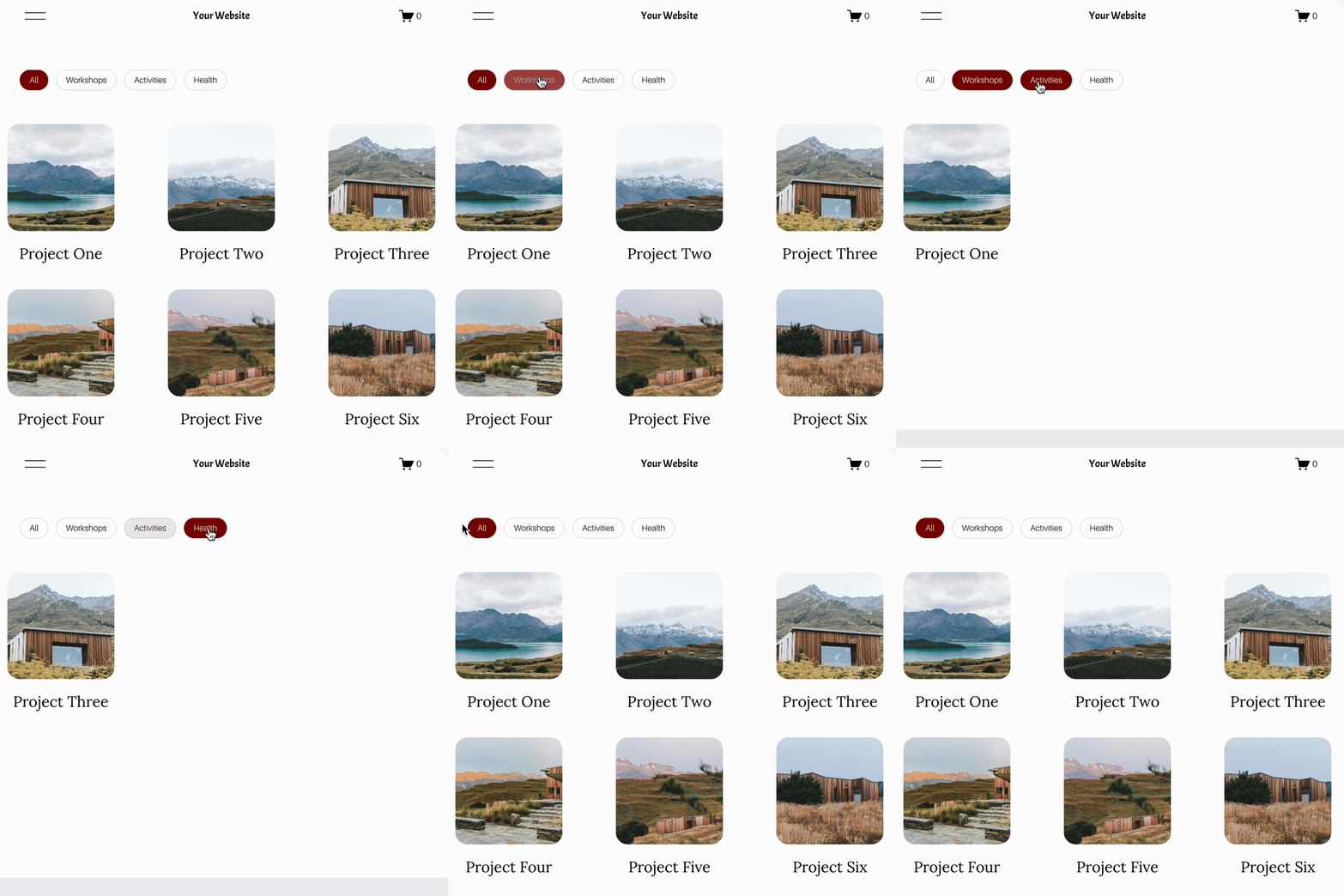



Looking for an easy way to add filters to Squarespace?
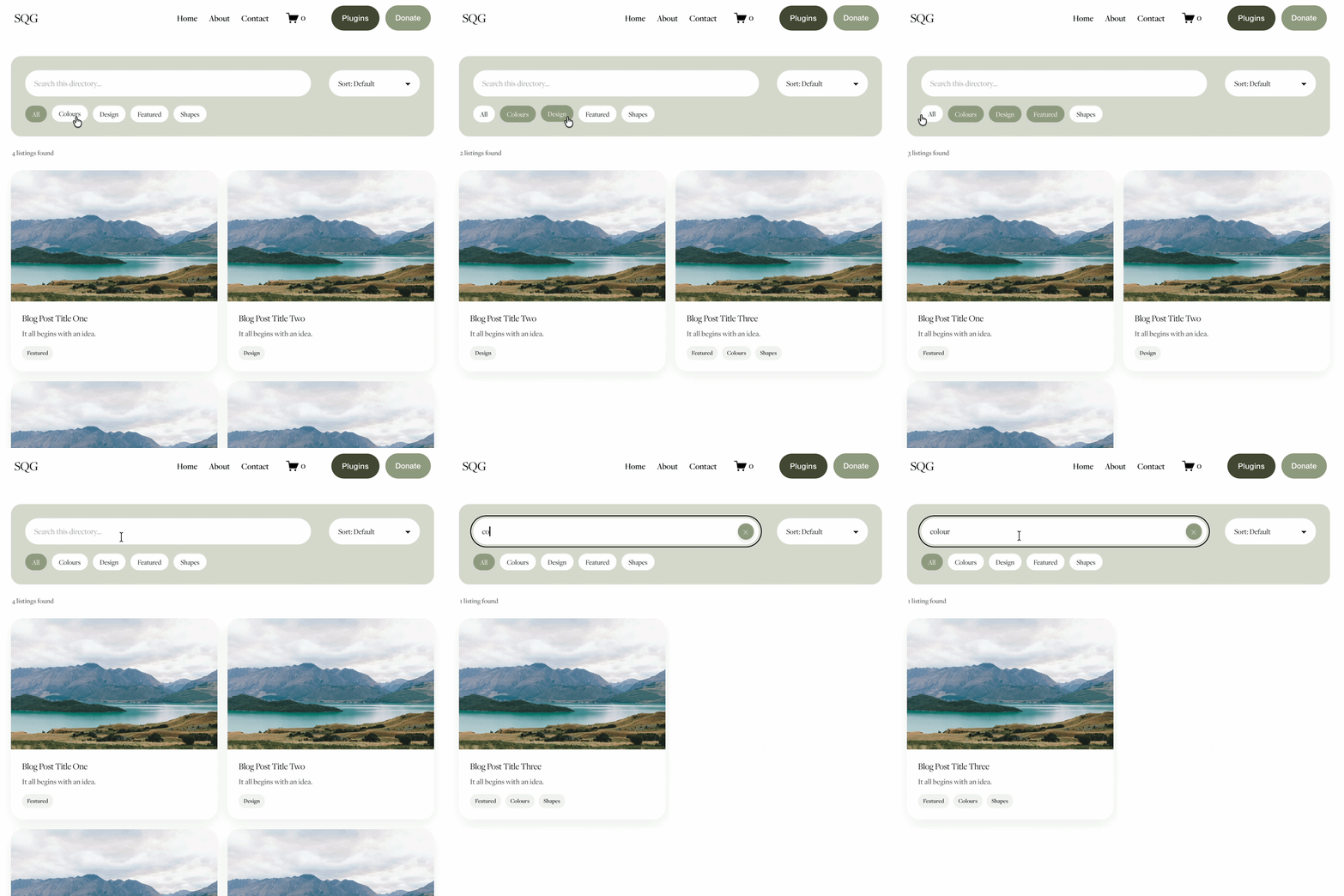
The Genius Squarespace Filter Plugin helps you turn busy portfolio pages, blogs, event pages and galleries into a cleaner, easier to browse experience.
Visitors can quickly filter your content by category, topic, service, location, resource type or any labels you choose, instead of scrolling through everything.
Perfect for portfolios, blog archives, event listings, galleries (grid, masonry & strips only) resource hubs and larger content collections, this plugin gives your visitors a smoother way to explore your content without the cost or complexity of custom development.
Portfolio Filter Demo ➜
NEW Advanced Dropdown Portfolio Filter Demo ➜
Gallery Filter Demo ➜
Blog Filter Demo ➜
Event Filter Demo ➜
Key Features:
Simple to install and customise
Filter options for portfolio pages, galleries, blogs and events
Includes the new advanced dropdown portfolio filter
Ideal for Squarespace sites needing more in depth filtering options with a simple user experience
Beginner friendly setup with copy and paste instructions
Designed for Squarespace 7.1 websites