

Squarespace Navigation Complete Guide
Quick Answer: Squarespace navigation is managed from the Pages panel, where you can add pages directly to the nav, group them into dropdown folders, and reorder everything by drag-and-drop — but styling options are limited, so anything beyond basic layout (custom dropdown design, pill-shaped links, a more modern look) needs custom CSS or a navigation plugin.
What Is the Squarespace Navigation Bar?
The navigation bar is the menu at the top (or side, depending on template) of your site — it's built directly from your Pages panel rather than a separate menu builder, which makes it quick to set up but limits how much visual customisation is available without extra work.
How to Add a Page to Your Squarespace Navigation Menu
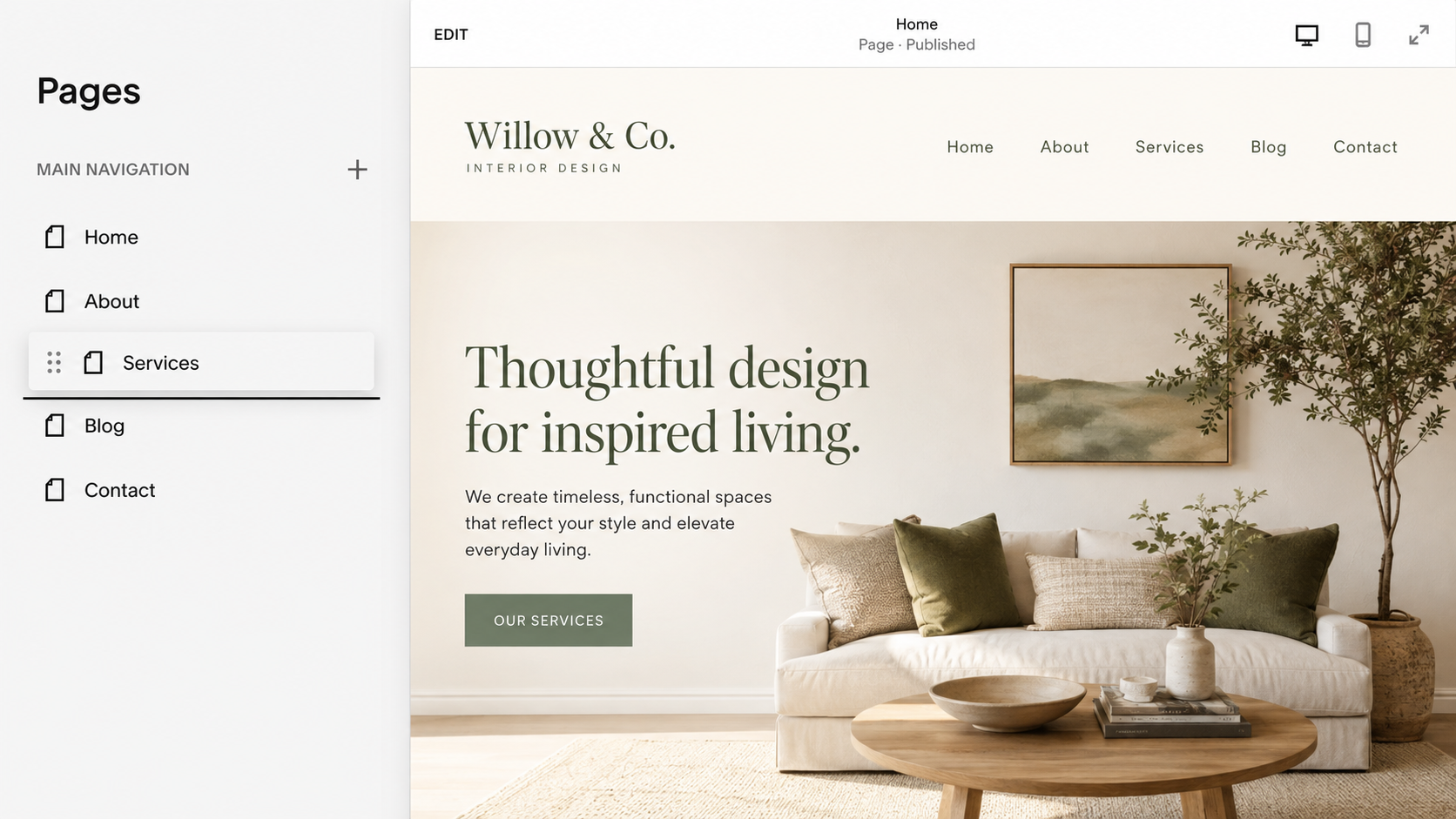
Go to Pages in the left-hand panel of the Squarespace editor.
Click the + icon next to Primary Navigation (or Secondary Navigation, depending on your template).
Choose the page type — a standard page, a folder (for a dropdown), or a link.
Drag pages up or down in the list to change their order in the nav.
Click into any page's settings to rename it or hide it from navigation without deleting it.
Grouping related pages into a folder is how you create a dropdown — Squarespace handles the dropdown mechanics automatically, but not the styling (more on that below).
How to Edit the Navigation Bar in Squarespace
Editing covers a few different things people usually mean by it:
Renaming or reordering items — done directly in the Pages panel, drag-and-drop
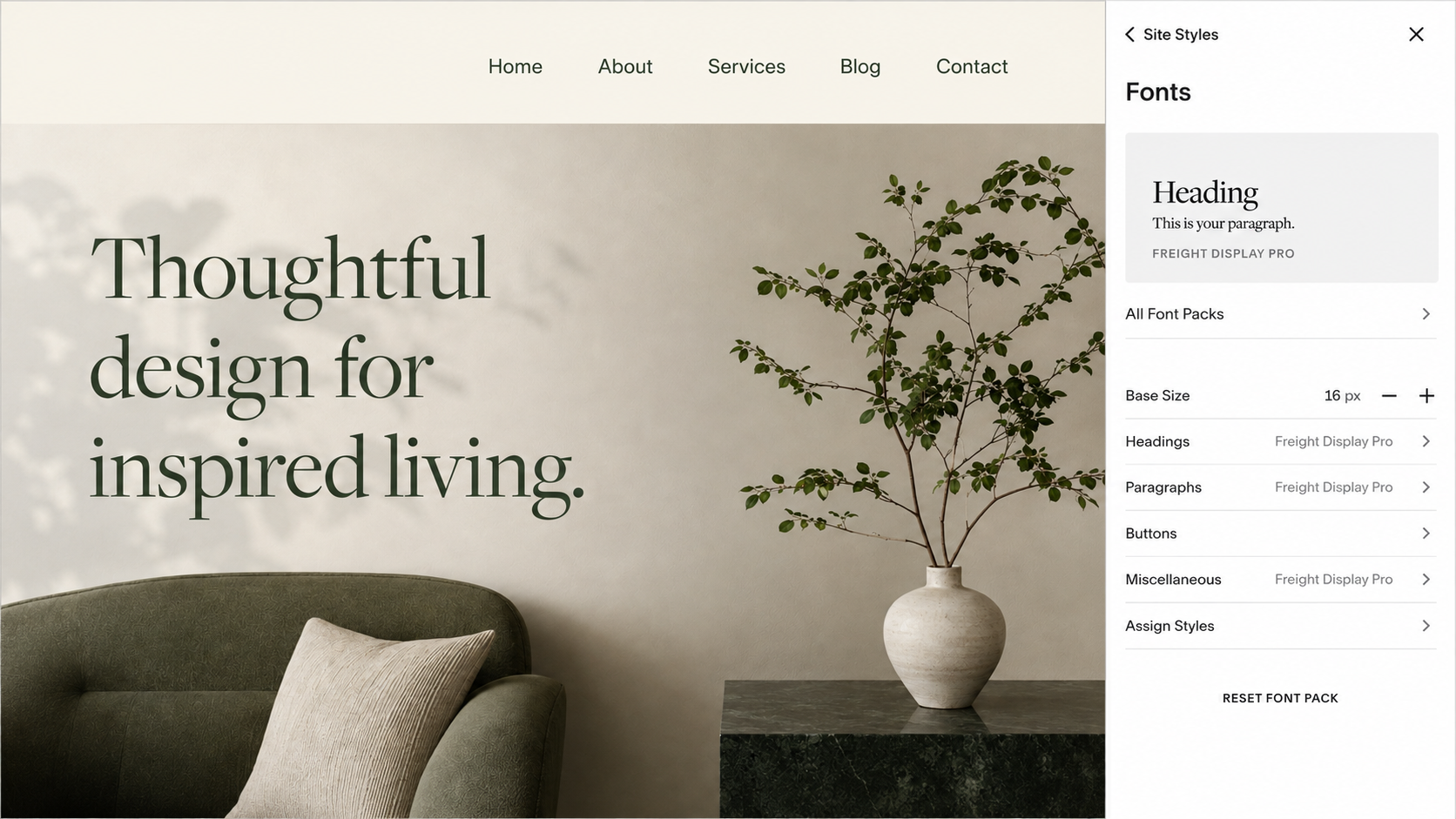
Changing nav bar colour, font and spacing — available in Site Styles under the Header section, template-dependent
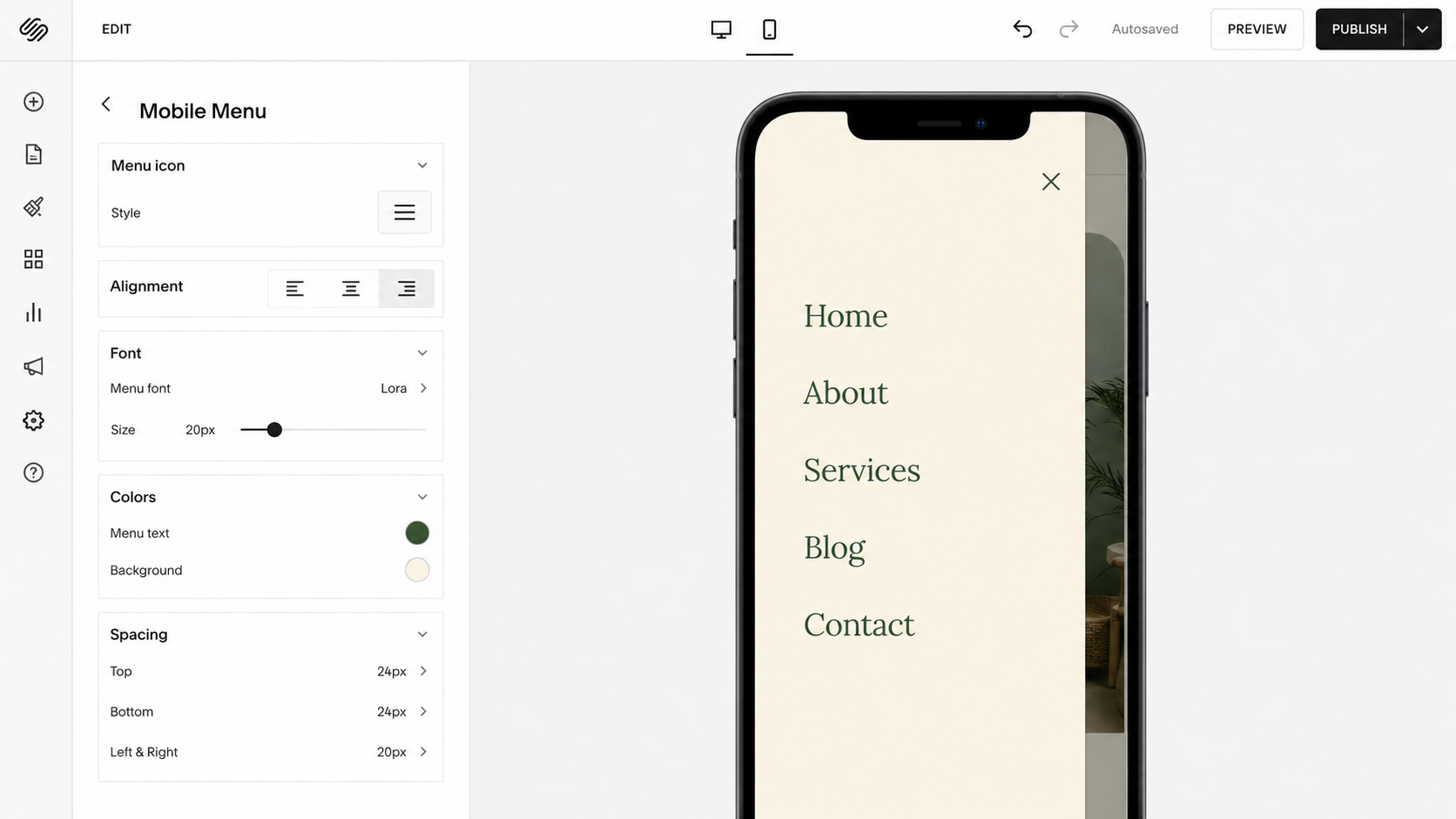
Editing the mobile menu — a separate set of controls, since mobile nav styling doesn't automatically inherit desktop styling
Editing dropdown appearance — not available in Site Styles at all; this needs custom CSS or a plugin
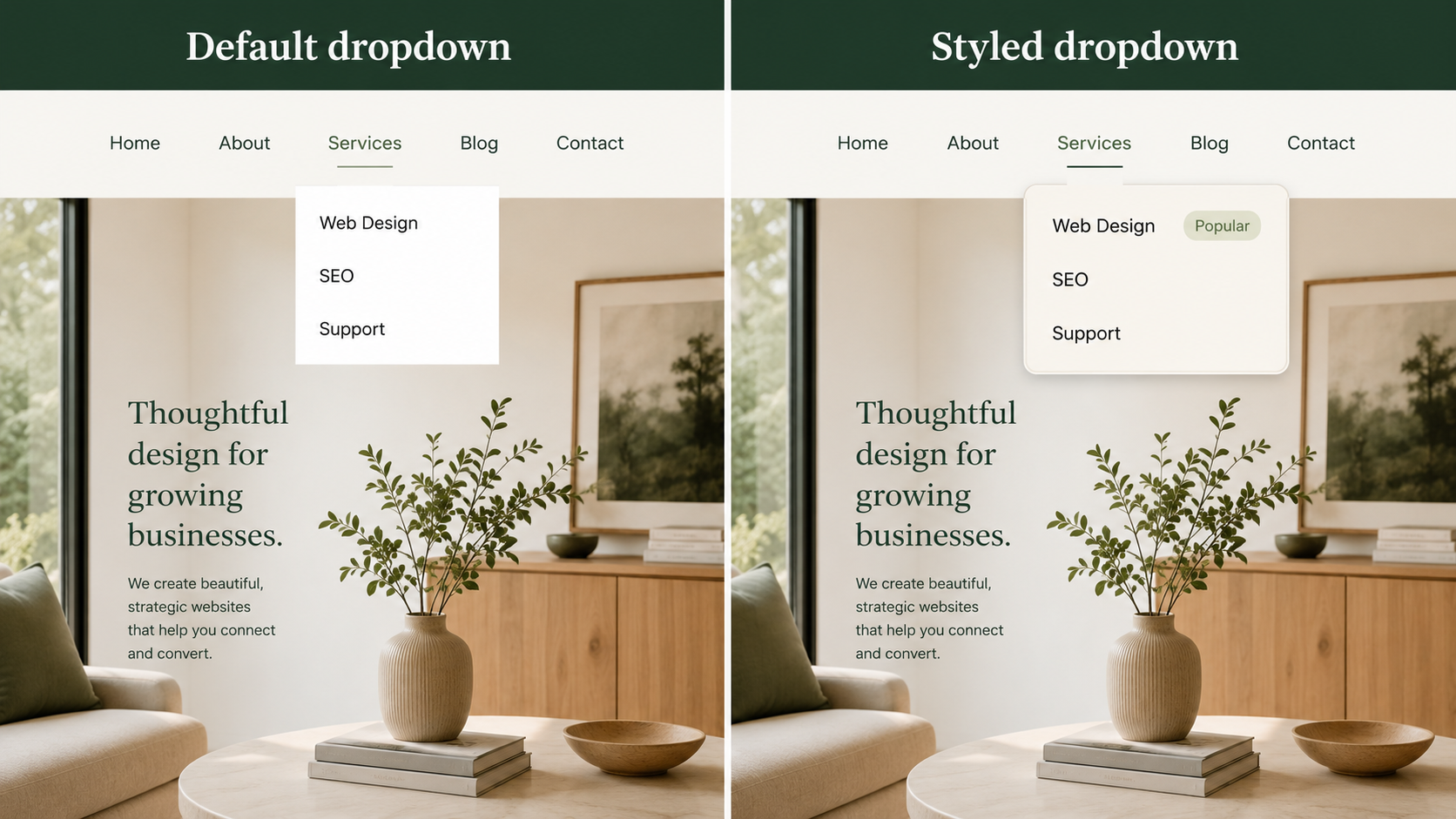
That last point trips a lot of people up, since it's the one part of the nav that looks the most obviously "default" - a plain white box with no shadow, border, or spacing.
Where Native Squarespace Navigation Falls Short
Squarespace's navigation is functional but visually basic once you look past the standard Site Styles controls:
No built-in dropdown styling (border, shadow, spacing, hover states)
No native "pill" or badge-style nav links
Limited nav badge/label options for things like "New" or "Sale"
Mobile menu styling is separate and often needs its own adjustments
None of this is a dealbreaker, but it's why so many otherwise well-designed Squarespace sites still have a nav bar that looks noticeably more "default template" than the rest of the page.
Giving Your Navigation a Custom Look
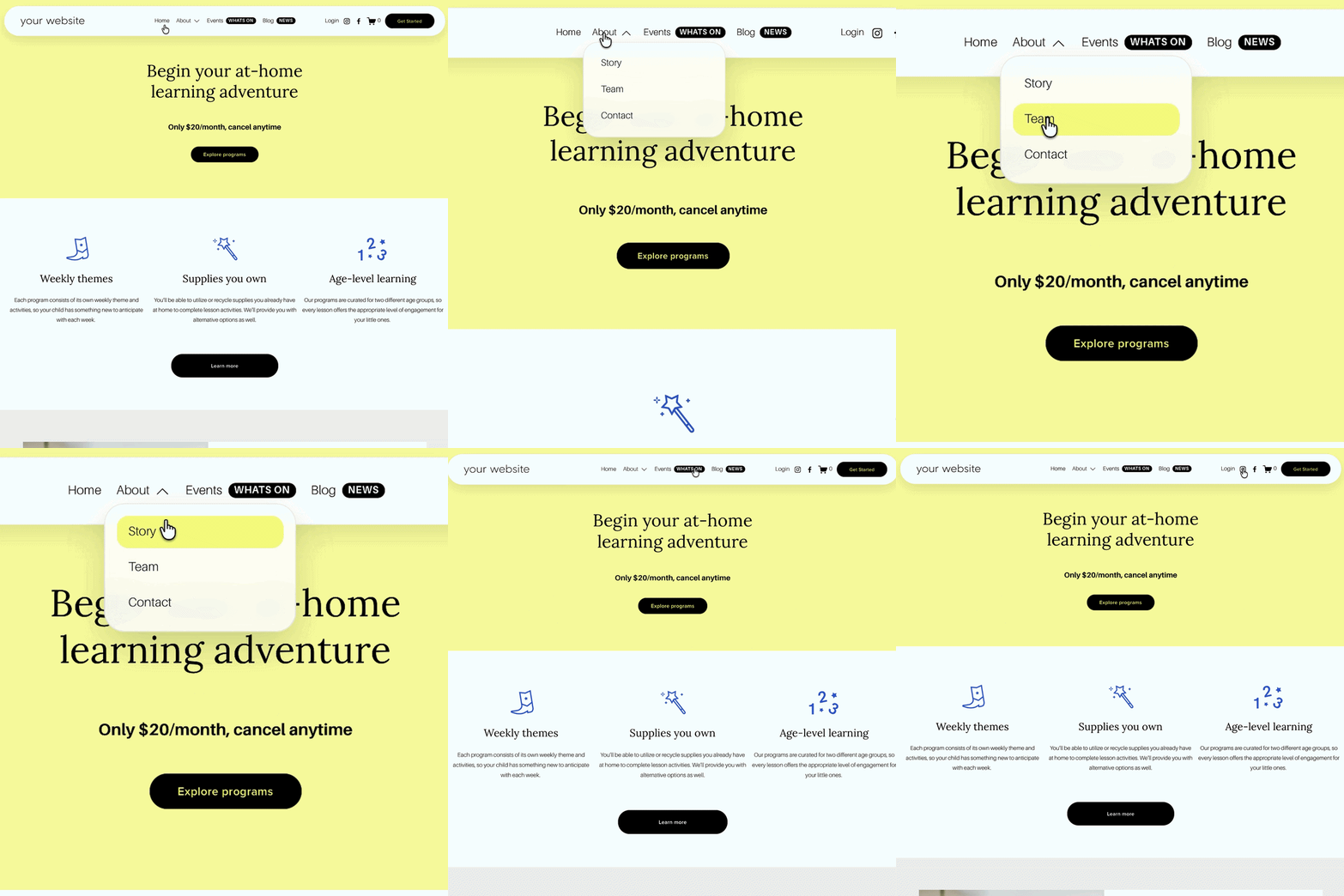
You can close some of this gap yourself with custom CSS - targeting dropdown folders, adding hover transitions, adjusting mobile spacing. It works, but it needs re-checking after template or platform updates, since it relies on unofficial CSS targeting rather than a supported setting.
If you'd rather not maintain that, the Squarespace Navigation Upgrade Kitgives the whole nav area - pill-shaped links, better dropdowns, nav badges, and a nicer mobile menu, a polished, custom-designed look without a full header rebuild. It's a design upgrade rather than a functional add-on, so it suits anyone whose main frustration is that the nav looks plain rather than that it's missing functionality.
If dropdown styling specifically is your main issue, we've also got a focused CSS walkthrough for that here.
Who This Guide Is For
Squarespace designers building client sites who want the nav to feel bespoke, not default
DIY site owners who've outgrown the basic Site Styles nav controls
Anyone with folder/dropdown navigation who's noticed how plain it looks by default
FAQs
-
Renaming, reordering, and grouping pages is done in the Pages panel. Colour, font, and basic layout are controlled in Site Styles under the Header section. Dropdown styling isn't available natively and needs custom CSS or a plugin.
-
Go to Pages, click the + icon next to Primary or Secondary Navigation, choose a page or folder, then drag it into position.
-
Yes - a navigation styling plugin can apply pill-shaped links, dropdown styling, and a more polished mobile menu without you writing or maintaining CSS.
-
Not automatically. Squarespace treats mobile nav styling separately, so changes made to the desktop nav often need to be checked and adjusted again in Mobile Styles.
Did I help you? Consider buying me a coffee as thanks!
Looking for more ways to make your Squarespace website stand out?
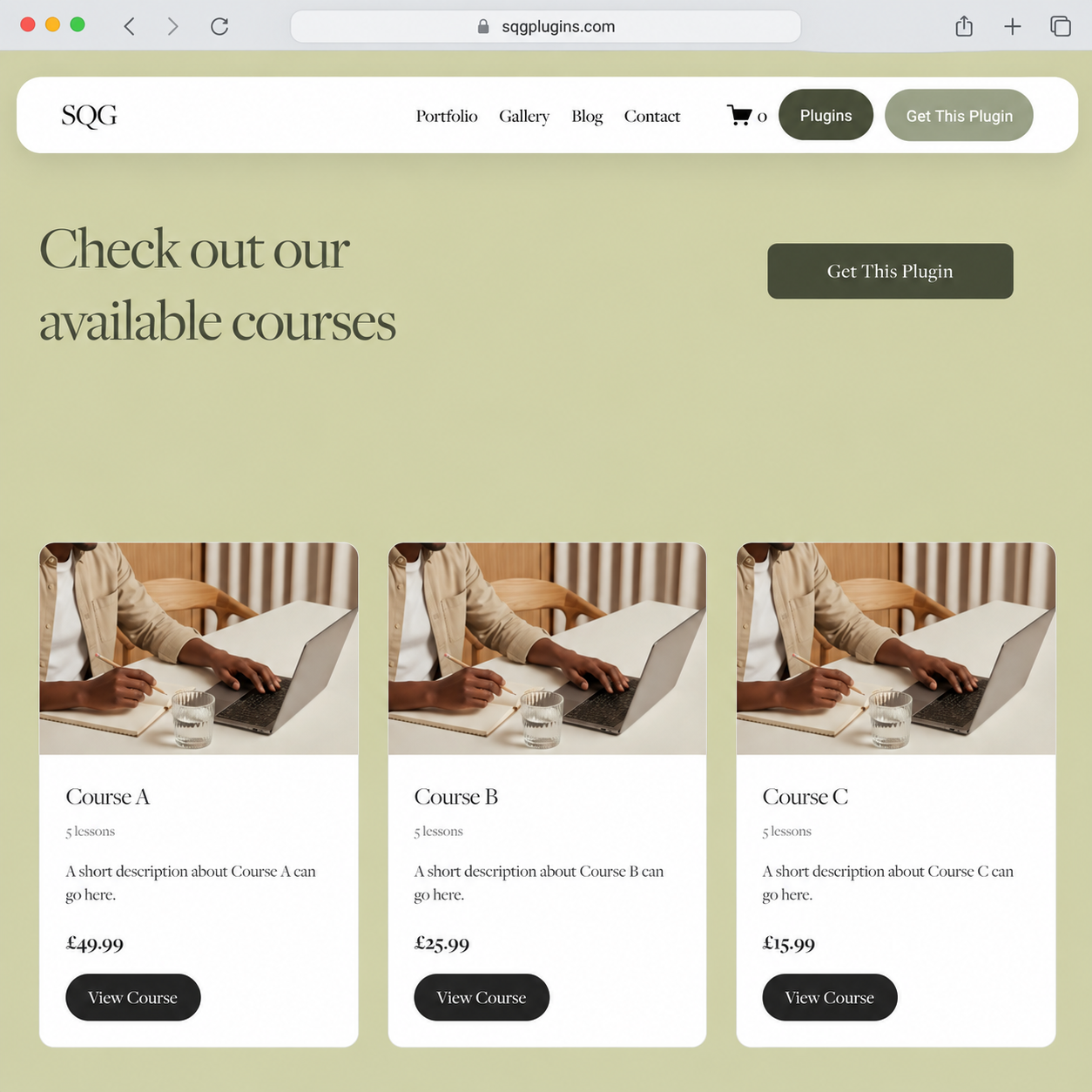
Browse the full range of Squarespace plugins.
You might also find these helpful:
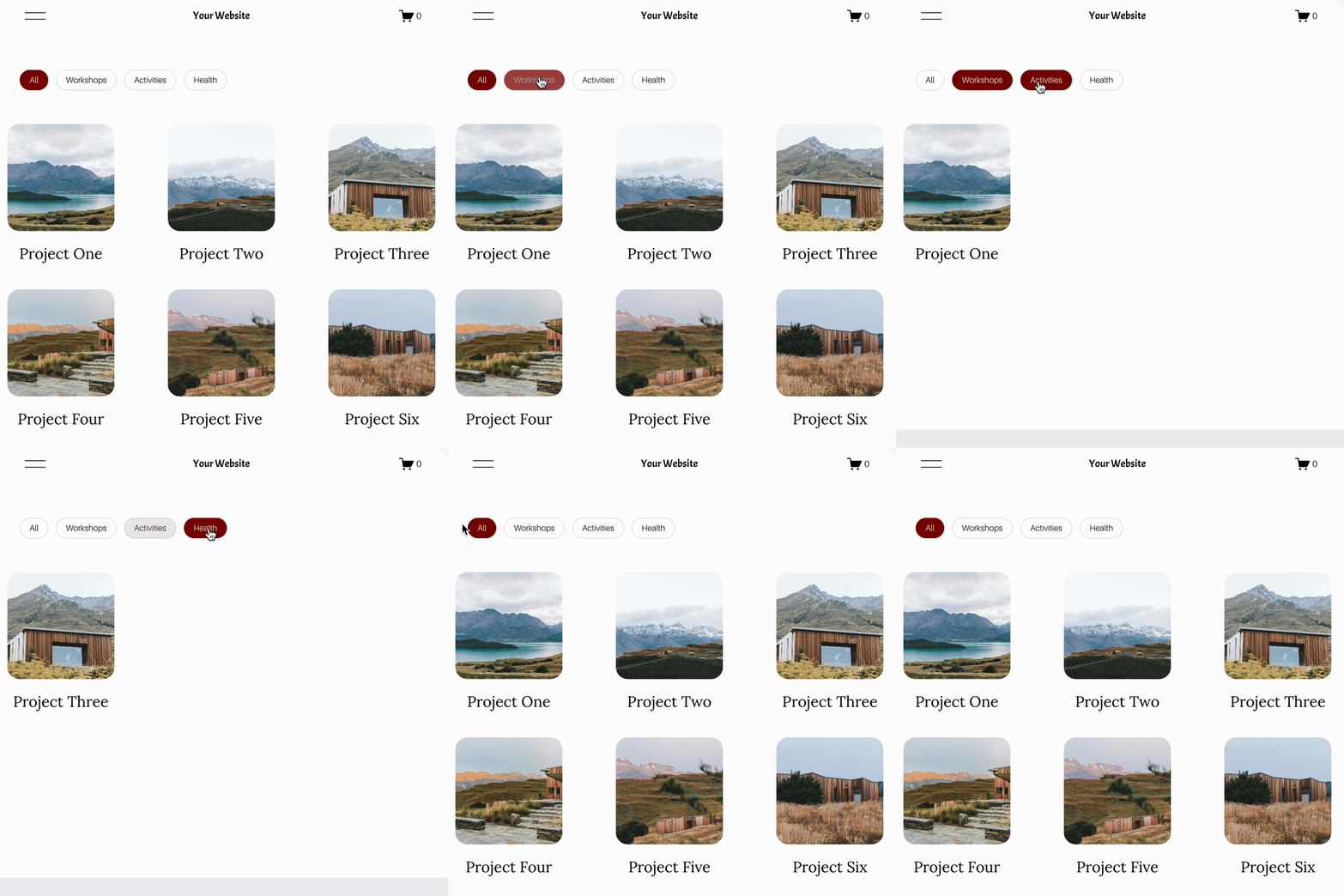



Looking for an easy way to add filters to Squarespace?
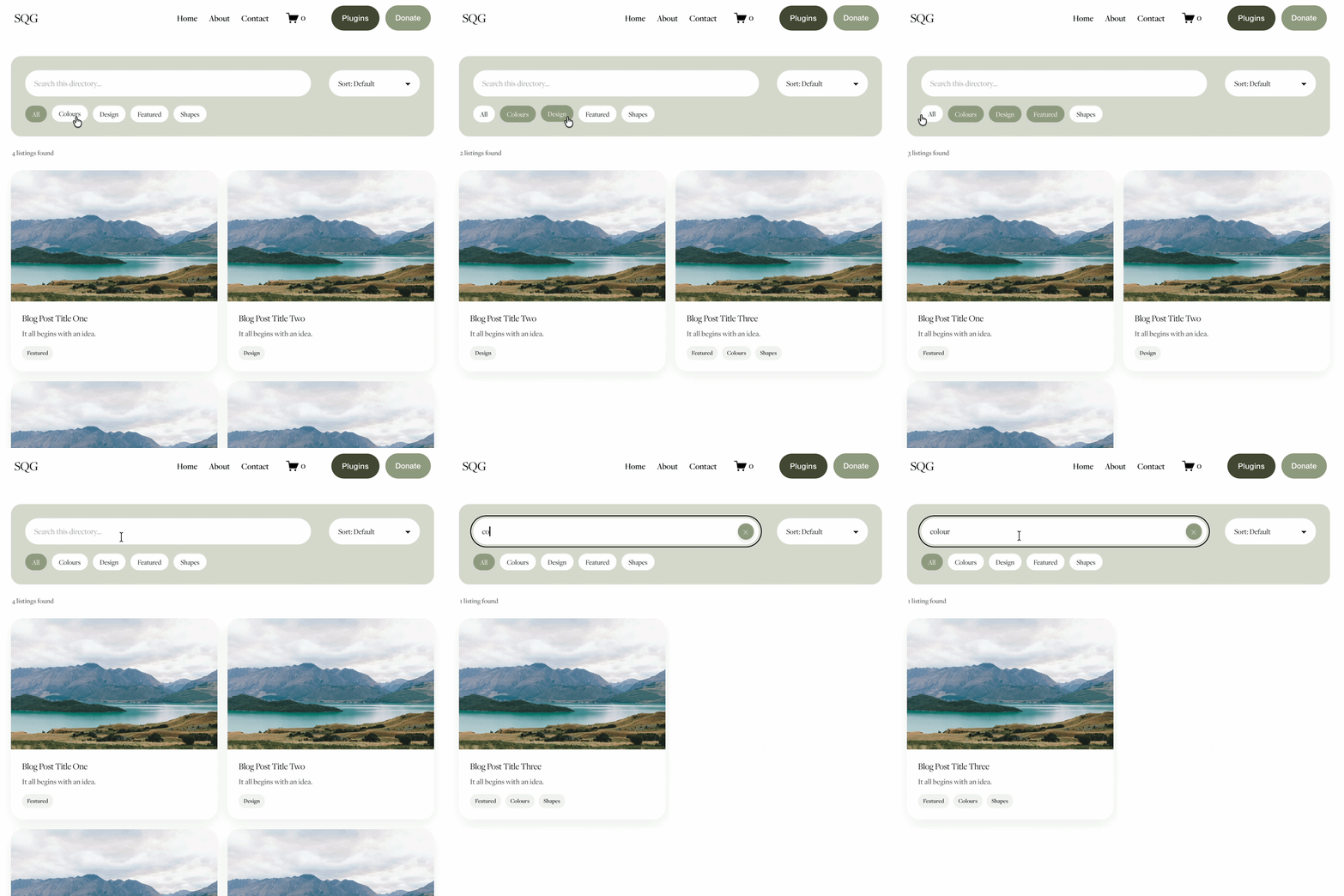
The Genius Squarespace Filter Plugin helps you turn busy portfolio pages, blogs, event pages and galleries into a cleaner, easier to browse experience.
Visitors can quickly filter your content by category, topic, service, location, resource type or any labels you choose, instead of scrolling through everything.
Perfect for portfolios, blog archives, event listings, galleries (grid, masonry & strips only) resource hubs and larger content collections, this plugin gives your visitors a smoother way to explore your content without the cost or complexity of custom development.
Portfolio Filter Demo ➜
NEW Advanced Dropdown Portfolio Filter Demo ➜
Gallery Filter Demo ➜
Blog Filter Demo ➜
Event Filter Demo ➜
Key Features:
Simple to install and customise
Filter options for portfolio pages, galleries, blogs and events
Includes the new advanced dropdown portfolio filter
Ideal for Squarespace sites needing more in depth filtering options with a simple user experience
Beginner friendly setup with copy and paste instructions
Designed for Squarespace 7.1 websites