

How to Add a Table of Contents to a Squarespace Blog Post (2026)
Quick Answer: Squarespace 7.1 doesn't have a built-in table of contents, so to add one to a blog post you either build it manually with anchor links and Code Blocks, or use a plugin that creates it automatically from your headings. The manual method is free but has to be repeated for every post. A plugin sets it up once for the whole blog.
Does Squarespace Have a Table of Contents Feature?
No. Squarespace 7.1 has section anchor links for regular pages, but they don't work inside blog posts. Squarespace's own help guide says you can't add anchor links to blog sections. So if you want an "On this page" list at the top of a long post, you have to create the jump links yourself.
That's fine if you write one long guide a year. It gets tedious if long, structured posts are a regular part of your content.
How Do You Add a Table of Contents Manually in Squarespace?
The free method uses a small piece of HTML to give each heading an ID, then links to those IDs with anchor links.
Write your sections as headings. Use Heading 2 for main sections and Heading 3 for sub-sections.
Add an anchor above each heading. Add a Code Block directly above the heading and paste in an empty tag with a unique ID (see code below). Use lowercase words joined by hyphens.
Write your contents list. Near the top of the post, type the name of each section.
Link each item to its anchor. Highlight a section name, click the link tool and enter #your-id. For better Safari support, use the full post slug instead, e.g. /squarespace-tips/your-post#your-id.
Test it on desktop and mobile, including Safari.
<span id="your anchor link"></span>
Why Does the Manual Method Get Painful?
It works, but it doesn't scale well:
You need an extra Code Block for every heading in every post.
Rename a heading and the contents list doesn't change. You have to update it yourself.
It's easy to mistype an ID and end up with a link that goes nowhere.
Older posts don't get a contents list unless you go back and add one.
If you only have one or two long posts, stick with the manual method. If you publish guides and tutorials regularly, an automatic table of contents saves a lot of time.
What Is the Easiest Way to Add a Table of Contents to Squarespace?
The easiest route is a plugin that automatically reads your headings and builds the contents list for you. I built Genius Blog Contents for exactly this. You install it once per blog and every post gets its own clickable "On this page" list.

How to set it up:
Add the blog code to your chosen blog's Post Blog Item Code Injection.
Add the styling code to Custom CSS and adjust the labelled design settings.
Write your posts using Squarespace's Heading 2 and Heading 3 styles.
That's it. The plugin reads the H2 and H3 headings in each post and creates the links. If you change a heading, the contents list shows the new wording the next time the post loads.
What you get:
Clickable links created automatically from H2 and H3 headings
One installation per blog, with no per-post editing
One column for short lists, and two or three columns for longer ones when there's room
A single, easy-to-read column on phones
Labelled CSS for colours, borders, corners, width, type and spacing
A contents box that sits after your introduction, just before the first main heading
Worth knowing upfront:
It's for Squarespace 7.1 only.
Posts with fewer than two headings won't show a contents box, which suits short updates.
Code Injection is only available on certain Squarespace plans, so check yours first.
See the live demo and get Genius Blog Contents →
Manual Method vs Plugin: Which Should You Choose?
Choose the manual method if: you have one or two long posts, you're happy adding Code Blocks, and your headings rarely change.
Choose a plugin if: you publish tutorials, guides or resource posts regularly, you want older posts covered without editing them, or you're building a site for a client who won't maintain anchor code.
Who Is a Blog Table of Contents For?
Tutorial and how-to writers: readers can skip to the exact step they're stuck on.
Charities and nonprofits: long resource guides, policy explainers and support pages become easier to use.
Designers building client sites: clients get a table of contents without editing any code.
Anyone writing for SEO: clear, linked headings make your post structure obvious to readers and search engines.
FAQs: Squarespace Table of Contents
-
No. Squarespace 7.1 doesn't have a built-in table of contents for blog posts. You can build one manually with anchor links and Code Blocks, or use a plugin that generates one automatically from your headings.
-
Either add an ID to each heading with a Code Block and link a list of contents to those IDs, or install an automatic table of contents plugin in your blog's Post Blog Item Code Injection so every post gets a contents list built from its H2 and H3 headings.
-
Yes, but not with the built-in section anchor link setting, which doesn't work on blog sections. Inside a blog post you need to add an ID manually using a Code Block, or use a plugin that adds heading IDs for you.
-
Use Heading 2 for main sections and Heading 3 for sub-sections. The post title is already the H1, so you shouldn't add another H1 inside the post.
-
No. A table of contents is most useful on longer posts with several sections, like tutorials, guides and FAQs. Short news updates don't need one, and the Genius Blog Contents plugin automatically skips posts with fewer than two headings.
Looking for more ways to make your Squarespace website stand out? Browse the full range of Squarespace plugins. If this helped, you can buy me a coffee as a thanks.
You might also find these helpful:

Hi, I'm Toni.
My mission is to create powerful websites for charities, non profits and purpose-led organisations... I am also a CSS enthusiast and love to create cool plugins for Squarespace websites.
You might also be interested in these super useful Squarespace Plugins:
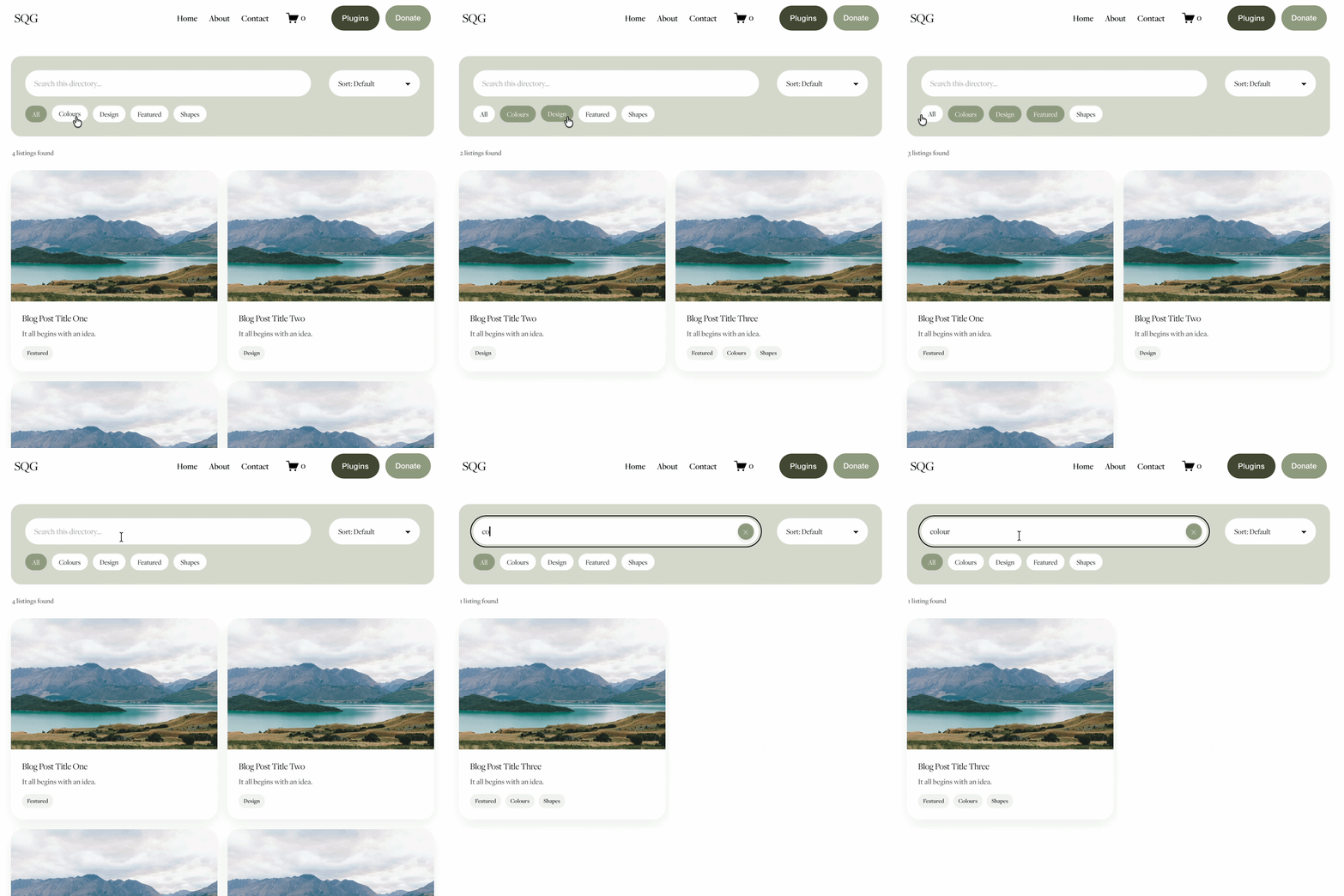

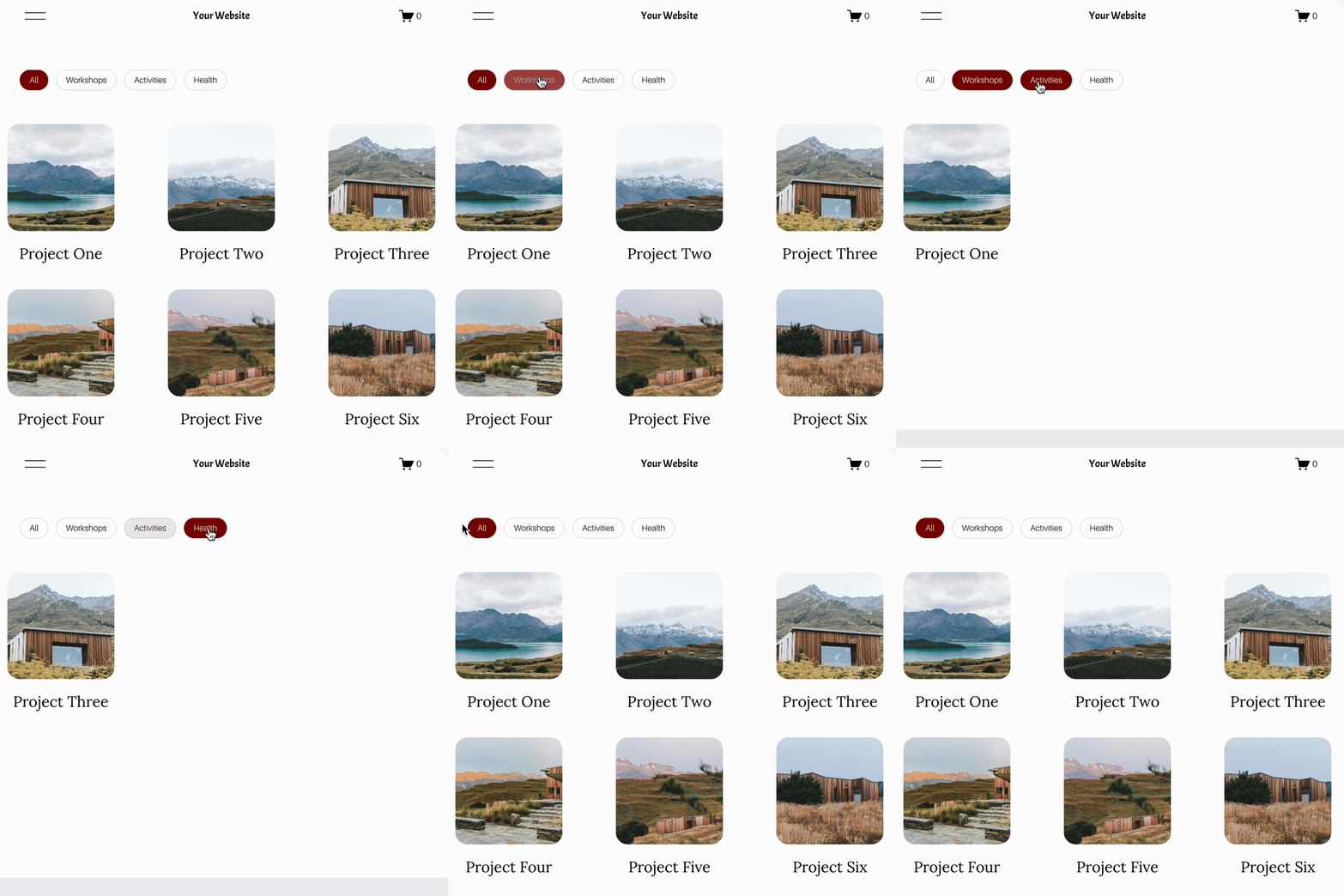


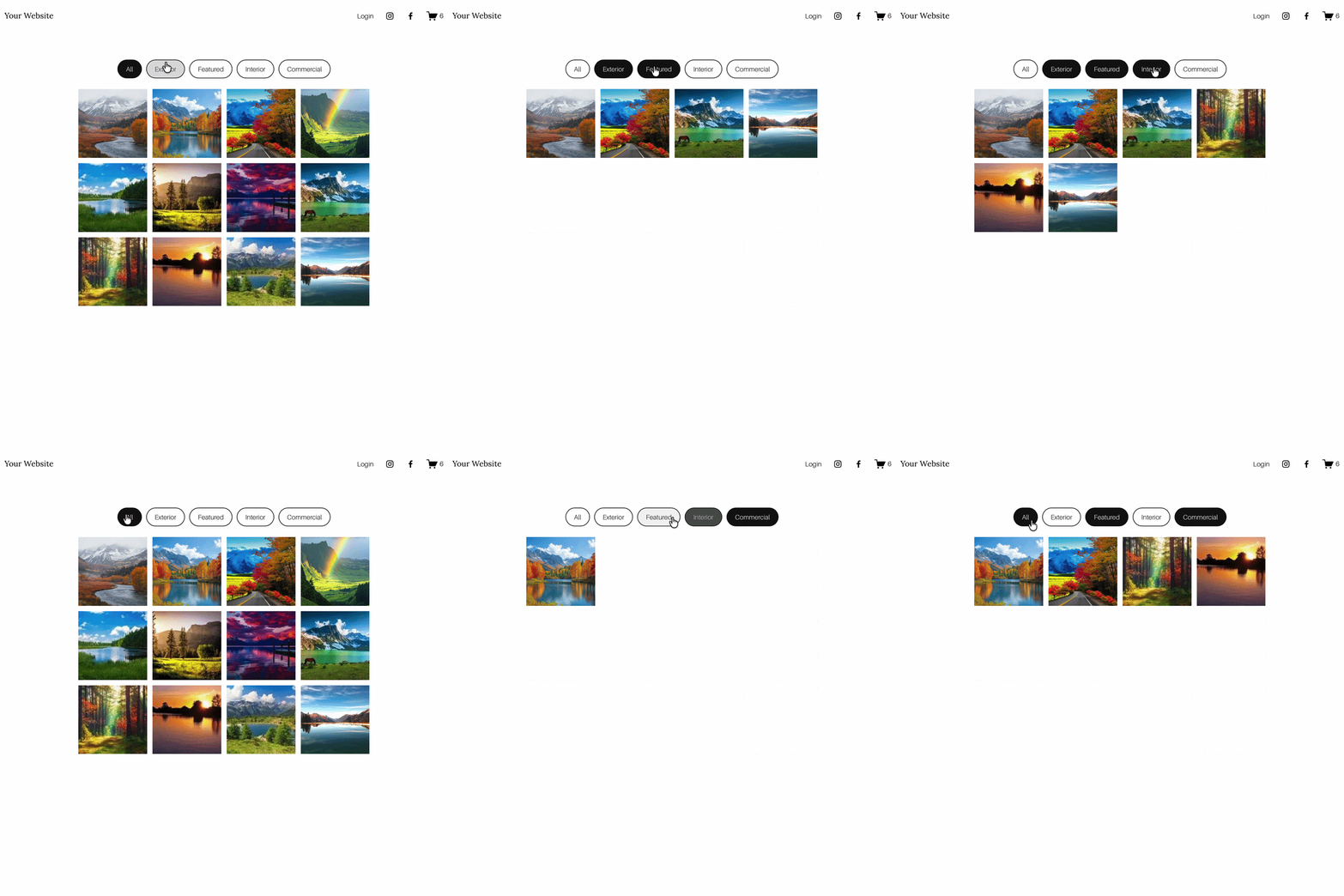
















Looking for an easy way to add filters to Squarespace?
The Genius Squarespace Filter Plugin helps you turn busy portfolio pages, blogs, event pages and galleries into a cleaner, easier to browse experience.
Visitors can quickly filter your content by category, topic, service, location, resource type or any labels you choose, instead of scrolling through everything.
Perfect for portfolios, blog archives, event listings, galleries (grid, masonry & strips only) resource hubs and larger content collections, this plugin gives your visitors a smoother way to explore your content without the cost or complexity of custom development.
Portfolio Filter Demo ➜
NEW Advanced Dropdown Portfolio Filter Demo ➜
Gallery Filter Demo ➜
Blog Filter Demo ➜
Event Filter Demo ➜
Key Features:
Simple to install and customise
Filter options for portfolio pages, galleries, blogs and events
Includes the new advanced dropdown portfolio filter
Ideal for Squarespace sites needing more in depth filtering options with a simple user experience
Beginner friendly setup with copy and paste instructions
Designed for Squarespace 7.1 websites