How to Create Squarespace Anchor Links (2026 Update)
Last updated: September 2026
Why Should You Create Squarespace Anchor Links?
As the digital landscape evolves, user experience becomes paramount. Anchor links prove to be a game-changer by allowing visitors to effortlessly jump to specific sections without the hassle of excessive clicks or endless scrolling.
Unlock the seamless navigation potential of your Squarespace website with the power of anchor links on your Squarespace website! In this guide, I'll walk you through the simple yet impactful process of creating Squarespace anchor links. Here’s two different options for creating Squarespace anchor links…
2026 update: Squarespace now has a built-in way to add anchor links to sections, with no code needed. I've added it below as the easiest option. My original code block method still works and is the one to use when you need to link to a specific spot inside a section, within a blog post, or to a section type the built-in tool doesn't support.
Option 1 (Easiest): Use Squarespace's Built-In Anchor Link Setting
If you're on Squarespace 7.1, you can now add an anchor link to a section without any code.
Step 1: Name your section
In edit mode, hover over the section you want to link to and click Edit Section. Find the Anchor Link field and type a short name, such as pricing or contact. Squarespace automatically adds the # and turns spaces into dashes.
Step 2: Link to it
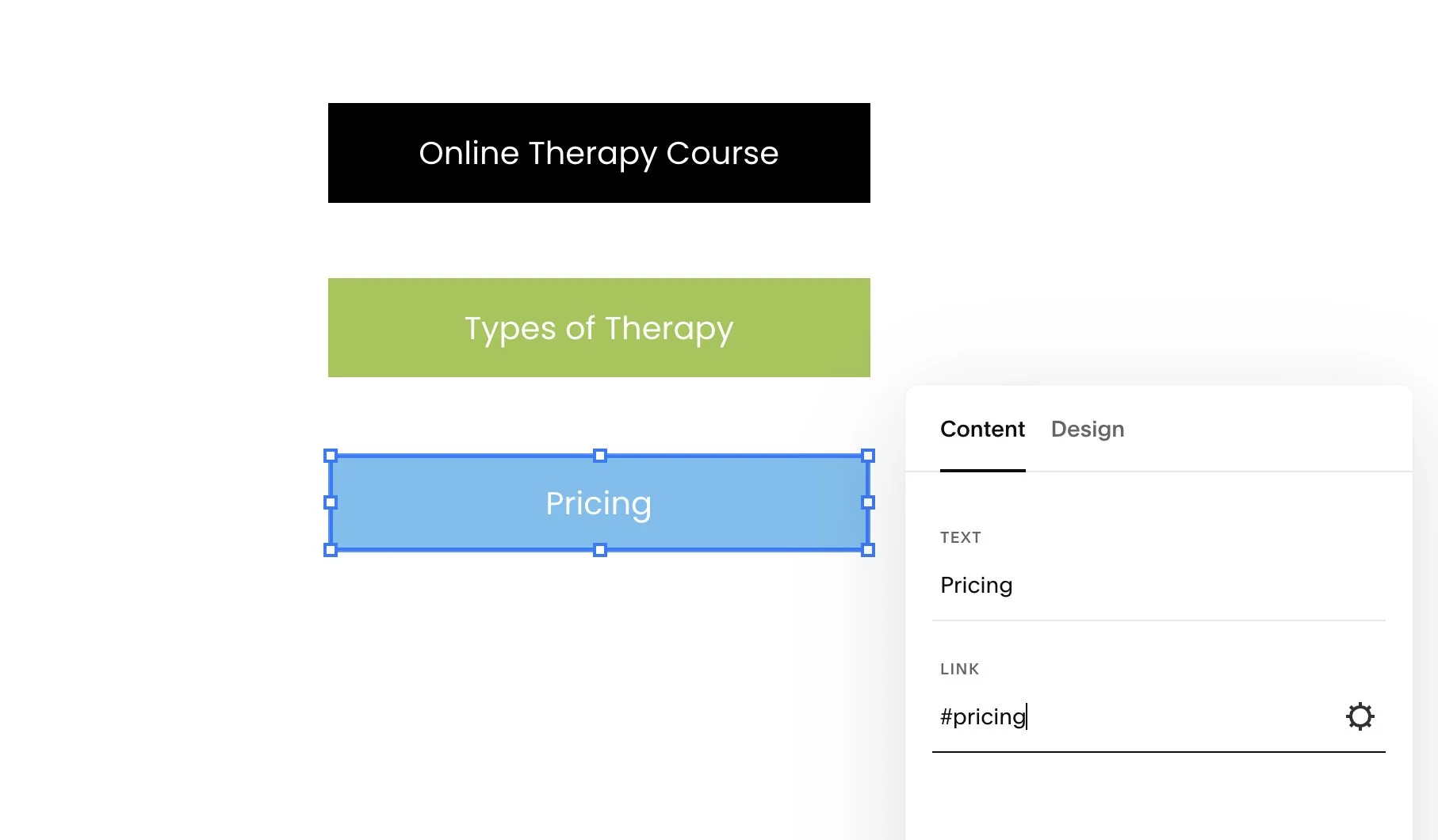
Edit your button or text link and enter #pricing (or whatever name you chose). To link from a different page, use the page URL followed by the anchor, for example /services#pricing.
Good to know:
Each anchor name can only be used once per page.
It works on standard sections, auto layouts, gallery, video and course sections, but not on blog, events, portfolio or store sections.
It anchors to the top of a section. To jump to a specific spot inside a section or within a blog post, use the code block method below.
Option 2: Create anchor links on the same page
First choose the section you want to anchor to. Then add a code block above the section.
Paste the following in the code block:
<div id="nameyouranchorlink"></div>
Change “nameyouranchorlink” with any name you like, keeping the speech marks in place. For example, I’m calling this section “pricing”. If your section name has multiple words, separate them with a hyphen (“my-pricing”). Then, click SAVE.
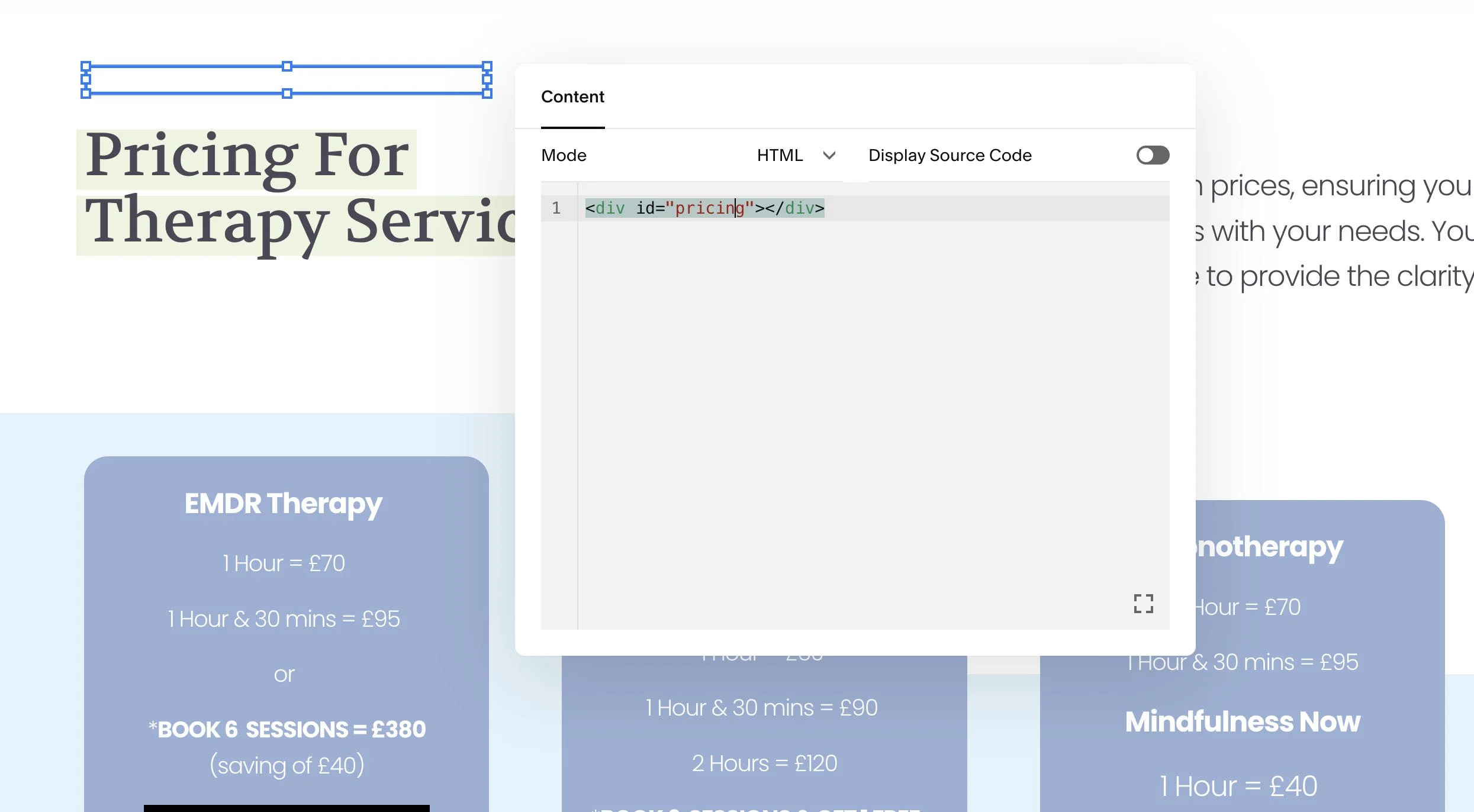
Next create a button (or a text link) whichever you prefer. Then add the name you chose in your code block with a hashtag before it #yourlinkname like the example shown below.
Option 3: Create an anchor link on a separate page
So this will be a similar process to option 1 with just one main difference.
First create your code block in the section you want to link to on your page.
Paste the following in the code block:
<div id="nameyoursection"></div>
Again, change the name inside the speech marks to any name you like.
Then it’s time to create your button or text link anywhere on your website. However, this time, instead of adding just #yourname you will need to add the URL of the seperate page that your code block link is on. For example:
/mypagename#nameyoursection

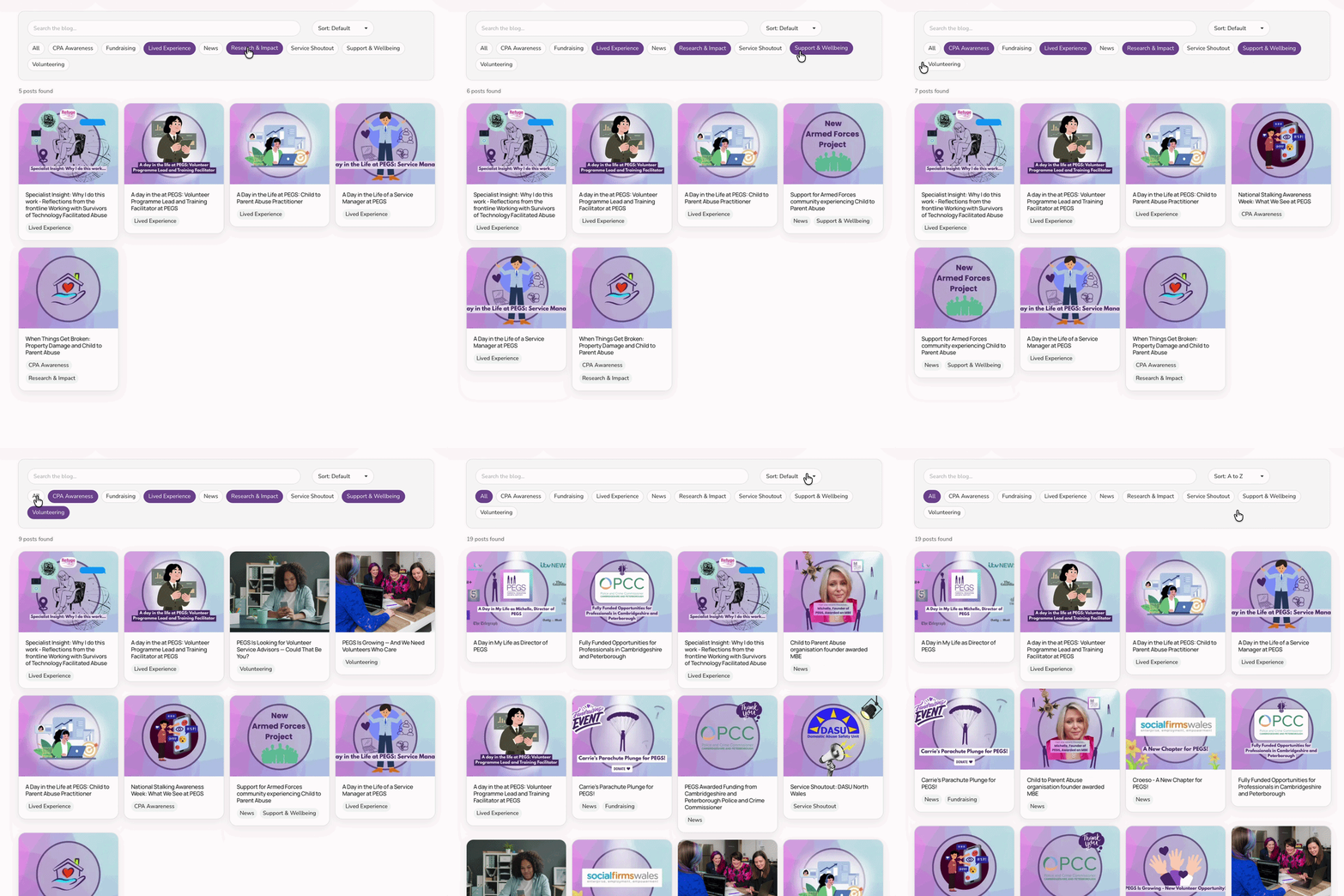
Got a page full of resources, members or services? Anchor links are great for jumping around a long page, but if you're listing lots of profiles or resources, visitors still have to scroll to find what they need. The Squarespace Directory Plugin turns them into a searchable, filterable directory, organised and professional, with no custom build needed.
Squarespace anchor links serve as the ultimate catalyst for enhancing user interaction on your website. By adopting this straightforward technique, you've empowered your audience to navigate with unparalleled ease, eliminating unnecessary steps and potential friction. The quick and easy implementation of anchor links showcases Squarespace's commitment to providing a user-friendly platform for creators and businesses alike. Now, with your newfound knowledge, you're equipped to elevate the browsing experience for your visitors, ensuring they seamlessly access the content that matters most. Embrace the efficiency of Squarespace anchor links and watch as your website becomes a beacon of user-centric design in the vast digital landscape.
So thats my guide on how create Squarespace anchor links. For more Squarespace tips and hacks sign up to my newsletter!
You might also be interested in my article about ‘How to create a directory in Squarespace’
Did I help you? Consider buying me a coffee as thanks!