

How to Add a Search Bar to Your Squarespace Blog
Quick Answer: To add a search bar to your Squarespace blog, add a search block above your blog and set it to search only your blog page. That's free and takes a couple of minutes. The native search block shows results in a list below the search field rather than filtering your blog itself. If you want search, category filters and your posts all working together on one page, you'll need a directory or filter plugin.
Why Does Your Squarespace Blog Need a Search Bar?
When a blog only has a handful of posts, people scroll. Once you're past 20 or 30, scrolling stops working. Readers land on your blog looking for one specific thing, can't see it, and leave.
A search bar fixes that. As a bonus, it shows you the words your readers actually use, which is handy for planning future posts.
Option 1: The Free Squarespace Search Block
Squarespace has a built-in search block, and you can limit it to just your blog:
Edit your blog page and add a section above the blog posts.
Click Add Block and choose Search.
Click the pencil icon to open the block settings.
In the Content tab, check Search Specific Page and choose your blog.
Add a short text line above it, such as "Search the blog", so readers know what it searches.
What are the limits of the native search block?
It's a good free option, but it's worth knowing what it doesn't do:
It doesn't filter your blog grid. Results appear as a separate list below the search field. Your posts underneath don't change.
It doesn't combine search with categories. Readers can't type a word and click a category at the same time.
The built-in /search page always searches your whole site, not just the blog.
For a small blog, that's often fine. For a bigger blog, a resource hub, or anything that feels more like a library than a diary, readers expect search and filters to work together.
Option 2: Search and Category Filters Together with the Directory Plugin
This is what I use on my own blog. The Squarespace Directory Plugin turns a standard Squarespace blog page into a searchable directory.
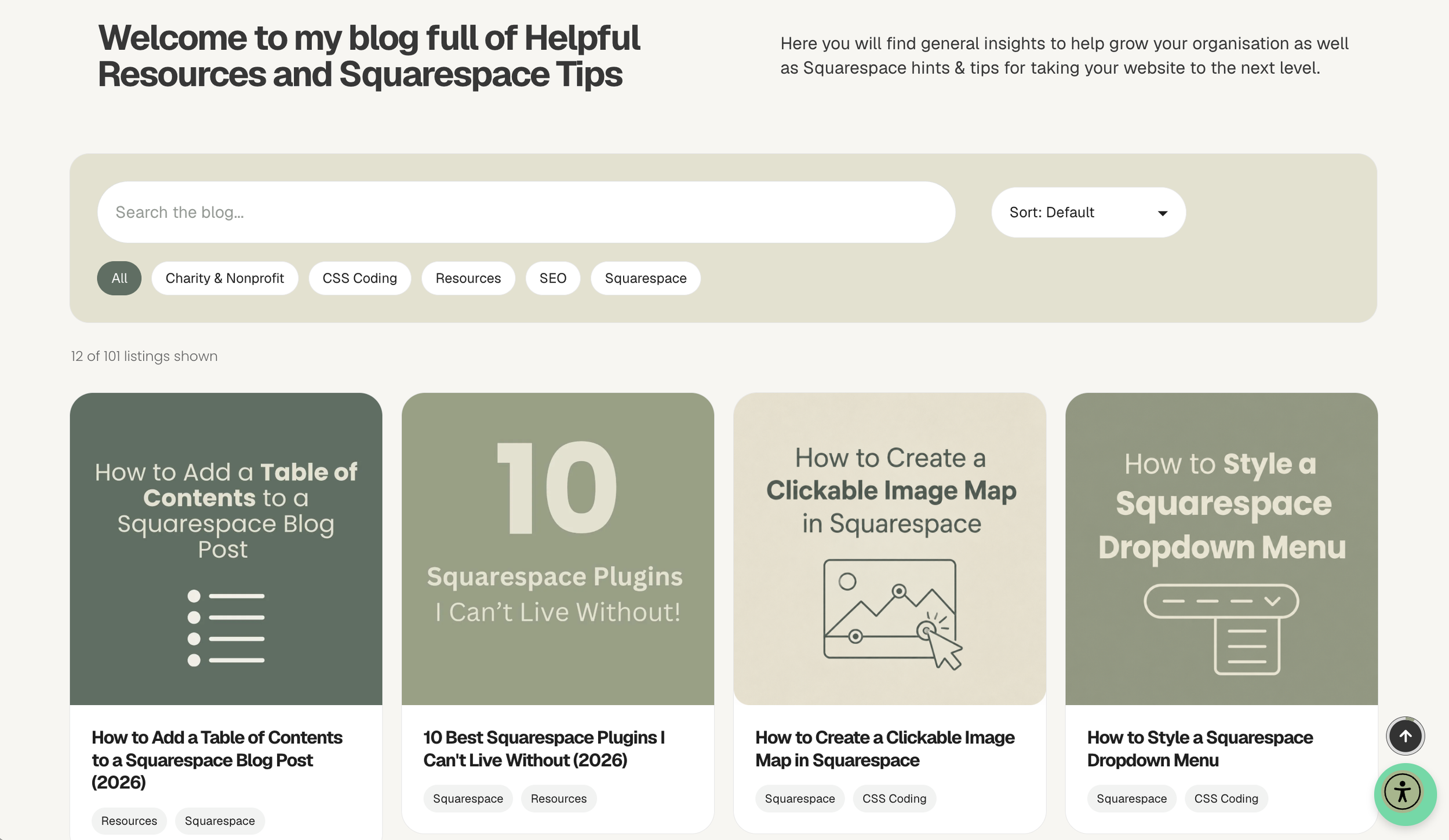
Type "directory" into the search bar, and the page instantly narrows to the three posts that match. There's no separate results page.
On my blog, readers get:
A search bar that filters the posts on the page as they type
Category filter buttons (All, Charity & Nonprofit, CSS Coding, Resources, SEO, Squarespace) that work alongside the search
A sort dropdown and a results count, so readers know exactly how many posts match
Clean cards with the post image, title and category labels
You still write and manage everything as normal blog posts. New posts appear in the directory automatically.
How to set it up
Tidy your categories first. The plugin's filter buttons use your blog categories, not tags, so keep them short and useful. Five or six broad categories is plenty.
Check your post titles and excerpts. Clear, descriptive titles make search results far more useful.
Install the Directory Plugin by copying and pasting the code, following the step-by-step instructions.
Test it on your phone. Try a few searches and every category button.
Only want category filters, not search?
If you just need clickable category filters on your blog, see my guide to adding filters to a Squarespace blog.
If you need several filter dropdowns at once across blogs, shops and events, Universal Filter by Square Websites includes live search and multi-criteria filtering, though it takes more time to set up and costs a lot more than the Square Genius Directory Plugin
Native Search Block vs Directory Plugin
The native search block is best if:
Your blog is small and you want something free
A separate list of results is fine for your readers
The Directory Plugin is best if:
Your blog is growing and readers need to find older posts
You want search and category filters working together
You'd like your blog to feel like a proper resource hub
Who Is This For?
Bloggers and tutorial sites with a growing archive of posts
Charities and nonprofits sharing guides, news and resources
Coaches and consultants whose blog doubles as a knowledge base
Designers who want client blogs to feel organised from day one
FAQs: Squarespace Blog Search Bar
-
Yes. Add a search block above your blog and set it to search only your blog page. For a search bar that filters your posts in place, alongside category filters, you need a plugin.
-
Yes. In the search block settings, check Search Specific Page and choose your blog. The built-in search page at /search always searches your whole site.
-
The search block shows its results in a list below the search field rather than filtering the blog grid itself. Your posts stay as they are, so visitors see a separate list of matching results.
-
Not with built-in tools. Squarespace's search block and blog categories work separately. A directory or filter plugin lets visitors type a search term and click a category on the same page.
-
Not directly, but it helps visitors find more of your posts, which keeps them on your site for longer. Clear titles, excerpts and categories improve both your search results and how search engines understand your content.
Did I help you? Consider buying me a coffee as thanks!
Looking for more ways to make your Squarespace website stand out? Browse the full range of Squarespace plugins.
You might also find these helpful:
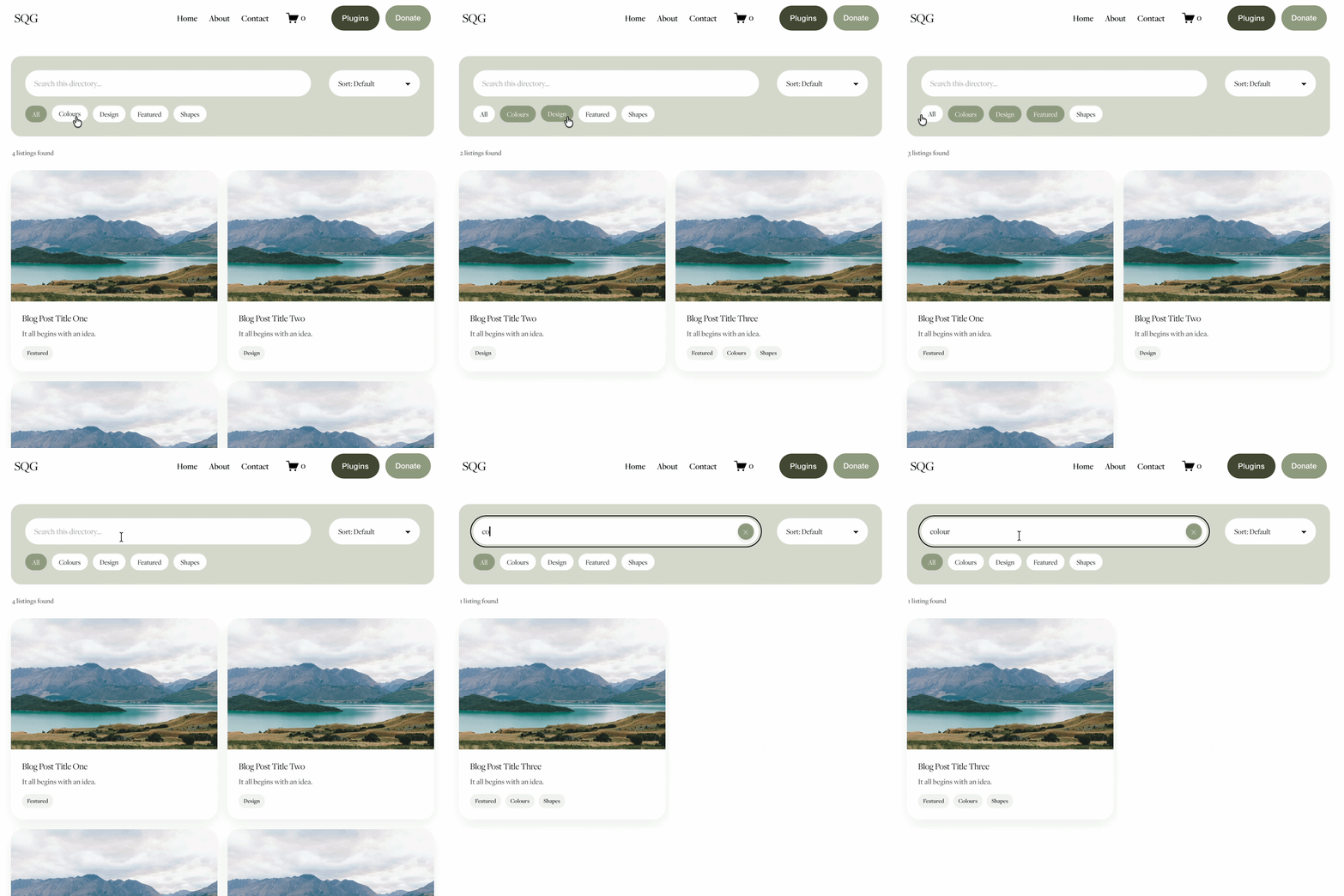

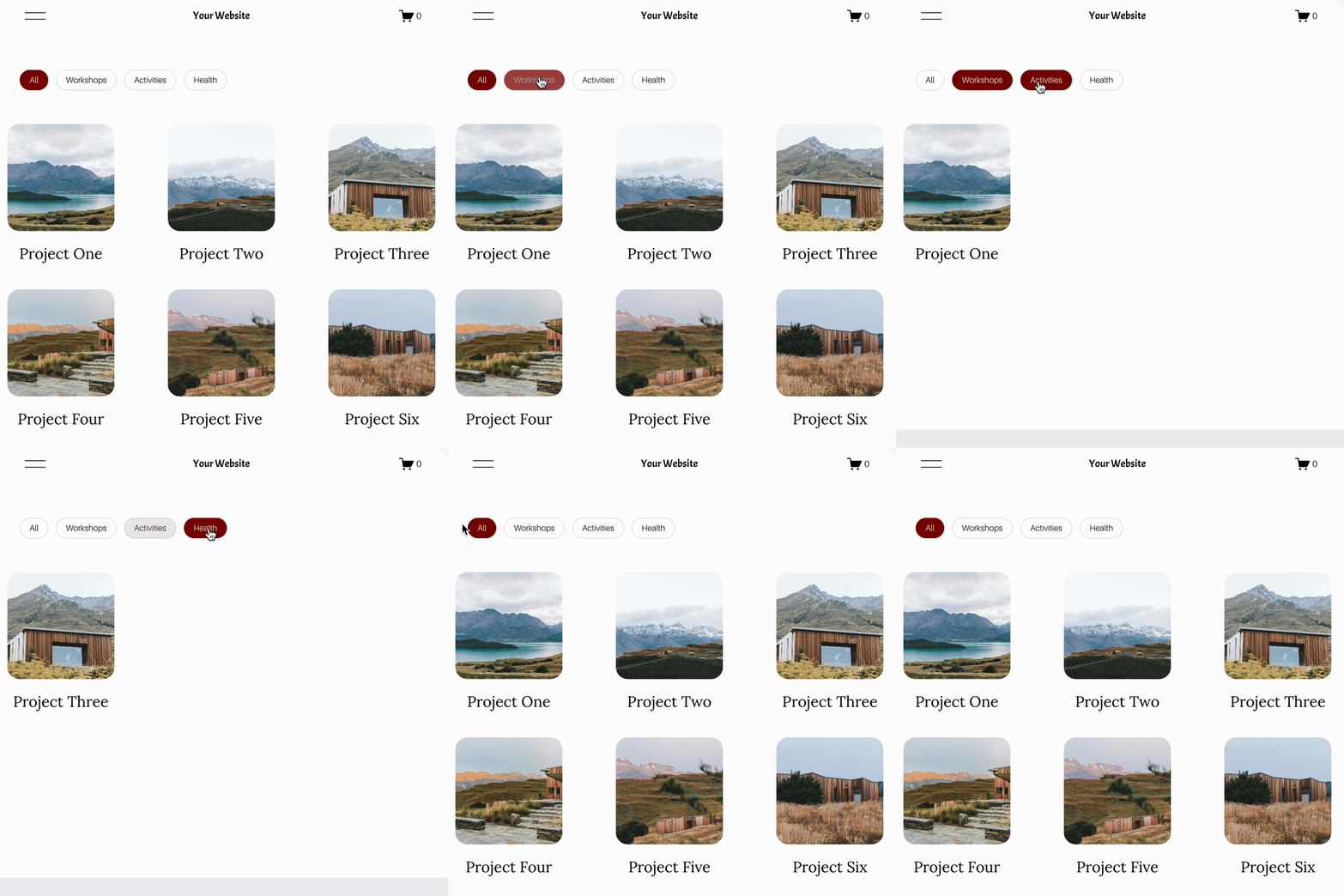



Looking for an easy way to add filters to Squarespace?
The Genius Squarespace Filter Plugin helps you turn busy portfolio pages, blogs, event pages and galleries into a cleaner, easier to browse experience.
Visitors can quickly filter your content by category, topic, service, location, resource type or any labels you choose, instead of scrolling through everything.
Perfect for portfolios, blog archives, event listings, galleries (grid, masonry & strips only) resource hubs and larger content collections, this plugin gives your visitors a smoother way to explore your content without the cost or complexity of custom development.
Portfolio Filter Demo ➜
NEW Advanced Dropdown Portfolio Filter Demo ➜
Gallery Filter Demo ➜
Blog Filter Demo ➜
Event Filter Demo ➜
Key Features:
Simple to install and customise
Filter options for portfolio pages, galleries, blogs and events
Includes the new advanced dropdown portfolio filter
Ideal for Squarespace sites needing more in depth filtering options with a simple user experience
Beginner friendly setup with copy and paste instructions
Designed for Squarespace 7.1 websites