

How to Display Sponsor Logos on Squarespace

How to Display Sponsor Logos on Squarespace
Quick Answer: The easiest way to display sponsor logos on Squarespace is with a logo section on your homepage or event page. That can be a static grid of image blocks, or a scrolling logo carousel that keeps every sponsor visible without taking up a whole page. Squarespace doesn't have a native logo carousel, so for a scrolling version you'll need custom code or a plugin.
Why Do Sponsor Logos Matter on Your Website?
If you've promised sponsors logo placement, your website is where they'll check you've delivered. Sponsor logos also do a quiet job for everyone else. Donors, attendees and future sponsors see who already backs you, and that builds trust fast.
This time of year it matters even more. Autumn fundraising events, Giving Tuesday and festive appeals all bring new sponsors and partners. A tidy, easy-to-update logo section saves a lot of last-minute scrambling.
Where Should Sponsor Logos Go?
Homepage: a slim logo strip near the bottom, before your footer
Event pages: sponsors of that specific event, close to the booking button
A dedicated Sponsors page: the place for tiers, thank-yous and "become a sponsor" information
After-event thank-you posts: a nice extra for sponsors to share
Option 1: A Static Logo Grid
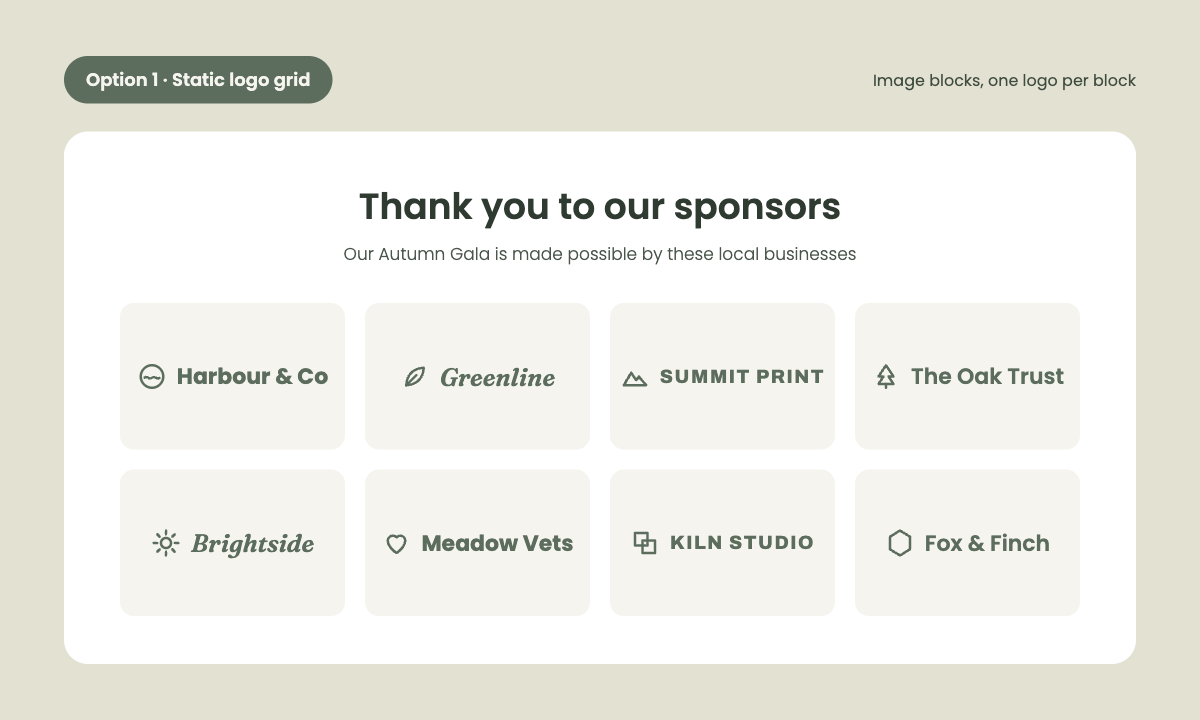
Add a section with image blocks, one logo per block, laid out in a grid.
Good for: a small number of sponsors, and when each logo needs its own link.
Watch out for: with more than 8–10 logos, the grid takes up a lot of space and can wrap awkwardly on mobile. Every change means rearranging blocks.
Option 2: A Scrolling Logo Carousel

The Squarespace Scrolling Logos Carousel Plugin adds a smooth, continuously scrolling strip of logos. It's built on Squarespace's native list section, so you can add, remove and reorder logos in the editor without touching code.
It can also run on two rows scrolling in opposite directions, which is handy when you have a lot of sponsors.
How to set it up
Add a list section to your page.
Add each sponsor logo as a list item.
Install the plugin by copying and pasting the code, following the step-by-step instructions.
Choose one row or two, and preview on desktop and mobile.
How Do You Show Different Sponsor Tiers?
A few approaches that work well:
Headline sponsors as a static row at the top, larger, with supporters in the scrolling carousel below
Two scrolling rows: headline and gold sponsors on the first row, everyone else on the second
A dedicated Sponsors page with a heading per tier, and a scrolling strip on the homepage linking to it
Tips for Logos That Look Polished
Use the same canvas size for every logo, so small logos don't look tiny next to big ones.
Use transparent PNG or SVG files where you can.
Use single-colour versions (all white or all grey) for a calm, consistent strip, if sponsors' brand guidelines allow it.
Add alt text to every logo, such as "Sponsor Name logo".
Keep a plain list of sponsor names on your Sponsors page as well. Scrolling content is easy to miss, and a static list is friendlier for screen readers.
Who Is This For?
Charities and nonprofits recognising event sponsors and corporate partners
Event organisers fulfilling sponsor benefits
Sports clubs and community groups with local business sponsors
Agencies and freelancers showing client logos or "as seen in" press mentions
FAQs: Sponsor Logos on Squarespace
-
Add a section to your homepage or event page and either place the logos in image blocks as a grid, or use a logo carousel plugin to scroll them. A dedicated sponsors page is useful if you have different sponsorship tiers.
-
No. Squarespace doesn't have a built-in scrolling logo carousel. You can create one with custom code or use a plugin such as the Scrolling Logos Carousel Plugin, which is built on Squarespace's native list section.
-
Yes, if the link is part of a paid sponsorship. Google asks for paid links to be marked with the sponsored or nofollow rel attribute. Squarespace's link tool can't add this, so use a Code Block for linked sponsor logos.
-
Yes. The Scrolling Logos Carousel Plugin supports two rows scrolling in opposite directions, which works well for separating headline sponsors from supporters.
-
With the Scrolling Logos Carousel Plugin, logos live in a native Squarespace list section, so you can add, remove or reorder them in the editor without touching code.
Did I help you? Consider buying me a coffee as thanks!
Looking for more ways to make your Squarespace website stand out?
Browse the full range of Squarespace plugins.


You might also find these helpful:




Looking for an easy way to add filters to Squarespace?
The Genius Squarespace Filter Plugin helps you turn busy portfolio pages, blogs, event pages and galleries into a cleaner, easier to browse experience.
Visitors can quickly filter your content by category, topic, service, location, resource type or any labels you choose, instead of scrolling through everything.
Perfect for portfolios, blog archives, event listings, galleries (grid, masonry & strips only) resource hubs and larger content collections, this plugin gives your visitors a smoother way to explore your content without the cost or complexity of custom development.
Portfolio Filter Demo ➜
NEW Advanced Dropdown Portfolio Filter Demo ➜
Gallery Filter Demo ➜
Blog Filter Demo ➜
Event Filter Demo ➜
Key Features:
Simple to install and customise
Filter options for portfolio pages, galleries, blogs and events
Includes the new advanced dropdown portfolio filter
Ideal for Squarespace sites needing more in depth filtering options with a simple user experience
Beginner friendly setup with copy and paste instructions
Designed for Squarespace 7.1 websites