

How to Add Animated Number Stats to Your Squarespace Website
Quick Answer: Squarespace doesn't have a native animated counter block, so to add animated number stats you need to either add custom HTML, CSS, and JavaScript via a Code Block, or use a dedicated Squarespace counter plugin. The plugin route gives you a polished, mobile-ready stats section without needing to write code from scratch.
If you've ever landed on a website and seen numbers counting up — "500+ clients served", "£1.2M raised", "98% satisfaction rate" — you'll know exactly how effective they are. They're eye-catching, credibility-building, and they communicate impact at a glance.
The problem is that Squarespace has no native animated counter block. So if you want that effect on your site, you need to know your options. This guide covers both approaches so you can choose what works for you.
Why Do Animated Number Stats Work on a Website?
Animated counters work because movement draws attention. When a number ticks up from zero, visitors naturally stop and watch — and while they're watching, they're absorbing your key credibility markers. Whether that's years in business, customers helped, funds raised, or projects completed, seeing numbers count up makes them feel more compelling than a static figure sitting in a text block.
For charities and nonprofits especially, animated impact stats are one of the most powerful trust-builders you can put on a homepage. Visitors want to know their support means something, and a well-designed stats section answers that before they've had to ask.
Can You Add Animated Counters to Squarespace Without a Plugin?
Yes — but it requires custom code. Squarespace 7.1 allows you to add HTML, CSS, and JavaScript via a Code Block, which means you can build a basic animated counter manually. Here's how it works.
Step 1: Add a Code Block
Go to the page or section where you want your stats to appear and add a Code Block.
Step 2: Add Your HTML Structure
Each stat needs a container, a number element (which JavaScript will animate), and a label beneath it.
Step 3: Add the JavaScript
The script uses an Intersection Observer to detect when the stats section scrolls into view, then triggers the count-up animation for each number.
Step 4: Style With CSS
Add card backgrounds, font sizes, colours, icon styles, and spacing to match your brand.
Step 5: Test on Mobile
Stats sections are commonly displayed in a row on desktop. You'll need to check they stack correctly on smaller screens and adjust your CSS accordingly.
This approach works and costs nothing, but it comes with real limitations worth knowing before you start.
It takes time. Writing the code, getting the layout right across screen sizes, and dialling in the animation timing is not a quick job — especially without a development background.
Responsiveness is fiddly. Getting stats cards to stack neatly on mobile requires CSS Grid or Flexbox knowledge and usually several rounds of testing.
Customising it later isn't straightforward. Want to change the card design, add icons, or adjust the animation speed? You'll need to go back into the code each time.
It won't look polished straight away. A bare-bones DIY counter will function, but making it look like a professional stats section requires design skill on top of the code.
If you want a proof of concept and you're comfortable with code, the manual route is fine. If you want something that looks great and is easy to maintain, a plugin is the smarter choice.
What Is the Easiest Way to Add Animated Stats to Squarespace?
The fastest, cleanest route is to use the Squarespace Counter Plugin from The Square Genius — a lightweight, copy-paste plugin built specifically for Squarespace 7.1.
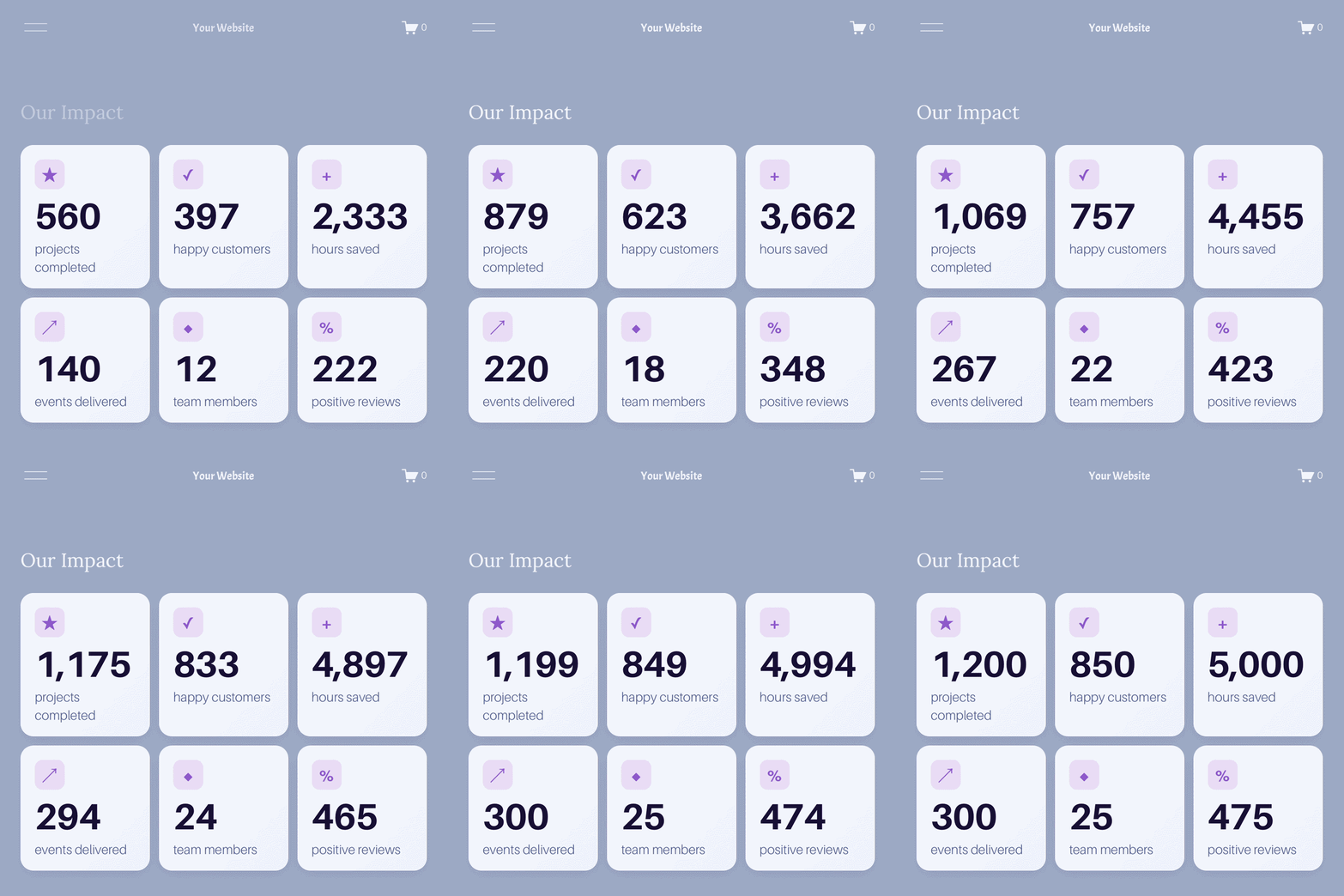
Instead of writing everything from scratch, you get a fully designed, animated stats section that you simply customise with your own numbers, labels, colours, and icons. It uses the same Code Block method under the hood, but all the design and development work is already done.
What the Squarespace Counter Plugin Includes
Animated number counters that trigger on scroll into view
Clean, modern stats card layout
Fully customisable numbers, labels, icons, colours, and fonts
Mobile responsive out of the box
One-time purchase — no monthly subscription, no extra apps
How to Install the Counter Plugin
Add a Code Block to your Squarespace page
Paste in the code and update the numbers and labels
Adjust colours and styles using the clearly commented CSS variables
Publish — your animated stats section is live
No developer needed. No third-party app to connect. No recurring fee.
Who Should Use an Animated Stats Section on Their Squarespace Site?
An animated counter section works for almost any Squarespace website, but it's particularly effective for:
Charities and nonprofits — displaying impact numbers, funds raised, people supported, or volunteers recruited
Businesses and agencies — showcasing customers served, projects completed, or years of experience
Coaches and consultants — highlighting session numbers, client results, or five-star reviews
Ecommerce stores — showing orders shipped, happy customers, or return customer rates
Freelancers and creatives — displaying portfolio highlights, clients worked with, or hours of expertise
What Numbers Should You Put in a Squarespace Stats Section?
The most effective stats sections use three to six figures that are genuinely meaningful to your audience. Here are ideas by site type:
Charities and nonprofits: people supported, funds raised, volunteers, years active, meals provided, families helped, projects delivered
Service businesses: clients served, years of experience, projects completed, five-star reviews, countries worked in
Ecommerce: orders shipped, happy customers, products available, return customer rate
Coaches and consultants: sessions delivered, clients worked with, success rate, hours of expertise
Pick numbers that are impressive and relevant — not just big for the sake of it. If a figure doesn't directly reinforce why someone should trust or choose you, leave it out.
Where Should You Place a Stats Section on Your Squarespace Website?
Stats sections work best where trust needs to be built quickly. The most effective placements are:
Homepage — in the first or second scroll, directly after your hero section
About page — alongside your story, to back up your experience with hard evidence
Services or work with me page — to reinforce credibility just before a call to action
Charity impact page — as the centrepiece of a dedicated impact or annual report section
Avoid placing your stats section at the very bottom of a long page. These numbers deserve to be seen — put them where visitors will actually reach them.
FAQs: Animated Number Stats on Squarespace
-
No. Squarespace 7.1 does not have a native animated number counter block. To add animated stats you need to use a Code Block with custom JavaScript and CSS, or install a dedicated Squarespace counter plugin.
-
Yes. The easiest way to add an animated counter to Squarespace without writing code yourself is to use a counter plugin. The Squarespace Counter Plugin from The Square Genius is a copy-paste solution that works on any Squarespace 7.1 site.
-
Yes. The plugin is fully responsive and designed to display correctly across desktop, tablet, and mobile screens.
-
Yes. The plugin uses commented CSS variables, so you can change card backgrounds, text colours, icon colours, font sizes, and spacing to match your brand without needing to understand the full code.
-
The plugin is compatible with all Squarespace 7.1 websites. It does not work with Squarespace 7.0.
-
Between three and six stats is the recommended range. Fewer than three can feel sparse; more than six starts to overwhelm visitors and dilutes the impact of each individual figure.
-
No. The plugin is designed to be installed by anyone comfortable copying and pasting code into a Squarespace Code Block. Clear instructions are included with the purchase.
Looking for more ways to make your Squarespace website stand out? Browse the full range of Squarespace plugins at The Square Genius.
Did I help you? Consider buying me a coffee as thanks!
More Squarespace Plugins from The Square Genius:

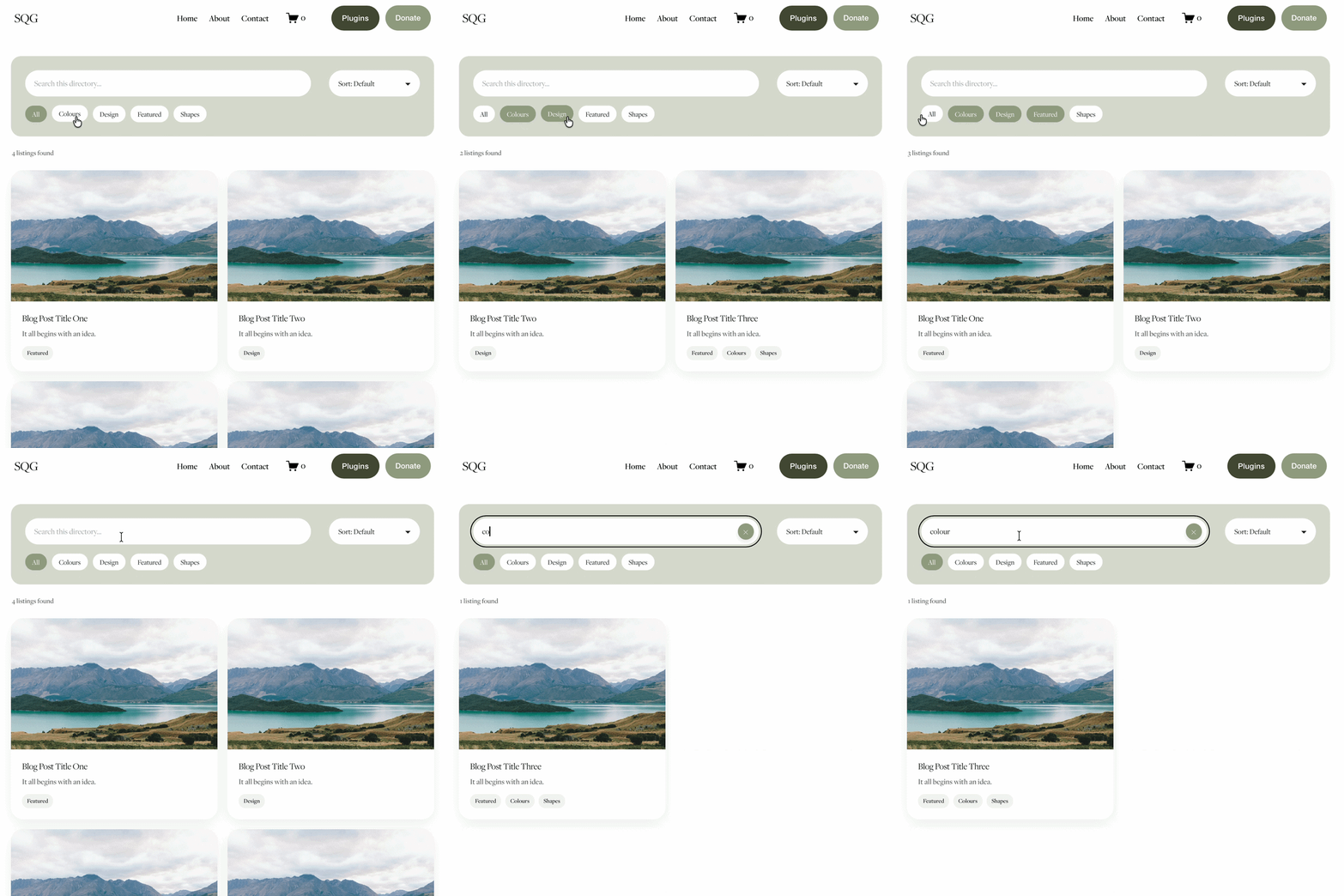
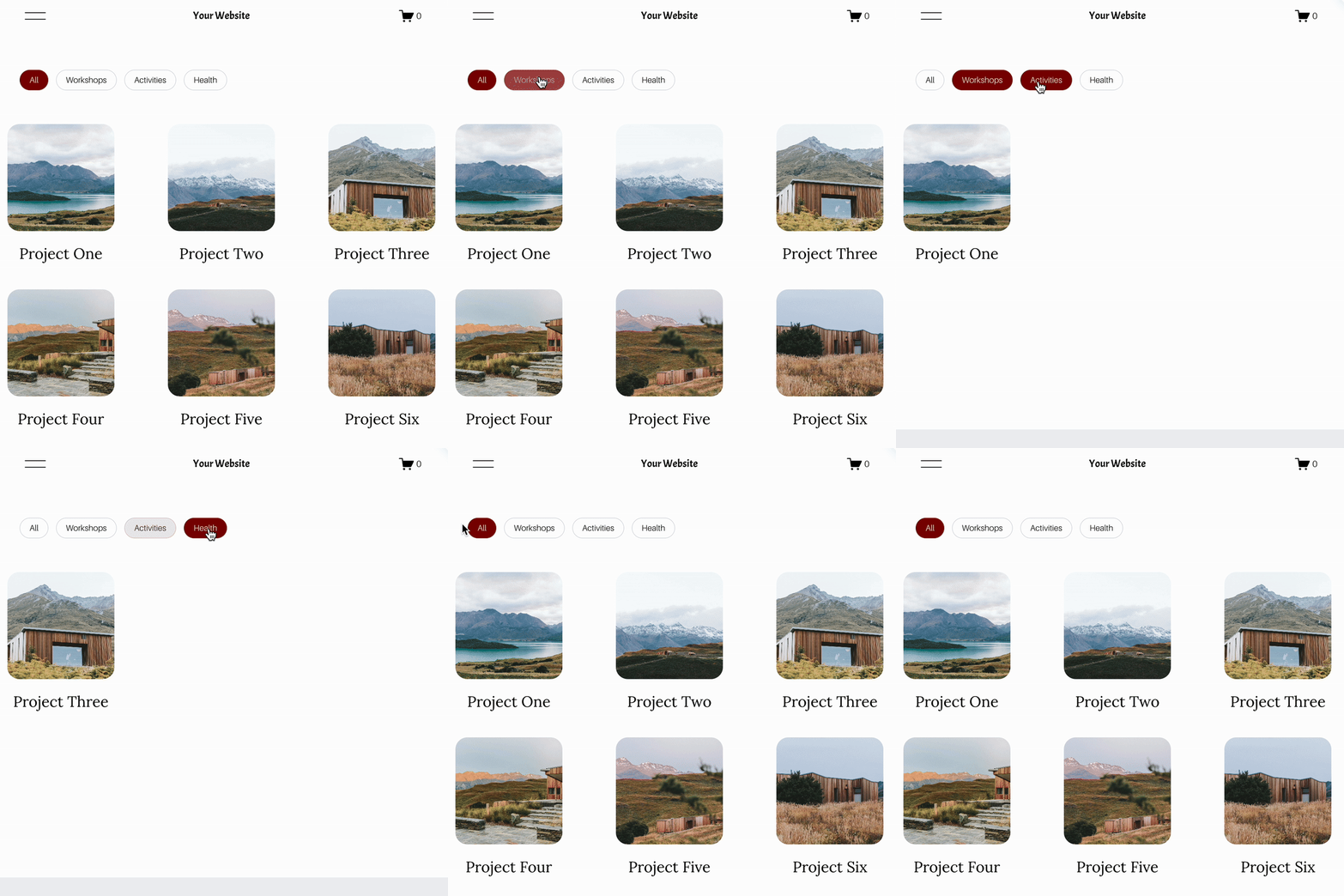
Looking for an easy way to add filters to Squarespace?
The Genius Squarespace Filter Plugin helps you turn busy portfolio pages, blogs, event pages and galleries into a cleaner, easier to browse experience.
Visitors can quickly filter your content by category, topic, service, location, resource type or any labels you choose, instead of scrolling through everything.
Perfect for portfolios, blog archives, event listings, galleries (grid, masonry & strips only) resource hubs and larger content collections, this plugin gives your visitors a smoother way to explore your content without the cost or complexity of custom development.
NEW Advanced Dropdown Portfolio Filter Demo ➜
Key Features:
Simple to install and customise
Filter options for portfolio pages, galleries, blogs and events
Includes the new advanced dropdown portfolio filter
Ideal for Squarespace sites needing more in depth filtering options with a simple user experience
Beginner friendly setup with copy and paste instructions
Designed for Squarespace 7.1 websites







Looking for an easy way to add filters to Squarespace?
The Genius Squarespace Filter Plugin helps you turn busy portfolio pages, blogs, event pages and galleries into a cleaner, easier to browse experience.
Visitors can quickly filter your content by category, topic, service, location, resource type or any labels you choose, instead of scrolling through everything.
Perfect for portfolios, blog archives, event listings, galleries (grid, masonry & strips only) resource hubs and larger content collections, this plugin gives your visitors a smoother way to explore your content without the cost or complexity of custom development.
Portfolio Filter Demo ➜
NEW Advanced Dropdown Portfolio Filter Demo ➜
Gallery Filter Demo ➜
Blog Filter Demo ➜
Event Filter Demo ➜
Key Features:
Simple to install and customise
Filter options for portfolio pages, galleries, blogs and events
Includes the new advanced dropdown portfolio filter
Ideal for Squarespace sites needing more in depth filtering options with a simple user experience
Beginner friendly setup with copy and paste instructions
Designed for Squarespace 7.1 websites