
Free Squarespace Before After Slider
Last updated 27/05/2026
Squarespace Before After Slider: How to Install & Use It on Your Website
A Squarespace Before After Slider is one of the most powerful visual tools you can add to your website. Instead of telling people what’s changed, improved, or transformed, you let them see it instantly.
Whether you’re showcasing:
a website redesign
branding before and after
photography edits
charity impact projects
home, interior, or exterior transformations
a before and after slider makes your content more engaging, more memorable, and far more convincing.
This guide shows you exactly how to install and use the Squarespace Before After Slider, step by step.
Why use a Squarespace Before After Slider?
A before and after slider:
instantly shows progress or transformation
keeps visitors interacting with your content
works brilliantly for case studies and portfolios
helps tell a clear visual story without extra text
looks polished and professional
It’s especially effective for designers, charities, photographers, videographers, and purpose-led organisations that want to show impact, not just talk about it.
What you need before installing
Before you start, make sure you have:
Two image URLs (Before and After)
Access to Custom CSS
Access to Code Injection in Squarespace
You only need to install the CSS and JavaScript once. After that, you can add sliders anywhere using a simple code block.
Step 1: Add the CSS
Go to Pages > Scroll down to Custom Code > Custom CSS
Paste in the CSS provided below and hit save
This controls the layout, handle, labels, and overall appearance of the slider.
Step 2: Add the JavaScript
Go to Pages > Scroll down to Custom Code > Code Injection
Paste the JavaScript into the Footer Area
Step 3: Add the slider to a page
To add your Squarespace Before After Slider anywhere on your site:
Edit the page
Add a Code Block
Paste the slider HTML below
Replace the image URLs with your own
Change label text within the code block y updating this part of the code:
data-label-before="Old version"
data-label-after="New version"
Change the data start number (the arrow position) in the html code block:
data-start="65">
A Squarespace Before After Slider is one of those small additions that makes a huge difference. It adds interaction, clarity, and visual storytelling to your website without slowing it down or complicating your layout.
If you regularly show transformations, improvements, or impact, this plugin is an easy win — and a brilliant way to keep visitors engaged.
Did I help you? Consider buying me a coffee as thanks!
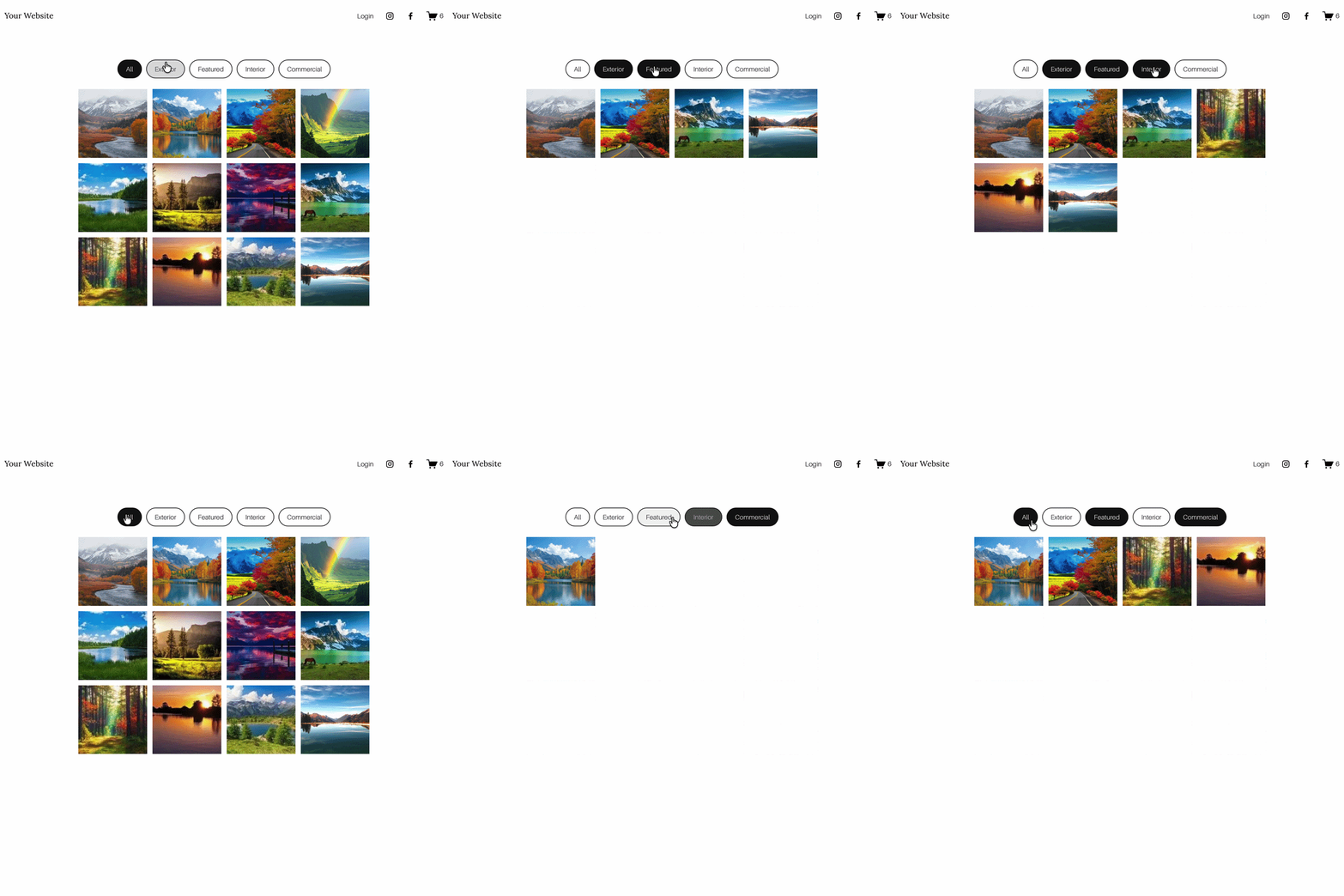
Looking for an easy way to add filters to Squarespace?
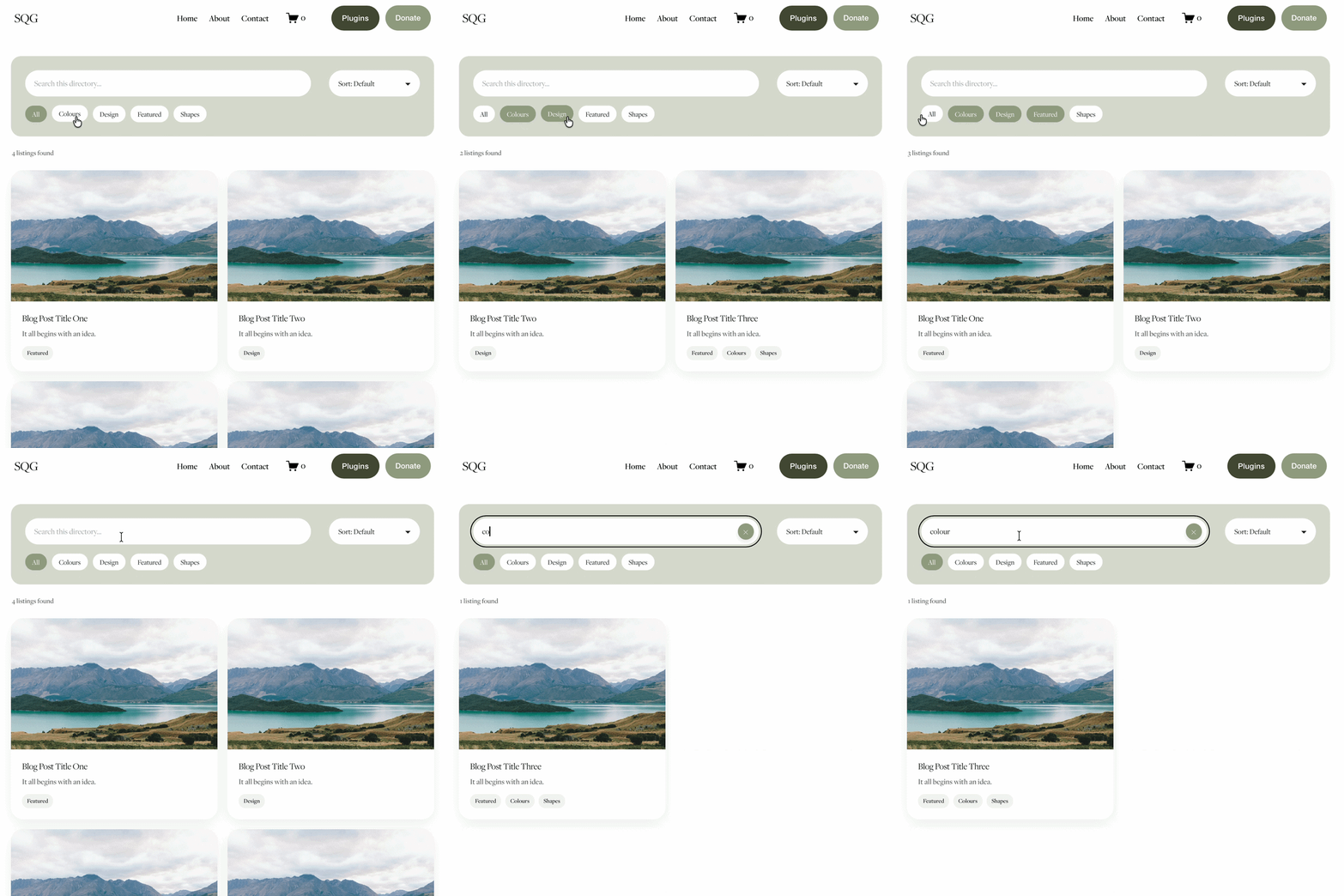
The Genius Squarespace Filter Plugin helps you turn busy portfolio pages, blogs, event pages and gallery blocks into a cleaner, easier to browse experience.
Visitors can quickly filter your content by category, topic, service, location, resource type or any labels you choose, instead of scrolling through everything.
Perfect for portfolios, blog archives, event listings, gallery blocks, resource hubs and larger content collections, this plugin gives your visitors a smoother way to explore your content without the cost or complexity of custom development.
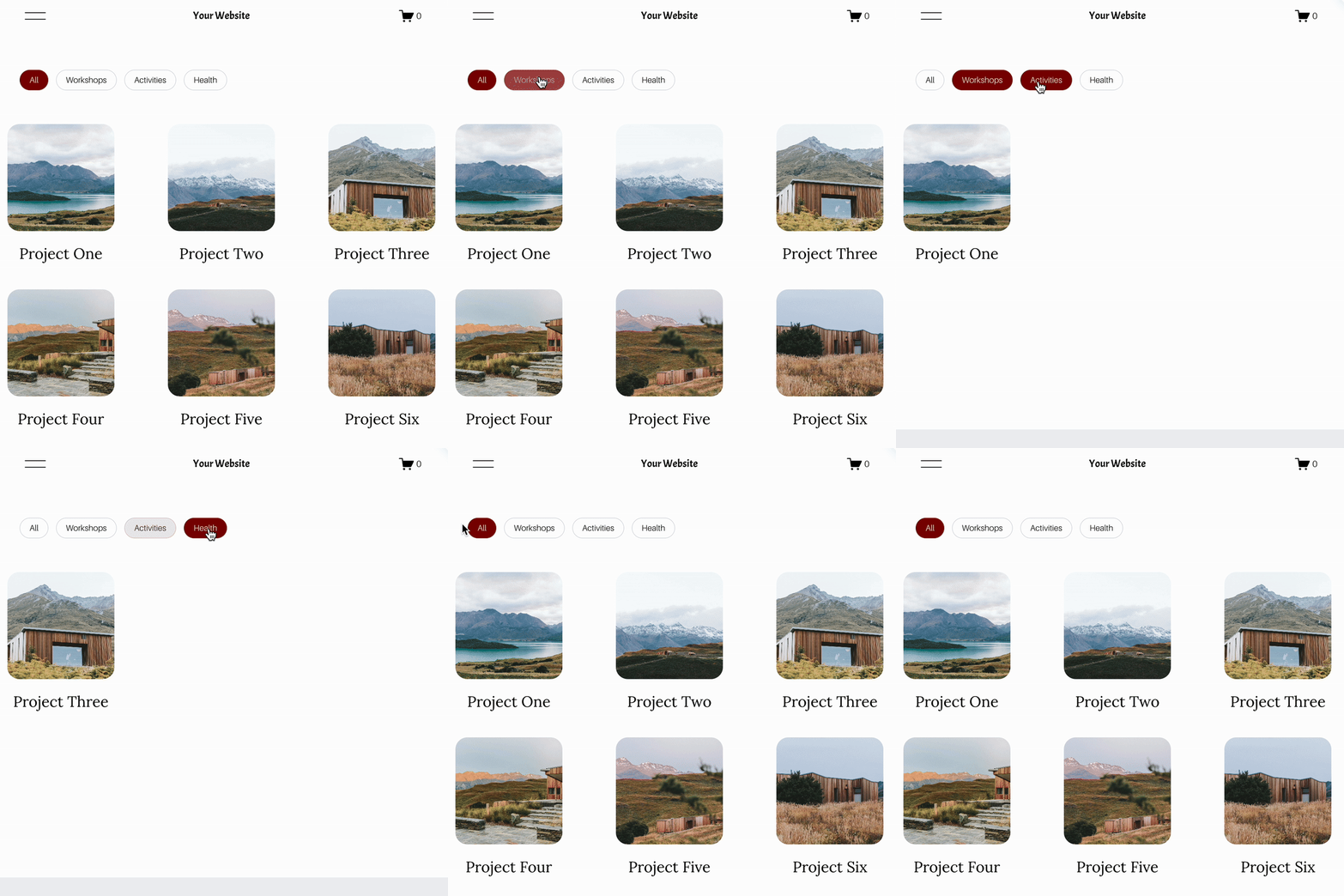
NEW Advanced Dropdown Portfolio Filter Demo ➜
Key Features:
Simple to install and customise
Filter options for portfolio pages, gallery blocks, blogs and events
Includes the new advanced dropdown portfolio filter
Ideal for Squarespace sites needing more in depth filtering options with a simple user experience
Beginner friendly setup with copy and paste instructions
Designed for Squarespace 7.1 websites